

432
Chapter 14 See the World in 3D
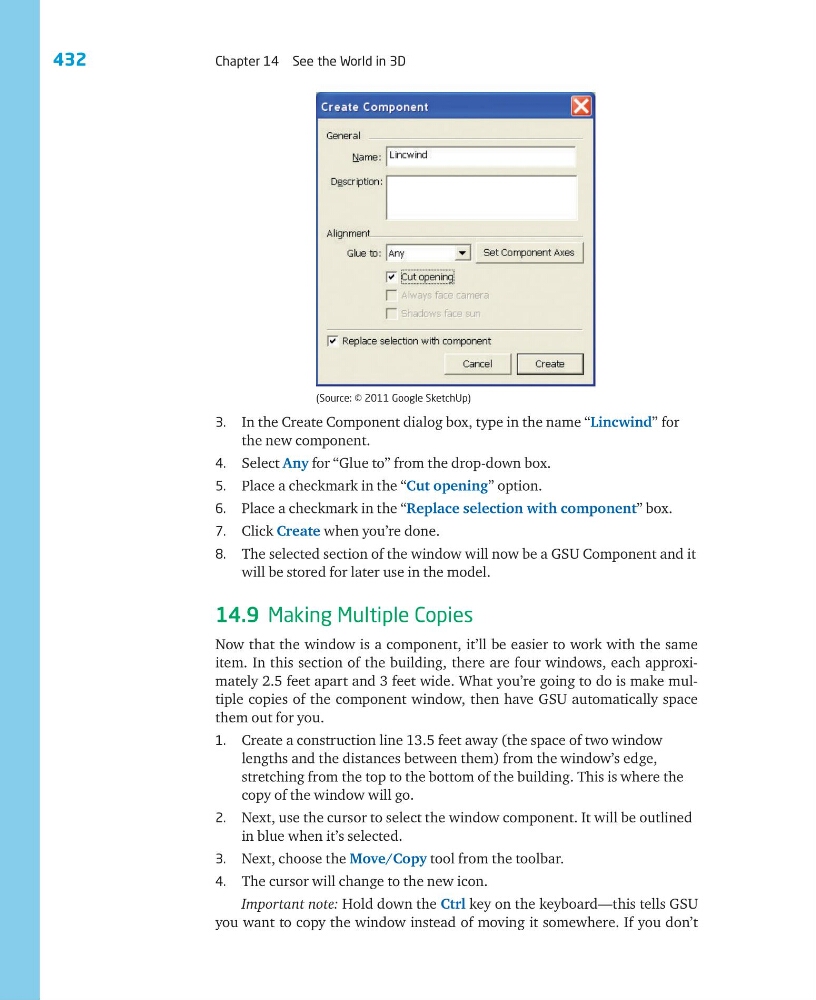
3. In the Create Component dialog box, type in the name “Lincwind” for
the new component.
4. Select Any for “Glue to” from the drop-down box.
5. Place a checkmark in the “Cut opening” option.
6. Place a checkmark in the “Replace selection with component” box.
7. Click Create when you’re done.
8. The selected section of the window will now be a GSU Component and it
will be stored for later use in the model.
14.9 Making Multiple Copies
Now that the window is a component, it’ll be easier to work with the same
item. In this section of the building, there are four windows, each approximately 2.5 feet apart and 3 feet wide. What you’re going to do is make multiple copies of the component window, then have GSU automatically space
them out for you.
1. Create a construction line 13.5 feet away (the space of two window
lengths and the distances between them) from the window’s edge,
stretching from the top to the bottom of the building. This is where the
copy of the window will go.
2. Next, use the cursor to select the window component. It will be outlined
in blue when it’s selected.
3. Next, choose the Move/Copy tool from the toolbar.
4. The cursor will change to the new icon.
Important note: Hold down the Ctrl key on the keyboard—this tells GSU
you want to copy the window instead of moving it somewhere. If you don’t
(Source: © 2011 Google SketchUp)
Chapter 14 See the World in 3D
3. In the Create Component dialog box, type in the name “Lincwind” for
the new component.
4. Select Any for “Glue to” from the drop-down box.
5. Place a checkmark in the “Cut opening” option.
6. Place a checkmark in the “Replace selection with component” box.
7. Click Create when you’re done.
8. The selected section of the window will now be a GSU Component and it
will be stored for later use in the model.
14.9 Making Multiple Copies
Now that the window is a component, it’ll be easier to work with the same
item. In this section of the building, there are four windows, each approximately 2.5 feet apart and 3 feet wide. What you’re going to do is make multiple copies of the component window, then have GSU automatically space
them out for you.
1. Create a construction line 13.5 feet away (the space of two window
lengths and the distances between them) from the window’s edge,
stretching from the top to the bottom of the building. This is where the
copy of the window will go.
2. Next, use the cursor to select the window component. It will be outlined
in blue when it’s selected.
3. Next, choose the Move/Copy tool from the toolbar.
4. The cursor will change to the new icon.
Important note: Hold down the Ctrl key on the keyboard—this tells GSU
you want to copy the window instead of moving it somewhere. If you don’t
(Source: © 2011 Google SketchUp)