

431
3D Modeling and Visualization
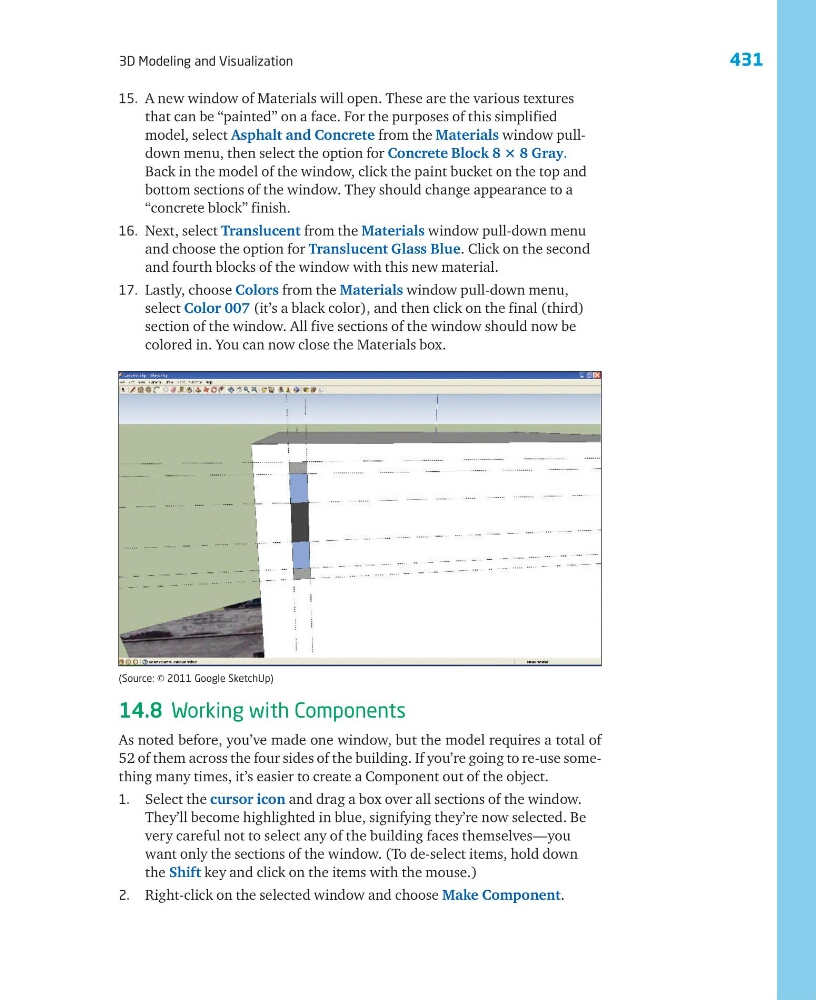
15. A new window of Materials will open. These are the various textures
that can be “painted” on a face. For the purposes of this simplified
model, select Asphalt and Concrete from the Materials window pulldown menu, then select the option for Concrete Block 8 ؋ 8 Gray.
Back in the model of the window, click the paint bucket on the top and
bottom sections of the window. They should change appearance to a
“concrete block” finish.
16. Next, select Translucent from the Materials window pull-down menu
and choose the option for Translucent Glass Blue. Click on the second
and fourth blocks of the window with this new material.
17. Lastly, choose Colors from the Materials window pull-down menu,
select Color 007 (it’s a black color), and then click on the final (third)
section of the window. All five sections of the window should now be
colored in. You can now close the Materials box.
14.8 Working with Components
As noted before, you’ve made one window, but the model requires a total of
52 of them across the four sides of the building. If you’re going to re-use something many times, it’s easier to create a Component out of the object.
1. Select the cursor icon and drag a box over all sections of the window.
They’ll become highlighted in blue, signifying they’re now selected. Be
very careful not to select any of the building faces themselves—you
want only the sections of the window. (To de-select items, hold down
the Shift key and click on the items with the mouse.)
2. Right-click on the selected window and choose Make Component.
(Source: © 2011 Google SketchUp)
3D Modeling and Visualization
15. A new window of Materials will open. These are the various textures
that can be “painted” on a face. For the purposes of this simplified
model, select Asphalt and Concrete from the Materials window pulldown menu, then select the option for Concrete Block 8 ؋ 8 Gray.
Back in the model of the window, click the paint bucket on the top and
bottom sections of the window. They should change appearance to a
“concrete block” finish.
16. Next, select Translucent from the Materials window pull-down menu
and choose the option for Translucent Glass Blue. Click on the second
and fourth blocks of the window with this new material.
17. Lastly, choose Colors from the Materials window pull-down menu,
select Color 007 (it’s a black color), and then click on the final (third)
section of the window. All five sections of the window should now be
colored in. You can now close the Materials box.
14.8 Working with Components
As noted before, you’ve made one window, but the model requires a total of
52 of them across the four sides of the building. If you’re going to re-use something many times, it’s easier to create a Component out of the object.
1. Select the cursor icon and drag a box over all sections of the window.
They’ll become highlighted in blue, signifying they’re now selected. Be
very careful not to select any of the building faces themselves—you
want only the sections of the window. (To de-select items, hold down
the Shift key and click on the items with the mouse.)
2. Right-click on the selected window and choose Make Component.
(Source: © 2011 Google SketchUp)