

346
Chapter 11 Images from Space
3. In order to create a new image that shows only Cleveland (a suggested
region is shown in the second graphic on page 345), select Reformat
from the Processor pull-down menu, then select Change Image File
Format.
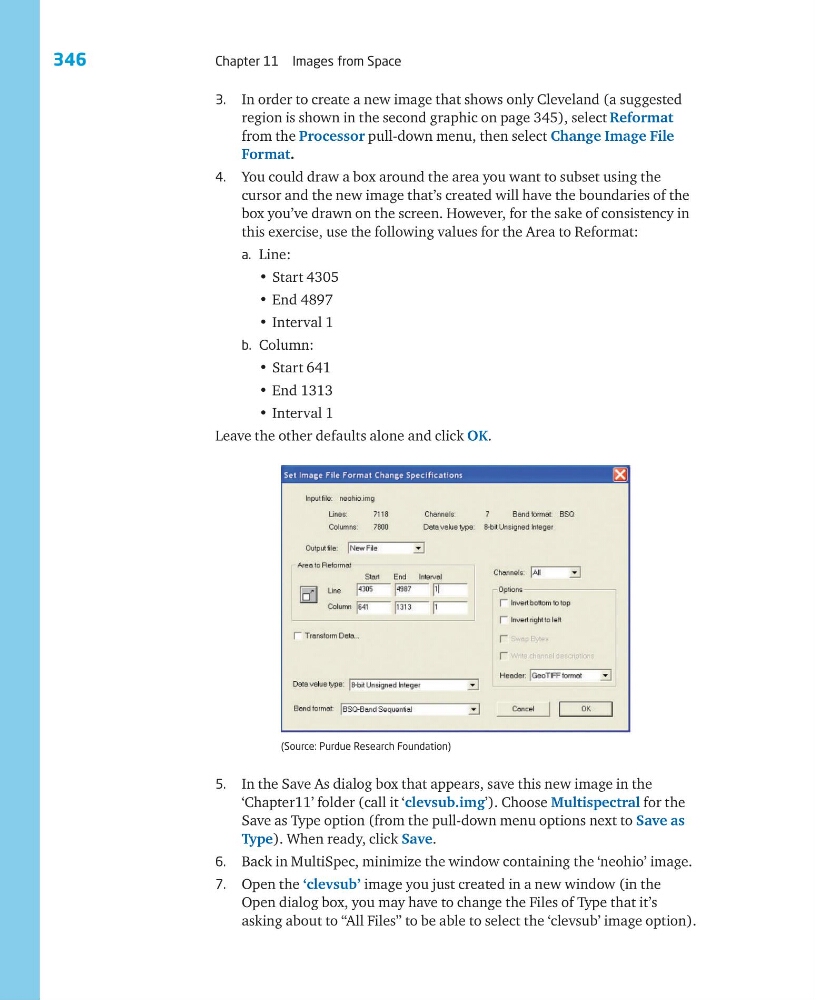
4. You could draw a box around the area you want to subset using the
cursor and the new image that’s created will have the boundaries of the
box you’ve drawn on the screen. However, for the sake of consistency in
this exercise, use the following values for the Area to Reformat:
a. Line:
• Start 4305
• End 4897
• Interval 1
b. Column:
• Start 641
• End 1313
• Interval 1
Leave the other defaults alone and click OK.
(Source: Purdue Research Foundation)
5. In the Save As dialog box that appears, save this new image in the
‘Chapter11’ folder (call it ‘clevsub.img’). Choose Multispectral for the
Save as Type option (from the pull-down menu options next to Save as
Type). When ready, click Save.
6. Back in MultiSpec, minimize the window containing the ‘neohio’ image.
7. Open the ‘clevsub’ image you just created in a new window (in the
Open dialog box, you may have to change the Files of Type that it’s
asking about to “All Files” to be able to select the ‘clevsub’ image option).
Chapter 11 Images from Space
3. In order to create a new image that shows only Cleveland (a suggested
region is shown in the second graphic on page 345), select Reformat
from the Processor pull-down menu, then select Change Image File
Format.
4. You could draw a box around the area you want to subset using the
cursor and the new image that’s created will have the boundaries of the
box you’ve drawn on the screen. However, for the sake of consistency in
this exercise, use the following values for the Area to Reformat:
a. Line:
• Start 4305
• End 4897
• Interval 1
b. Column:
• Start 641
• End 1313
• Interval 1
Leave the other defaults alone and click OK.
(Source: Purdue Research Foundation)
5. In the Save As dialog box that appears, save this new image in the
‘Chapter11’ folder (call it ‘clevsub.img’). Choose Multispectral for the
Save as Type option (from the pull-down menu options next to Save as
Type). When ready, click Save.
6. Back in MultiSpec, minimize the window containing the ‘neohio’ image.
7. Open the ‘clevsub’ image you just created in a new window (in the
Open dialog box, you may have to change the Files of Type that it’s
asking about to “All Files” to be able to select the ‘clevsub’ image option).