

132
Chapter 5 Working With Digital Spatial Data and GIS
Before you begin adding and viewing data, the first thing to do is examine the data you have available to you. To examine data layers, you
can use the Catalog window in ArcMap—a utility designed to allow you
to organize and manage GIS data.
Important note: ArcGIS 10 also contains a separate application called
ArcCatalog that can be used to perform the same data management tasks.
However, ArcGIS 10 incorporates the same functionality into ArcMap’s
Catalog window, so you’ll be using that in this Lab, rather than a separate
program.
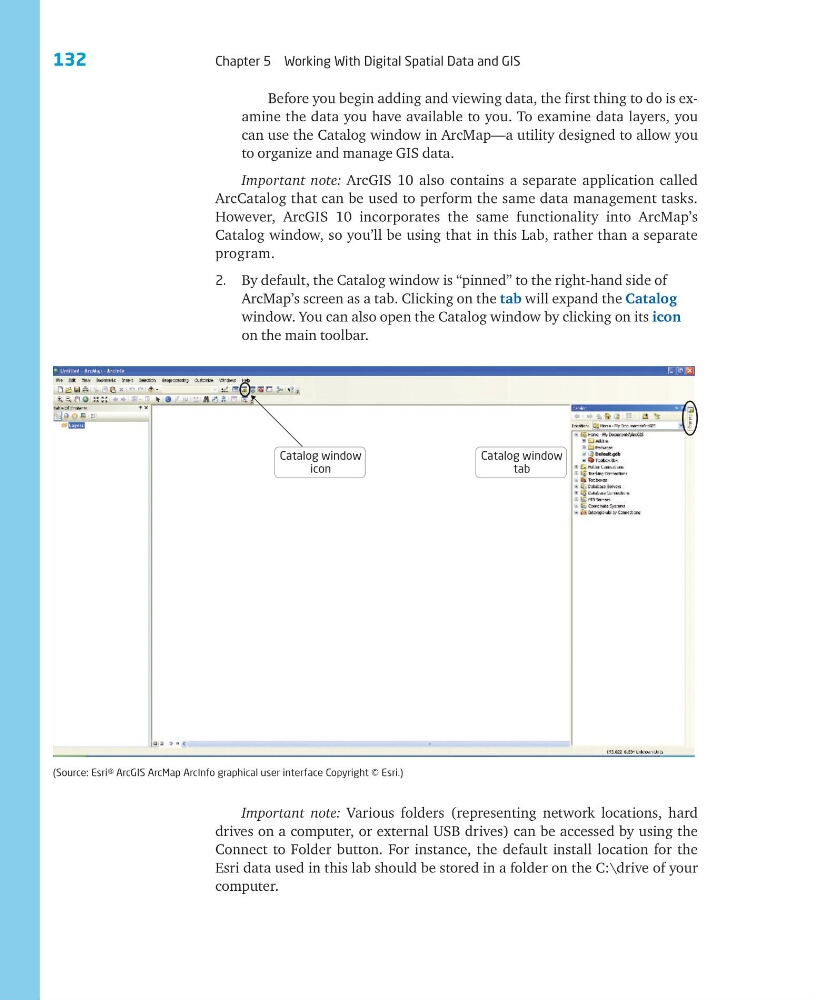
2. By default, the Catalog window is “pinned” to the right-hand side of
ArcMap’s screen as a tab. Clicking on the tab will expand the Catalog
window. You can also open the Catalog window by clicking on its icon
on the main toolbar.
Catalog window
tab
Catalog window
icon
(Source: Esri® ArcGIS ArcMap ArcInfo graphical user interface Copyright © Esri.)
Important note: Various folders (representing network locations, hard
drives on a computer, or external USB drives) can be accessed by using the
Connect to Folder button. For instance, the default install location for the
Esri data used in this lab should be stored in a folder on the C:\drive of your
computer.
Chapter 5 Working With Digital Spatial Data and GIS
Before you begin adding and viewing data, the first thing to do is examine the data you have available to you. To examine data layers, you
can use the Catalog window in ArcMap—a utility designed to allow you
to organize and manage GIS data.
Important note: ArcGIS 10 also contains a separate application called
ArcCatalog that can be used to perform the same data management tasks.
However, ArcGIS 10 incorporates the same functionality into ArcMap’s
Catalog window, so you’ll be using that in this Lab, rather than a separate
program.
2. By default, the Catalog window is “pinned” to the right-hand side of
ArcMap’s screen as a tab. Clicking on the tab will expand the Catalog
window. You can also open the Catalog window by clicking on its icon
on the main toolbar.
Catalog window
tab
Catalog window
icon
(Source: Esri® ArcGIS ArcMap ArcInfo graphical user interface Copyright © Esri.)
Important note: Various folders (representing network locations, hard
drives on a computer, or external USB drives) can be accessed by using the
Connect to Folder button. For instance, the default install location for the
Esri data used in this lab should be stored in a folder on the C:\drive of your
computer.