

118
6. Spatial Fisheries Model
_ _--'--0-....:·
A _
FIGURE 6.19
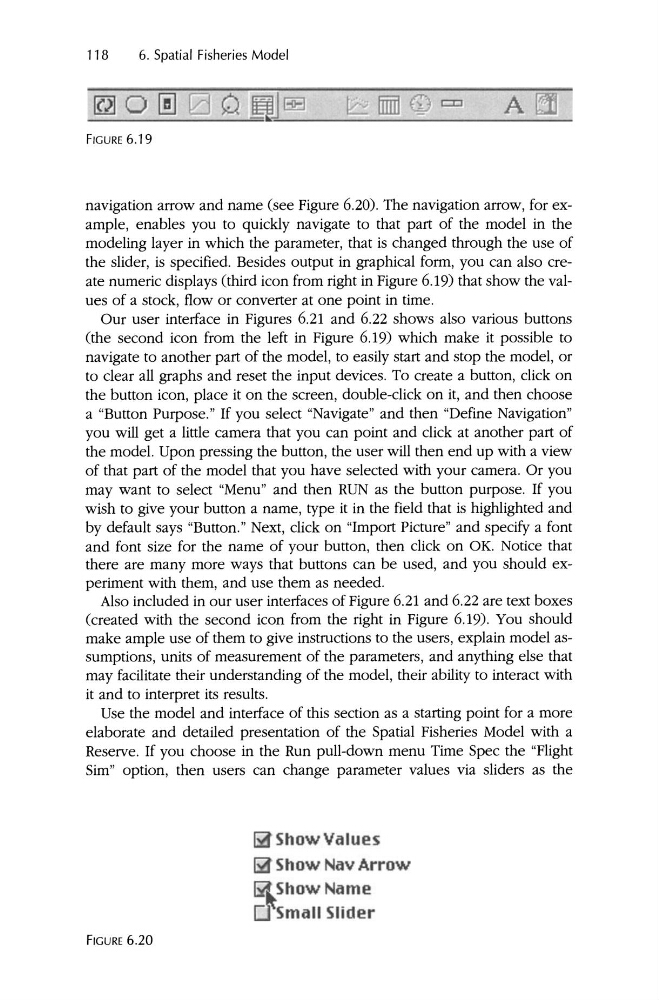
navigation arrow and name (see Figure 6.20). The navigation arrow, for example, enables you to quickly navigate to that part of the model in the
modeling layer in which the parameter, that is changed through the use of
the slider, is specified . Besides output in graphical form, you can also create numeric displays (third icon from right in Figure 6.19) that show the values of a stock, flow or converter at one point in time.
Our user interface in Figures 6.21 and 6.22 shows also various buttons
(the second icon from the left in Figure 6.19) which make it possible to
navigate to another part of the model , to easily start and stop the model, or
to clear all graphs and reset the input devices. To create a button, click on
the button icon, place it on the screen, double-click on it, and then choose
a "Button Purpose." If you select "Navigate" and then "Define Navigation"
you will get a little camera that you can point and click at another part of
the model. Upon pressing the button, the user will then end up with a view
of that part of the model that you have selected with your camera . Or you
may want to select "Menu" and then RUN as the button purpose. If you
wish to give your button a name, type it in the field that is highlighted and
by default says "Button." Next, click on "Import Picture" and specify a font
and font size for the name of your button, then click on OK. Notice that
there are many more ways that buttons can be used, and you should experiment with them, and use them as needed.
Also included in our user interfaces of Figure 6.21 and 6.22 are text boxes
(created with the second icon from the right in Figure 6.19). You should
make ample use of them to give instructions to the users, explain model assumptions, units of measurement of the parameters, and anything else that
may facilitate their understanding of the model , their ability to interact with
it and to interpret its results.
Use the model and interface of this section as a starting point for a more
elaborate and detailed presentation of the Spatial Fisheries Model with a
Reserve. If you choose in the Run pull-down menu Time Spec the "Flight
Sim" option, then users can change parameter values via sliders as the
Ii! Show Values
Ii! Show Nav Arrow
IilShow Name
c.FSmall Slider
FIGURE 6.20
6. Spatial Fisheries Model
_ _--'--0-....:·
A _
FIGURE 6.19
navigation arrow and name (see Figure 6.20). The navigation arrow, for example, enables you to quickly navigate to that part of the model in the
modeling layer in which the parameter, that is changed through the use of
the slider, is specified . Besides output in graphical form, you can also create numeric displays (third icon from right in Figure 6.19) that show the values of a stock, flow or converter at one point in time.
Our user interface in Figures 6.21 and 6.22 shows also various buttons
(the second icon from the left in Figure 6.19) which make it possible to
navigate to another part of the model , to easily start and stop the model, or
to clear all graphs and reset the input devices. To create a button, click on
the button icon, place it on the screen, double-click on it, and then choose
a "Button Purpose." If you select "Navigate" and then "Define Navigation"
you will get a little camera that you can point and click at another part of
the model. Upon pressing the button, the user will then end up with a view
of that part of the model that you have selected with your camera . Or you
may want to select "Menu" and then RUN as the button purpose. If you
wish to give your button a name, type it in the field that is highlighted and
by default says "Button." Next, click on "Import Picture" and specify a font
and font size for the name of your button, then click on OK. Notice that
there are many more ways that buttons can be used, and you should experiment with them, and use them as needed.
Also included in our user interfaces of Figure 6.21 and 6.22 are text boxes
(created with the second icon from the right in Figure 6.19). You should
make ample use of them to give instructions to the users, explain model assumptions, units of measurement of the parameters, and anything else that
may facilitate their understanding of the model , their ability to interact with
it and to interpret its results.
Use the model and interface of this section as a starting point for a more
elaborate and detailed presentation of the Spatial Fisheries Model with a
Reserve. If you choose in the Run pull-down menu Time Spec the "Flight
Sim" option, then users can change parameter values via sliders as the
Ii! Show Values
Ii! Show Nav Arrow
IilShow Name
c.FSmall Slider
FIGURE 6.20