

6.4. Development of a User Interface
117
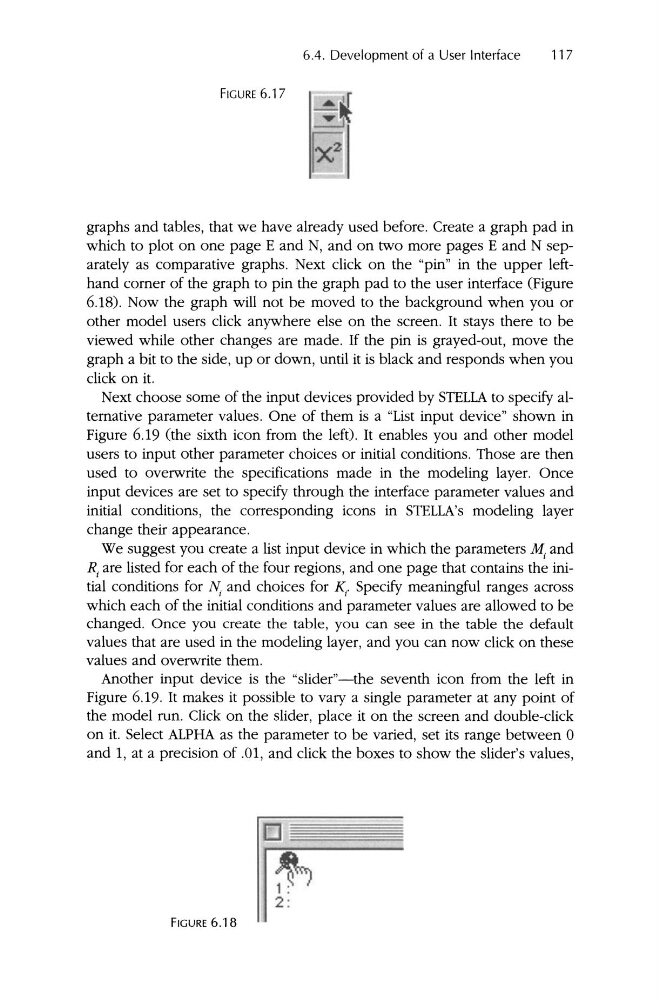
FIGURE 6.17
graphs and tables, that we have already used before. Create a graph pad in
which to plot on one page E and N, and on two more pages E and N separately as comparative graphs. Next click on the "pin" in the upper lefthand corner of the graph to pin the graph pad to the user interface (Figure
6.18). Now the graph will not be moved to the background when you or
other model users click anywhere else on the screen. It stays there to be
viewed while other changes are made. If the pin is grayed-out, move the
graph a bit to the side, up or down, until it is black and responds when you
click on it.
Next choose some of the input devices provided by STELLA to specify alternative parameter values . One of them is a "List input device " shown in
Figure 6.19 (the sixth icon from the left). It enables you and other model
users to input other parameter choices or initial conditions. Those are then
used to overwrite the specifications made in the modeling layer. Once
input devices are set to specify through the interface parameter values and
initial conditions, the corresponding icons in STELLA's modeling layer
change their appearance.
We suggest you create a list input device in which the parameters M, and
R j are listed for each of the four regions , and one page that contains the initial conditions for f\ and choices for K, Specify meaningful ranges across
which each of the initial conditions and parameter values are allowed to be
changed. Once you create the table , you can see in the table the default
values that are used in the modeling layer, and you can now click on these
values and overwrite them .
Another input device is the "slider"- the seventh icon from the left in
Figure 6.19. It makes it possible to vary a single parameter at any point of
the model run . Click on the slider, place it on the screen and double-click
on it. Select ALPHA as the parameter to be varied , set its range between 0
and 1, at a precision of .01, and click the boxes to show the slider's values,
FIGURE 6 .18
2 :
117
FIGURE 6.17
graphs and tables, that we have already used before. Create a graph pad in
which to plot on one page E and N, and on two more pages E and N separately as comparative graphs. Next click on the "pin" in the upper lefthand corner of the graph to pin the graph pad to the user interface (Figure
6.18). Now the graph will not be moved to the background when you or
other model users click anywhere else on the screen. It stays there to be
viewed while other changes are made. If the pin is grayed-out, move the
graph a bit to the side, up or down, until it is black and responds when you
click on it.
Next choose some of the input devices provided by STELLA to specify alternative parameter values . One of them is a "List input device " shown in
Figure 6.19 (the sixth icon from the left). It enables you and other model
users to input other parameter choices or initial conditions. Those are then
used to overwrite the specifications made in the modeling layer. Once
input devices are set to specify through the interface parameter values and
initial conditions, the corresponding icons in STELLA's modeling layer
change their appearance.
We suggest you create a list input device in which the parameters M, and
R j are listed for each of the four regions , and one page that contains the initial conditions for f\ and choices for K, Specify meaningful ranges across
which each of the initial conditions and parameter values are allowed to be
changed. Once you create the table , you can see in the table the default
values that are used in the modeling layer, and you can now click on these
values and overwrite them .
Another input device is the "slider"- the seventh icon from the left in
Figure 6.19. It makes it possible to vary a single parameter at any point of
the model run . Click on the slider, place it on the screen and double-click
on it. Select ALPHA as the parameter to be varied , set its range between 0
and 1, at a precision of .01, and click the boxes to show the slider's values,
FIGURE 6 .18
2 :