

2.2 Model Center
27
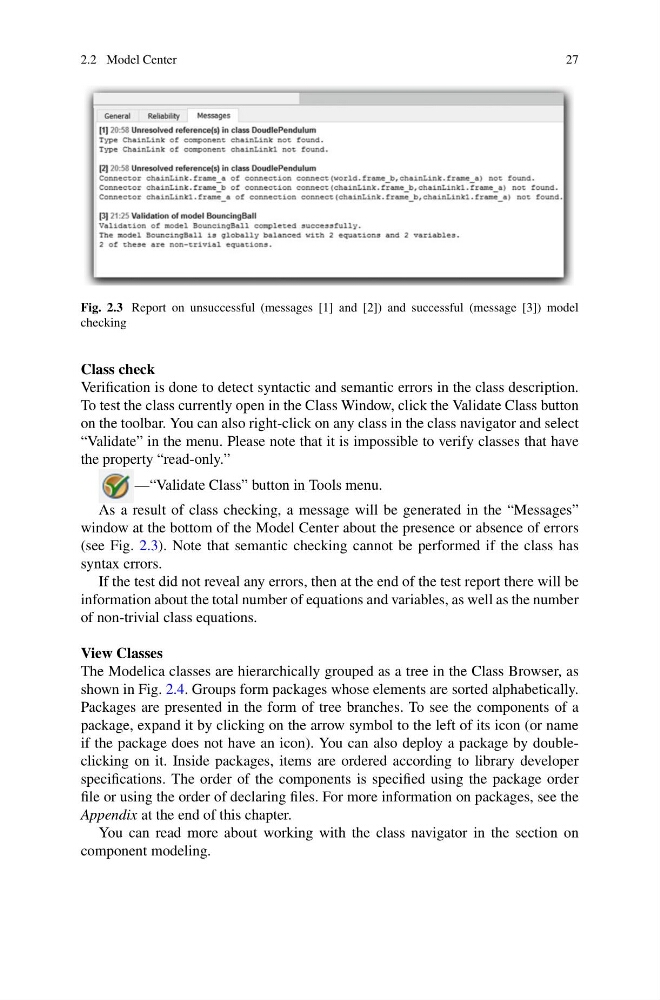
Fig. 2.3 Report on unsuccessful (messages [1] and [2]) and successful (message [3]) model
checking
Class check
Verification is done to detect syntactic and semantic errors in the class description.
To test the class currently open in the Class Window, click the Validate Class button
on the toolbar. You can also right-click on any class in the class navigator and select
“Validate” in the menu. Please note that it is impossible to verify classes that have
the property “read-only.”
—“Validate Class” button in Tools menu.
As a result of class checking, a message will be generated in the “Messages”
window at the bottom of the Model Center about the presence or absence of errors
(see Fig. 2.3). Note that semantic checking cannot be performed if the class has
syntax errors.
If the test did not reveal any errors, then at the end of the test report there will be
information about the total number of equations and variables, as well as the number
of non-trivial class equations.
View Classes
The Modelica classes are hierarchically grouped as a tree in the Class Browser, as
shown in Fig. 2.4. Groups form packages whose elements are sorted alphabetically.
Packages are presented in the form of tree branches. To see the components of a
package, expand it by clicking on the arrow symbol to the left of its icon (or name
if the package does not have an icon). You can also deploy a package by doubleclicking on it. Inside packages, items are ordered according to library developer
specifications. The order of the components is specified using the package order
file or using the order of declaring files. For more information on packages, see the
Appendix at the end of this chapter.
You can read more about working with the class navigator in the section on
component modeling.
27
Fig. 2.3 Report on unsuccessful (messages [1] and [2]) and successful (message [3]) model
checking
Class check
Verification is done to detect syntactic and semantic errors in the class description.
To test the class currently open in the Class Window, click the Validate Class button
on the toolbar. You can also right-click on any class in the class navigator and select
“Validate” in the menu. Please note that it is impossible to verify classes that have
the property “read-only.”
—“Validate Class” button in Tools menu.
As a result of class checking, a message will be generated in the “Messages”
window at the bottom of the Model Center about the presence or absence of errors
(see Fig. 2.3). Note that semantic checking cannot be performed if the class has
syntax errors.
If the test did not reveal any errors, then at the end of the test report there will be
information about the total number of equations and variables, as well as the number
of non-trivial class equations.
View Classes
The Modelica classes are hierarchically grouped as a tree in the Class Browser, as
shown in Fig. 2.4. Groups form packages whose elements are sorted alphabetically.
Packages are presented in the form of tree branches. To see the components of a
package, expand it by clicking on the arrow symbol to the left of its icon (or name
if the package does not have an icon). You can also deploy a package by doubleclicking on it. Inside packages, items are ordered according to library developer
specifications. The order of the components is specified using the package order
file or using the order of declaring files. For more information on packages, see the
Appendix at the end of this chapter.
You can read more about working with the class navigator in the section on
component modeling.