

Error Breakpoints
In the Editor, you can set an error breakpoint to have MATLAB pause and enter debug mode if
MATLAB encounters an issue. Setting error breakpoints is not supported in the Live Editor.
Unlike standard and conditional breakpoints, you do not set error breakpoints at a specific line or in a
specific file. When you set an error breakpoint, MATLAB pauses at any line in any file if the error
condition specified occurs. MATLAB then enters debug mode and opens the file containing the error,
with the execution arrow at the line containing the error.
To set an error breakpoint, on the Editor tab, click
Run and select from these options:
• Pause on Errors to pause on all errors.
• Pause on Warnings to pause on all warnings.
• Pause on NaN or Inf to pause on NaN (not-a-number) or Inf (infinite) values.
Alternatively, you can set an error breakpoint programmatically by using the dbstop function with a
specified condition. For example, to pause execution on all errors, type:
dbstop if error
To pause execution at the first run-time error within the try portion of a try/catch block that has a
message ID of MATLAB:ls:InputsMustBeStrings, type:
dbstop if caught error MATLAB:ls:InputsMustBeStrings
Breakpoints in Anonymous Functions
You can set multiple breakpoints in a line of MATLAB code that contains anonymous functions. You
can set a breakpoint for the line itself and for each anonymous function in the line.
To set a breakpoint on a line containing an anonymous function, click the gray area to the left of the
line. MATLAB adds a breakpoint for the line, and a disabled breakpoint for each anonymous function
in the line. To enable a breakpoint for an anonymous function, click the disabled breakpoint for that
function.
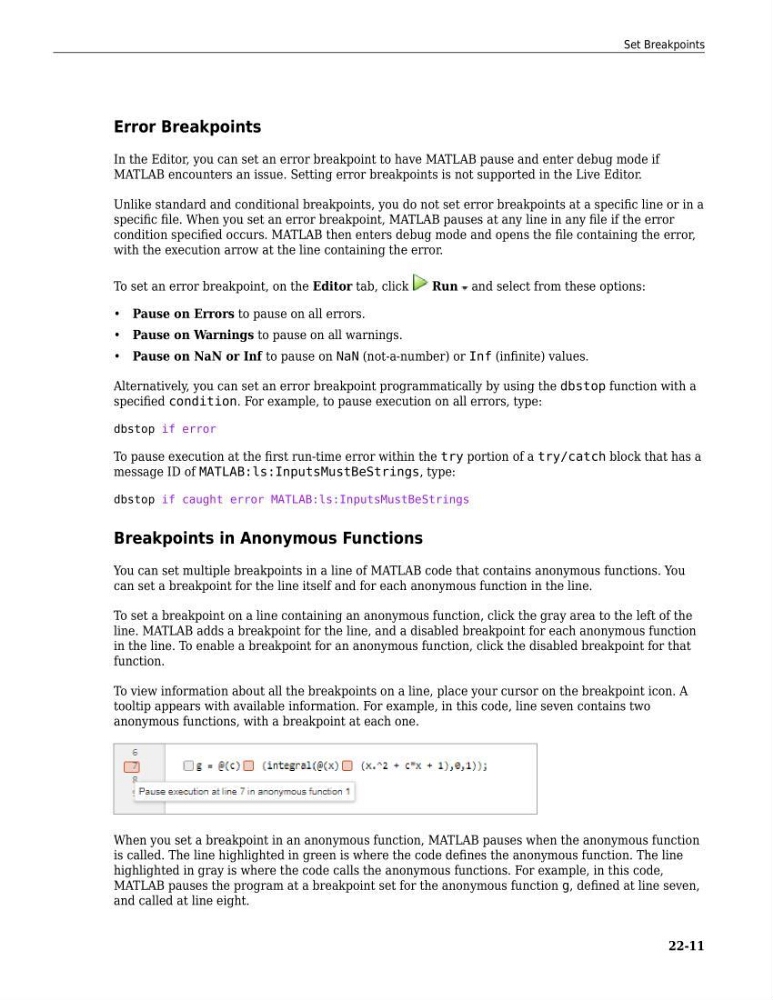
To view information about all the breakpoints on a line, place your cursor on the breakpoint icon. A
tooltip appears with available information. For example, in this code, line seven contains two
anonymous functions, with a breakpoint at each one.
When you set a breakpoint in an anonymous function, MATLAB pauses when the anonymous function
is called. The line highlighted in green is where the code defines the anonymous function. The line
highlighted in gray is where the code calls the anonymous functions. For example, in this code,
MATLAB pauses the program at a breakpoint set for the anonymous function g, defined at line seven,
and called at line eight.
Set Breakpoints
22-11
In the Editor, you can set an error breakpoint to have MATLAB pause and enter debug mode if
MATLAB encounters an issue. Setting error breakpoints is not supported in the Live Editor.
Unlike standard and conditional breakpoints, you do not set error breakpoints at a specific line or in a
specific file. When you set an error breakpoint, MATLAB pauses at any line in any file if the error
condition specified occurs. MATLAB then enters debug mode and opens the file containing the error,
with the execution arrow at the line containing the error.
To set an error breakpoint, on the Editor tab, click
Run and select from these options:
• Pause on Errors to pause on all errors.
• Pause on Warnings to pause on all warnings.
• Pause on NaN or Inf to pause on NaN (not-a-number) or Inf (infinite) values.
Alternatively, you can set an error breakpoint programmatically by using the dbstop function with a
specified condition. For example, to pause execution on all errors, type:
dbstop if error
To pause execution at the first run-time error within the try portion of a try/catch block that has a
message ID of MATLAB:ls:InputsMustBeStrings, type:
dbstop if caught error MATLAB:ls:InputsMustBeStrings
Breakpoints in Anonymous Functions
You can set multiple breakpoints in a line of MATLAB code that contains anonymous functions. You
can set a breakpoint for the line itself and for each anonymous function in the line.
To set a breakpoint on a line containing an anonymous function, click the gray area to the left of the
line. MATLAB adds a breakpoint for the line, and a disabled breakpoint for each anonymous function
in the line. To enable a breakpoint for an anonymous function, click the disabled breakpoint for that
function.
To view information about all the breakpoints on a line, place your cursor on the breakpoint icon. A
tooltip appears with available information. For example, in this code, line seven contains two
anonymous functions, with a breakpoint at each one.
When you set a breakpoint in an anonymous function, MATLAB pauses when the anonymous function
is called. The line highlighted in green is where the code defines the anonymous function. The line
highlighted in gray is where the code calls the anonymous functions. For example, in this code,
MATLAB pauses the program at a breakpoint set for the anonymous function g, defined at line seven,
and called at line eight.
Set Breakpoints
22-11