

x = ones(1:10);
for n = 2:6
x(n) = 2 * x(n-1);
end
For MATLAB to pause at each increment of the for loop (a total of five times), set a breakpoint at line
four.
Conditional Breakpoints
A conditional breakpoint causes MATLAB to pause at a specific line in a file only when the specified
condition is met. For example, you can use conditional breakpoints when you want to examine results
after some iterations in a loop.
To set a conditional breakpoint, right-click the gray area to the left of the executable line where you
want to set the breakpoint and select Set Conditional Breakpoint. If a breakpoint already exists on
that line, select Set/Modify Condition. In the dialog box that opens, enter a condition and click OK.
A condition is any valid MATLAB expression that returns a logical scalar value.
When you run the code, MATLAB evaluates the condition before running the line. If the condition is
met, MATLAB enters debug mode and pauses at the line. For example, this code creates an array of
ten ones and uses a for loop to perform a calculation on items two through six of the array:
x = one(1:10)
for n = 2:6
x(n) = 2 * x(n-1);
end
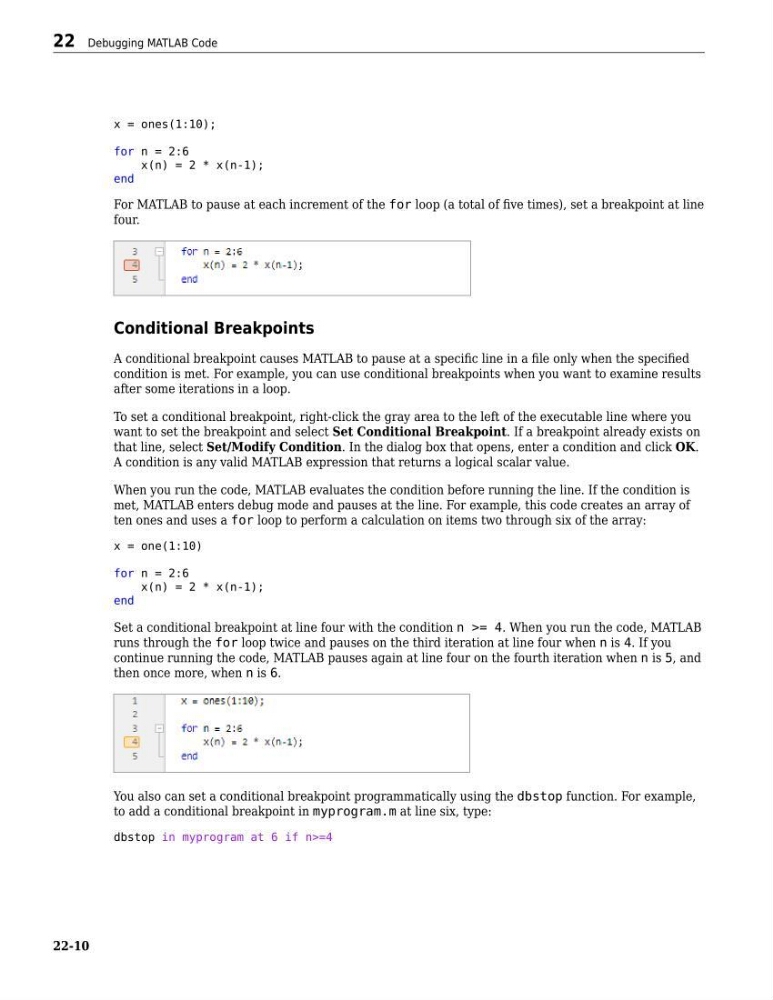
Set a conditional breakpoint at line four with the condition n >= 4. When you run the code, MATLAB
runs through the for loop twice and pauses on the third iteration at line four when n is 4. If you
continue running the code, MATLAB pauses again at line four on the fourth iteration when n is 5, and
then once more, when n is 6.
You also can set a conditional breakpoint programmatically using the dbstop function. For example,
to add a conditional breakpoint in myprogram.m at line six, type:
dbstop in myprogram at 6 if n>=4
22 Debugging MATLAB Code
22-10
for n = 2:6
x(n) = 2 * x(n-1);
end
For MATLAB to pause at each increment of the for loop (a total of five times), set a breakpoint at line
four.
Conditional Breakpoints
A conditional breakpoint causes MATLAB to pause at a specific line in a file only when the specified
condition is met. For example, you can use conditional breakpoints when you want to examine results
after some iterations in a loop.
To set a conditional breakpoint, right-click the gray area to the left of the executable line where you
want to set the breakpoint and select Set Conditional Breakpoint. If a breakpoint already exists on
that line, select Set/Modify Condition. In the dialog box that opens, enter a condition and click OK.
A condition is any valid MATLAB expression that returns a logical scalar value.
When you run the code, MATLAB evaluates the condition before running the line. If the condition is
met, MATLAB enters debug mode and pauses at the line. For example, this code creates an array of
ten ones and uses a for loop to perform a calculation on items two through six of the array:
x = one(1:10)
for n = 2:6
x(n) = 2 * x(n-1);
end
Set a conditional breakpoint at line four with the condition n >= 4. When you run the code, MATLAB
runs through the for loop twice and pauses on the third iteration at line four when n is 4. If you
continue running the code, MATLAB pauses again at line four on the fourth iteration when n is 5, and
then once more, when n is 6.
You also can set a conditional breakpoint programmatically using the dbstop function. For example,
to add a conditional breakpoint in myprogram.m at line six, type:
dbstop in myprogram at 6 if n>=4
22 Debugging MATLAB Code
22-10