

Set Breakpoints
Since R2021b. Replaces Set Breakpoints (R2021a) and Debug Code in the Live Editor (R2021a).
Setting breakpoints pauses the execution of your MATLAB program so that you can examine values
where you think an issue might have occurred. You can set breakpoints interactively in the Editor or
Live Editor, or by using functions in the Command Window.
There are three types of breakpoints:
• Standard
• Conditional
• Error
You can set breakpoints only at executable lines in saved files that are in the current folder or in
folders on the search path. You can set breakpoints at any time, whether MATLAB is idle or busy
running a file.
By default, when MATLAB reaches a breakpoint, it opens the file containing the breakpoint. To
disable this option:
1
From the Home tab, in the Environment section, click
Preferences.
2
In the Preferences window, select MATLAB > Editor/Debugger.
3
Clear the Automatically open file when MATLAB reaches a breakpoint option and click OK.
Standard Breakpoints
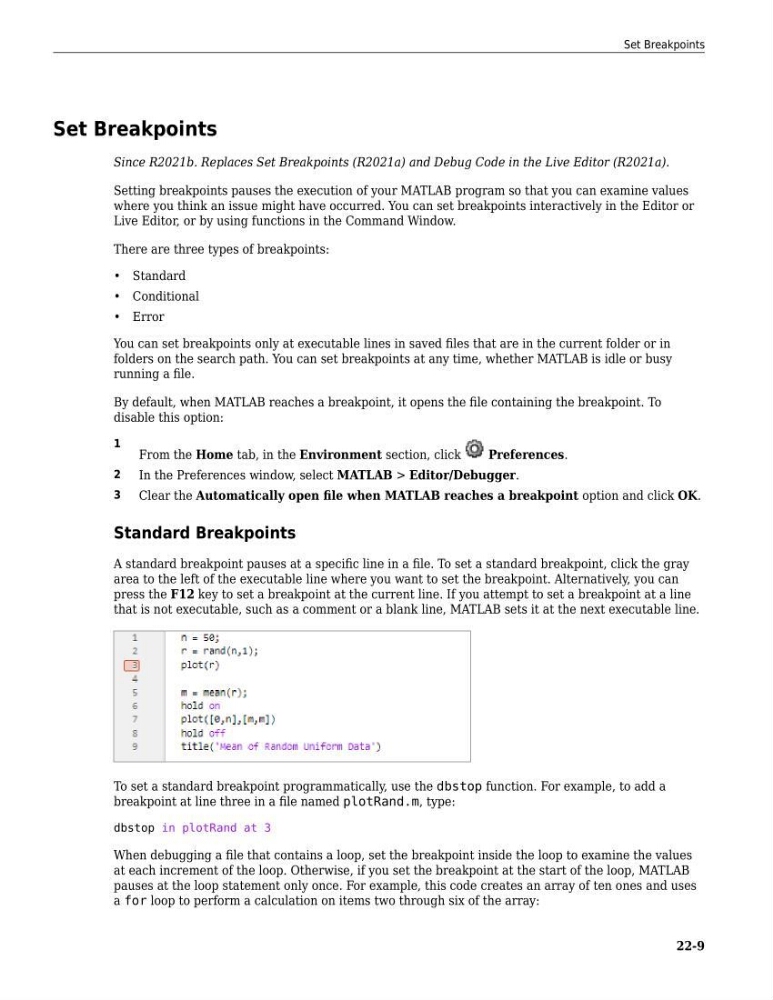
A standard breakpoint pauses at a specific line in a file. To set a standard breakpoint, click the gray
area to the left of the executable line where you want to set the breakpoint. Alternatively, you can
press the F12 key to set a breakpoint at the current line. If you attempt to set a breakpoint at a line
that is not executable, such as a comment or a blank line, MATLAB sets it at the next executable line.
To set a standard breakpoint programmatically, use the dbstop function. For example, to add a
breakpoint at line three in a file named plotRand.m, type:
dbstop in plotRand at 3
When debugging a file that contains a loop, set the breakpoint inside the loop to examine the values
at each increment of the loop. Otherwise, if you set the breakpoint at the start of the loop, MATLAB
pauses at the loop statement only once. For example, this code creates an array of ten ones and uses
a for loop to perform a calculation on items two through six of the array:
Set Breakpoints
22-9
Since R2021b. Replaces Set Breakpoints (R2021a) and Debug Code in the Live Editor (R2021a).
Setting breakpoints pauses the execution of your MATLAB program so that you can examine values
where you think an issue might have occurred. You can set breakpoints interactively in the Editor or
Live Editor, or by using functions in the Command Window.
There are three types of breakpoints:
• Standard
• Conditional
• Error
You can set breakpoints only at executable lines in saved files that are in the current folder or in
folders on the search path. You can set breakpoints at any time, whether MATLAB is idle or busy
running a file.
By default, when MATLAB reaches a breakpoint, it opens the file containing the breakpoint. To
disable this option:
1
From the Home tab, in the Environment section, click
Preferences.
2
In the Preferences window, select MATLAB > Editor/Debugger.
3
Clear the Automatically open file when MATLAB reaches a breakpoint option and click OK.
Standard Breakpoints
A standard breakpoint pauses at a specific line in a file. To set a standard breakpoint, click the gray
area to the left of the executable line where you want to set the breakpoint. Alternatively, you can
press the F12 key to set a breakpoint at the current line. If you attempt to set a breakpoint at a line
that is not executable, such as a comment or a blank line, MATLAB sets it at the next executable line.
To set a standard breakpoint programmatically, use the dbstop function. For example, to add a
breakpoint at line three in a file named plotRand.m, type:
dbstop in plotRand at 3
When debugging a file that contains a loop, set the breakpoint inside the loop to examine the values
at each increment of the loop. Otherwise, if you set the breakpoint at the start of the loop, MATLAB
pauses at the loop statement only once. For example, this code creates an array of ten ones and uses
a for loop to perform a calculation on items two through six of the array:
Set Breakpoints
22-9