

Invalid Breakpoints
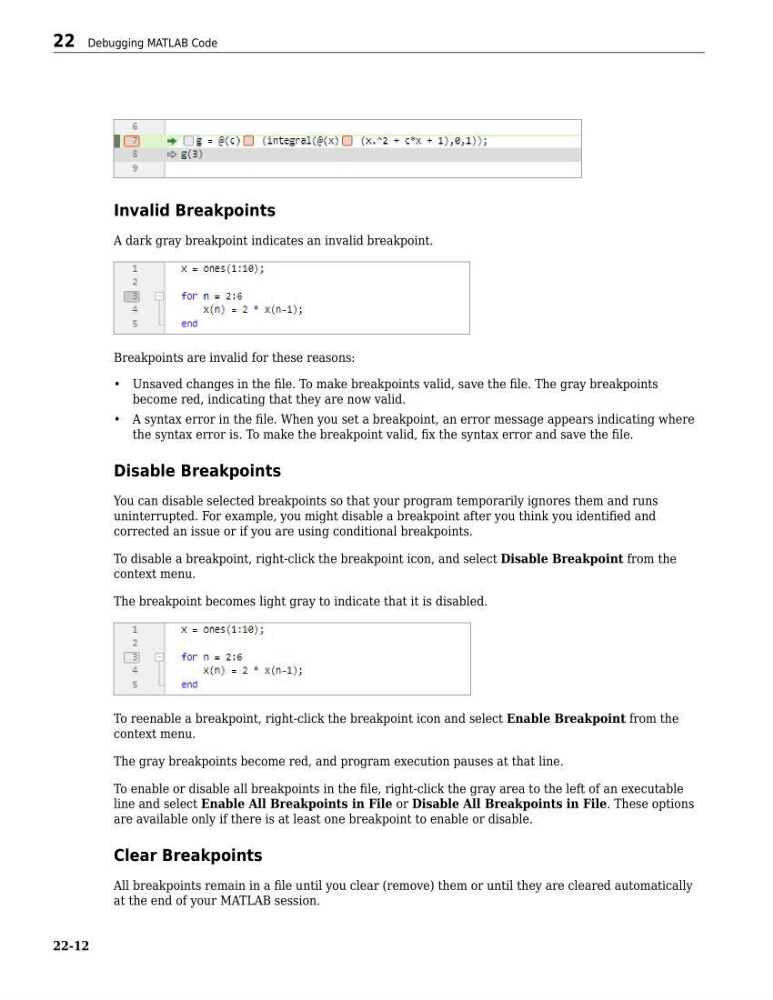
A dark gray breakpoint indicates an invalid breakpoint.
Breakpoints are invalid for these reasons:
• Unsaved changes in the file. To make breakpoints valid, save the file. The gray breakpoints
become red, indicating that they are now valid.
• A syntax error in the file. When you set a breakpoint, an error message appears indicating where
the syntax error is. To make the breakpoint valid, fix the syntax error and save the file.
Disable Breakpoints
You can disable selected breakpoints so that your program temporarily ignores them and runs
uninterrupted. For example, you might disable a breakpoint after you think you identified and
corrected an issue or if you are using conditional breakpoints.
To disable a breakpoint, right-click the breakpoint icon, and select Disable Breakpoint from the
context menu.
The breakpoint becomes light gray to indicate that it is disabled.
To reenable a breakpoint, right-click the breakpoint icon and select Enable Breakpoint from the
context menu.
The gray breakpoints become red, and program execution pauses at that line.
To enable or disable all breakpoints in the file, right-click the gray area to the left of an executable
line and select Enable All Breakpoints in File or Disable All Breakpoints in File. These options
are available only if there is at least one breakpoint to enable or disable.
Clear Breakpoints
All breakpoints remain in a file until you clear (remove) them or until they are cleared automatically
at the end of your MATLAB session.
22 Debugging MATLAB Code
22-12
A dark gray breakpoint indicates an invalid breakpoint.
Breakpoints are invalid for these reasons:
• Unsaved changes in the file. To make breakpoints valid, save the file. The gray breakpoints
become red, indicating that they are now valid.
• A syntax error in the file. When you set a breakpoint, an error message appears indicating where
the syntax error is. To make the breakpoint valid, fix the syntax error and save the file.
Disable Breakpoints
You can disable selected breakpoints so that your program temporarily ignores them and runs
uninterrupted. For example, you might disable a breakpoint after you think you identified and
corrected an issue or if you are using conditional breakpoints.
To disable a breakpoint, right-click the breakpoint icon, and select Disable Breakpoint from the
context menu.
The breakpoint becomes light gray to indicate that it is disabled.
To reenable a breakpoint, right-click the breakpoint icon and select Enable Breakpoint from the
context menu.
The gray breakpoints become red, and program execution pauses at that line.
To enable or disable all breakpoints in the file, right-click the gray area to the left of an executable
line and select Enable All Breakpoints in File or Disable All Breakpoints in File. These options
are available only if there is at least one breakpoint to enable or disable.
Clear Breakpoints
All breakpoints remain in a file until you clear (remove) them or until they are cleared automatically
at the end of your MATLAB session.
22 Debugging MATLAB Code
22-12