

When you run the file, MATLAB pauses at the line of code indicated by the breakpoint. The line at
which MATLAB is paused does not run until after you continue running your code.
For example, with the plotRand.m file open in the Editor, click the
Run button in the Editor tab.
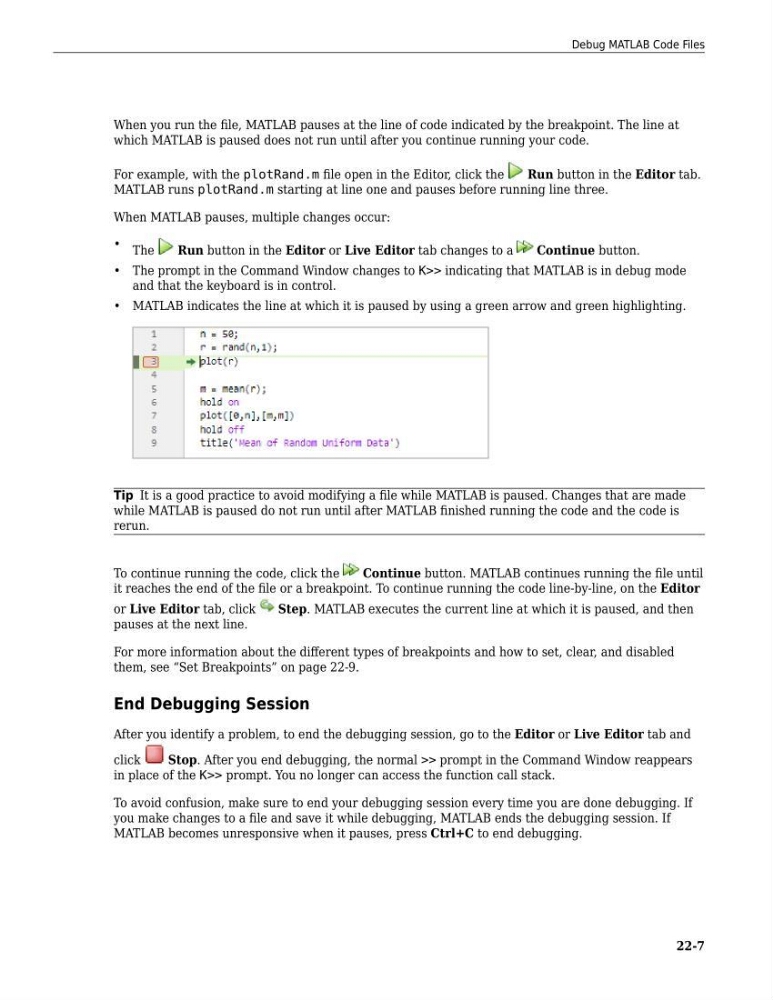
MATLAB runs plotRand.m starting at line one and pauses before running line three.
When MATLAB pauses, multiple changes occur:
• The
Run button in the Editor or Live Editor tab changes to a
Continue button.
• The prompt in the Command Window changes to K>> indicating that MATLAB is in debug mode
and that the keyboard is in control.
• MATLAB indicates the line at which it is paused by using a green arrow and green highlighting.
Tip It is a good practice to avoid modifying a file while MATLAB is paused. Changes that are made
while MATLAB is paused do not run until after MATLAB finished running the code and the code is
rerun.
To continue running the code, click the
Continue button. MATLAB continues running the file until
it reaches the end of the file or a breakpoint. To continue running the code line-by-line, on the Editor
or Live Editor tab, click
Step. MATLAB executes the current line at which it is paused, and then
pauses at the next line.
For more information about the different types of breakpoints and how to set, clear, and disabled
them, see “Set Breakpoints” on page 22-9.
End Debugging Session
After you identify a problem, to end the debugging session, go to the Editor or Live Editor tab and
click
Stop. After you end debugging, the normal >> prompt in the Command Window reappears
in place of the K>> prompt. You no longer can access the function call stack.
To avoid confusion, make sure to end your debugging session every time you are done debugging. If
you make changes to a file and save it while debugging, MATLAB ends the debugging session. If
MATLAB becomes unresponsive when it pauses, press Ctrl+C to end debugging.
Debug MATLAB Code Files
22-7
which MATLAB is paused does not run until after you continue running your code.
For example, with the plotRand.m file open in the Editor, click the
Run button in the Editor tab.
MATLAB runs plotRand.m starting at line one and pauses before running line three.
When MATLAB pauses, multiple changes occur:
• The
Run button in the Editor or Live Editor tab changes to a
Continue button.
• The prompt in the Command Window changes to K>> indicating that MATLAB is in debug mode
and that the keyboard is in control.
• MATLAB indicates the line at which it is paused by using a green arrow and green highlighting.
Tip It is a good practice to avoid modifying a file while MATLAB is paused. Changes that are made
while MATLAB is paused do not run until after MATLAB finished running the code and the code is
rerun.
To continue running the code, click the
Continue button. MATLAB continues running the file until
it reaches the end of the file or a breakpoint. To continue running the code line-by-line, on the Editor
or Live Editor tab, click
Step. MATLAB executes the current line at which it is paused, and then
pauses at the next line.
For more information about the different types of breakpoints and how to set, clear, and disabled
them, see “Set Breakpoints” on page 22-9.
End Debugging Session
After you identify a problem, to end the debugging session, go to the Editor or Live Editor tab and
click
Stop. After you end debugging, the normal >> prompt in the Command Window reappears
in place of the K>> prompt. You no longer can access the function call stack.
To avoid confusion, make sure to end your debugging session every time you are done debugging. If
you make changes to a file and save it while debugging, MATLAB ends the debugging session. If
MATLAB becomes unresponsive when it pauses, press Ctrl+C to end debugging.
Debug MATLAB Code Files
22-7