

click the
Step Out button at the top of the file to run the rest of the called function, leave the
called function, and then pause.
By default, the
Step In button is available only for user-defined functions and scripts. To make the
button active for MathWorks functions, on the Home tab, in the Environment section, click
Preferences. Then, select MATLAB > Editor/Debugger, and in the Debugging section, clear the
Only show contextual Step in button for user-defined functions option.
Alternatively, you can step in and out of functions while debugging by using the
Step In or
Step Out buttons on the Editor or Live Editor tab. These buttons do not honor the Only show
contextual Step in button for user-defined functions preference and always step in and out of
user-defined and MathWorks functions.
Function Call Stack
When you step into a called function or file, MATLAB displays the list of the functions it executed
before pausing at the current line. The list, also called the function call stack, is shown at the top of
the file and displays the functions in order, starting on the left with the first called script or function,
and ending on the right with the current script or function in which MATLAB is paused.
For each function in the function call stack, there is a corresponding workspace. Workspaces contain
variables that you create within MATLAB or import from data files or other programs. Variables that
you assign through the Command Window or create by using scripts belong to the base workspace.
Variables that you create in a function belong to their own function workspace.
You can examine the values of variables outside of the current workspace by selecting a different
workspace. For more information, see “Examine Values While Debugging” on page 22-14.
Add Breakpoints and Run Code
If there are lines of code in your file that you want to pause at every time you run your code, add
breakpoints at those lines. You can add breakpoints interactively by using the Editor and Live Editor,
programmatically by using functions in the Command Window, or both.
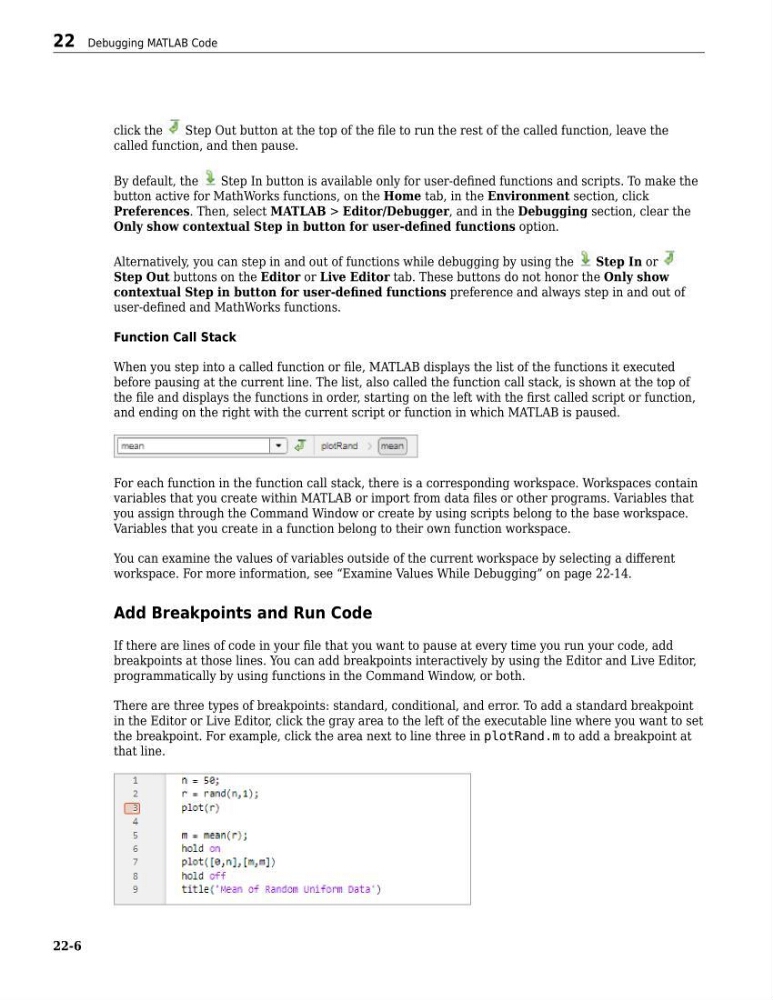
There are three types of breakpoints: standard, conditional, and error. To add a standard breakpoint
in the Editor or Live Editor, click the gray area to the left of the executable line where you want to set
the breakpoint. For example, click the area next to line three in plotRand.m to add a breakpoint at
that line.
22 Debugging MATLAB Code
22-6
Step Out button at the top of the file to run the rest of the called function, leave the
called function, and then pause.
By default, the
Step In button is available only for user-defined functions and scripts. To make the
button active for MathWorks functions, on the Home tab, in the Environment section, click
Preferences. Then, select MATLAB > Editor/Debugger, and in the Debugging section, clear the
Only show contextual Step in button for user-defined functions option.
Alternatively, you can step in and out of functions while debugging by using the
Step In or
Step Out buttons on the Editor or Live Editor tab. These buttons do not honor the Only show
contextual Step in button for user-defined functions preference and always step in and out of
user-defined and MathWorks functions.
Function Call Stack
When you step into a called function or file, MATLAB displays the list of the functions it executed
before pausing at the current line. The list, also called the function call stack, is shown at the top of
the file and displays the functions in order, starting on the left with the first called script or function,
and ending on the right with the current script or function in which MATLAB is paused.
For each function in the function call stack, there is a corresponding workspace. Workspaces contain
variables that you create within MATLAB or import from data files or other programs. Variables that
you assign through the Command Window or create by using scripts belong to the base workspace.
Variables that you create in a function belong to their own function workspace.
You can examine the values of variables outside of the current workspace by selecting a different
workspace. For more information, see “Examine Values While Debugging” on page 22-14.
Add Breakpoints and Run Code
If there are lines of code in your file that you want to pause at every time you run your code, add
breakpoints at those lines. You can add breakpoints interactively by using the Editor and Live Editor,
programmatically by using functions in the Command Window, or both.
There are three types of breakpoints: standard, conditional, and error. To add a standard breakpoint
in the Editor or Live Editor, click the gray area to the left of the executable line where you want to set
the breakpoint. For example, click the area next to line three in plotRand.m to add a breakpoint at
that line.
22 Debugging MATLAB Code
22-6