

View Variable Value While Debugging
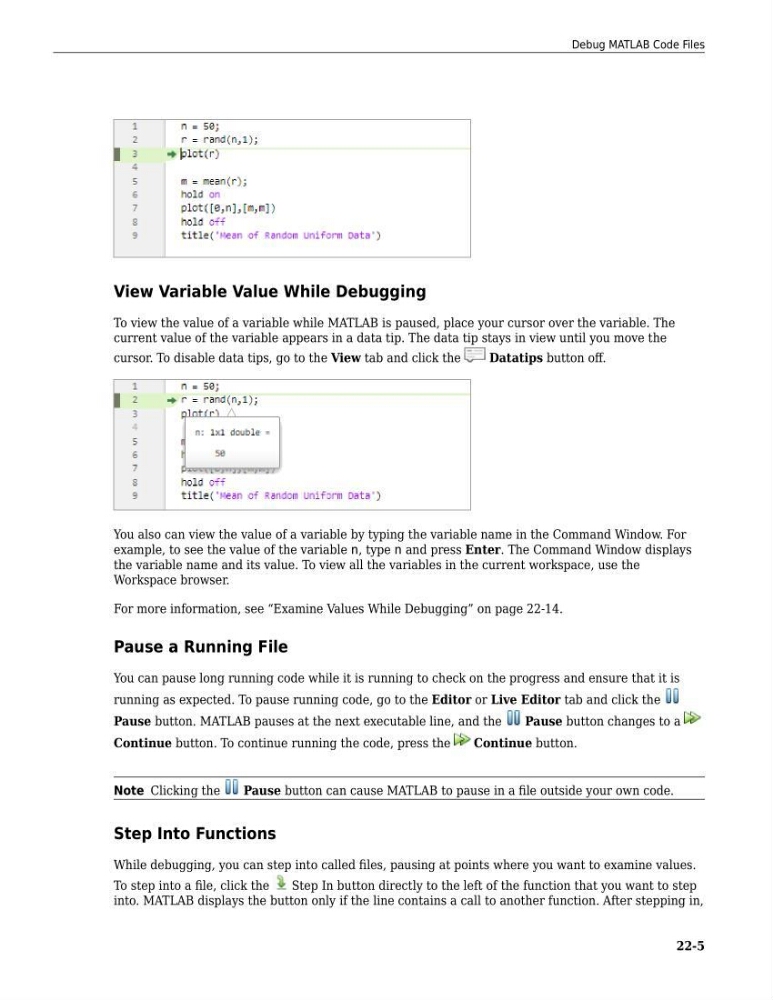
To view the value of a variable while MATLAB is paused, place your cursor over the variable. The
current value of the variable appears in a data tip. The data tip stays in view until you move the
cursor. To disable data tips, go to the View tab and click the
Datatips button off.
You also can view the value of a variable by typing the variable name in the Command Window. For
example, to see the value of the variable n, type n and press Enter. The Command Window displays
the variable name and its value. To view all the variables in the current workspace, use the
Workspace browser.
For more information, see “Examine Values While Debugging” on page 22-14.
Pause a Running File
You can pause long running code while it is running to check on the progress and ensure that it is
running as expected. To pause running code, go to the Editor or Live Editor tab and click the
Pause button. MATLAB pauses at the next executable line, and the
Pause button changes to a
Continue button. To continue running the code, press the
Continue button.
Note Clicking the
Pause button can cause MATLAB to pause in a file outside your own code.
Step Into Functions
While debugging, you can step into called files, pausing at points where you want to examine values.
To step into a file, click the
Step In button directly to the left of the function that you want to step
into. MATLAB displays the button only if the line contains a call to another function. After stepping in,
Debug MATLAB Code Files
22-5
To view the value of a variable while MATLAB is paused, place your cursor over the variable. The
current value of the variable appears in a data tip. The data tip stays in view until you move the
cursor. To disable data tips, go to the View tab and click the
Datatips button off.
You also can view the value of a variable by typing the variable name in the Command Window. For
example, to see the value of the variable n, type n and press Enter. The Command Window displays
the variable name and its value. To view all the variables in the current workspace, use the
Workspace browser.
For more information, see “Examine Values While Debugging” on page 22-14.
Pause a Running File
You can pause long running code while it is running to check on the progress and ensure that it is
running as expected. To pause running code, go to the Editor or Live Editor tab and click the
Pause button. MATLAB pauses at the next executable line, and the
Pause button changes to a
Continue button. To continue running the code, press the
Continue button.
Note Clicking the
Pause button can cause MATLAB to pause in a file outside your own code.
Step Into Functions
While debugging, you can step into called files, pausing at points where you want to examine values.
To step into a file, click the
Step In button directly to the left of the function that you want to step
into. MATLAB displays the button only if the line contains a call to another function. After stepping in,
Debug MATLAB Code Files
22-5