

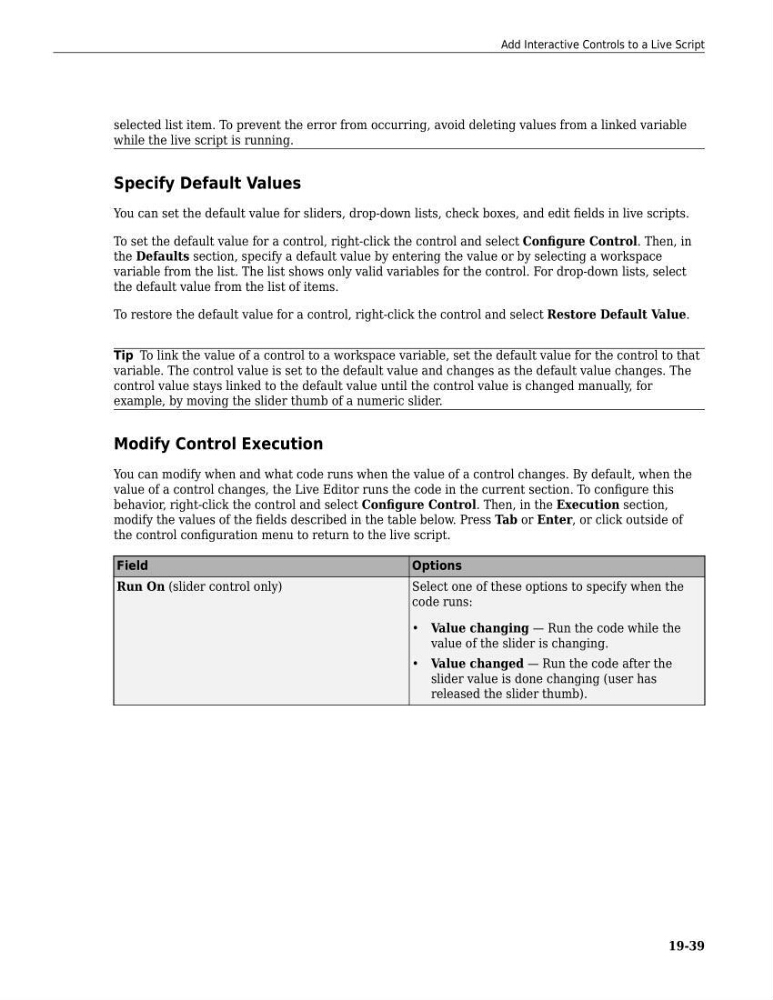
selected list item. To prevent the error from occurring, avoid deleting values from a linked variable
while the live script is running.
Specify Default Values
You can set the default value for sliders, drop-down lists, check boxes, and edit fields in live scripts.
To set the default value for a control, right-click the control and select Configure Control. Then, in
the Defaults section, specify a default value by entering the value or by selecting a workspace
variable from the list. The list shows only valid variables for the control. For drop-down lists, select
the default value from the list of items.
To restore the default value for a control, right-click the control and select Restore Default Value.
Tip To link the value of a control to a workspace variable, set the default value for the control to that
variable. The control value is set to the default value and changes as the default value changes. The
control value stays linked to the default value until the control value is changed manually, for
example, by moving the slider thumb of a numeric slider.
Modify Control Execution
You can modify when and what code runs when the value of a control changes. By default, when the
value of a control changes, the Live Editor runs the code in the current section. To configure this
behavior, right-click the control and select Configure Control. Then, in the Execution section,
modify the values of the fields described in the table below. Press Tab or Enter, or click outside of
the control configuration menu to return to the live script.
Field
Options
Run On (slider control only)
Select one of these options to specify when the
code runs:
• Value changing — Run the code while the
value of the slider is changing.
• Value changed — Run the code after the
slider value is done changing (user has
released the slider thumb).
Add Interactive Controls to a Live Script
19-39
while the live script is running.
Specify Default Values
You can set the default value for sliders, drop-down lists, check boxes, and edit fields in live scripts.
To set the default value for a control, right-click the control and select Configure Control. Then, in
the Defaults section, specify a default value by entering the value or by selecting a workspace
variable from the list. The list shows only valid variables for the control. For drop-down lists, select
the default value from the list of items.
To restore the default value for a control, right-click the control and select Restore Default Value.
Tip To link the value of a control to a workspace variable, set the default value for the control to that
variable. The control value is set to the default value and changes as the default value changes. The
control value stays linked to the default value until the control value is changed manually, for
example, by moving the slider thumb of a numeric slider.
Modify Control Execution
You can modify when and what code runs when the value of a control changes. By default, when the
value of a control changes, the Live Editor runs the code in the current section. To configure this
behavior, right-click the control and select Configure Control. Then, in the Execution section,
modify the values of the fields described in the table below. Press Tab or Enter, or click outside of
the control configuration menu to return to the live script.
Field
Options
Run On (slider control only)
Select one of these options to specify when the
code runs:
• Value changing — Run the code while the
value of the slider is changing.
• Value changed — Run the code after the
slider value is done changing (user has
released the slider thumb).
Add Interactive Controls to a Live Script
19-39