

To populate the items in a drop-down list using the values stored in a variable, right-click the control
and select Configure Control. Then, in the Items section, select a workspace variable from the
Variable list. The variable must be a string array to appear in the list. If the variable that you want to
select is not listed, try running the live script first to create the variable and add it to the workspace.
Changes to the variable are automatically reflected in the drop-down list.
For example, create a live script and define the variable lastnames containing a list of last names.
lastnames = ["Houston","Vega","Obrien","Potter","Rivera","Hanson","Fowler","Tran","Briggs"];
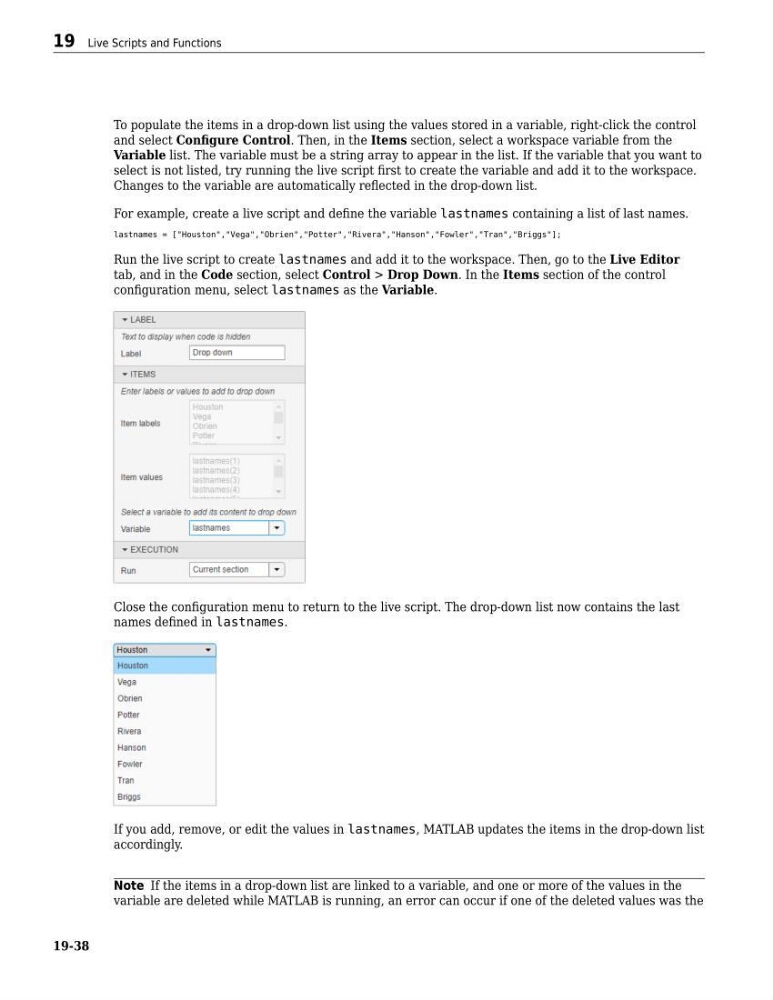
Run the live script to create lastnames and add it to the workspace. Then, go to the Live Editor
tab, and in the Code section, select Control > Drop Down. In the Items section of the control
configuration menu, select lastnames as the Variable.
Close the configuration menu to return to the live script. The drop-down list now contains the last
names defined in lastnames.
If you add, remove, or edit the values in lastnames, MATLAB updates the items in the drop-down list
accordingly.
Note If the items in a drop-down list are linked to a variable, and one or more of the values in the
variable are deleted while MATLAB is running, an error can occur if one of the deleted values was the
19 Live Scripts and Functions
19-38
and select Configure Control. Then, in the Items section, select a workspace variable from the
Variable list. The variable must be a string array to appear in the list. If the variable that you want to
select is not listed, try running the live script first to create the variable and add it to the workspace.
Changes to the variable are automatically reflected in the drop-down list.
For example, create a live script and define the variable lastnames containing a list of last names.
lastnames = ["Houston","Vega","Obrien","Potter","Rivera","Hanson","Fowler","Tran","Briggs"];
Run the live script to create lastnames and add it to the workspace. Then, go to the Live Editor
tab, and in the Code section, select Control > Drop Down. In the Items section of the control
configuration menu, select lastnames as the Variable.
Close the configuration menu to return to the live script. The drop-down list now contains the last
names defined in lastnames.
If you add, remove, or edit the values in lastnames, MATLAB updates the items in the drop-down list
accordingly.
Note If the items in a drop-down list are linked to a variable, and one or more of the values in the
variable are deleted while MATLAB is running, an error can occur if one of the deleted values was the
19 Live Scripts and Functions
19-38