

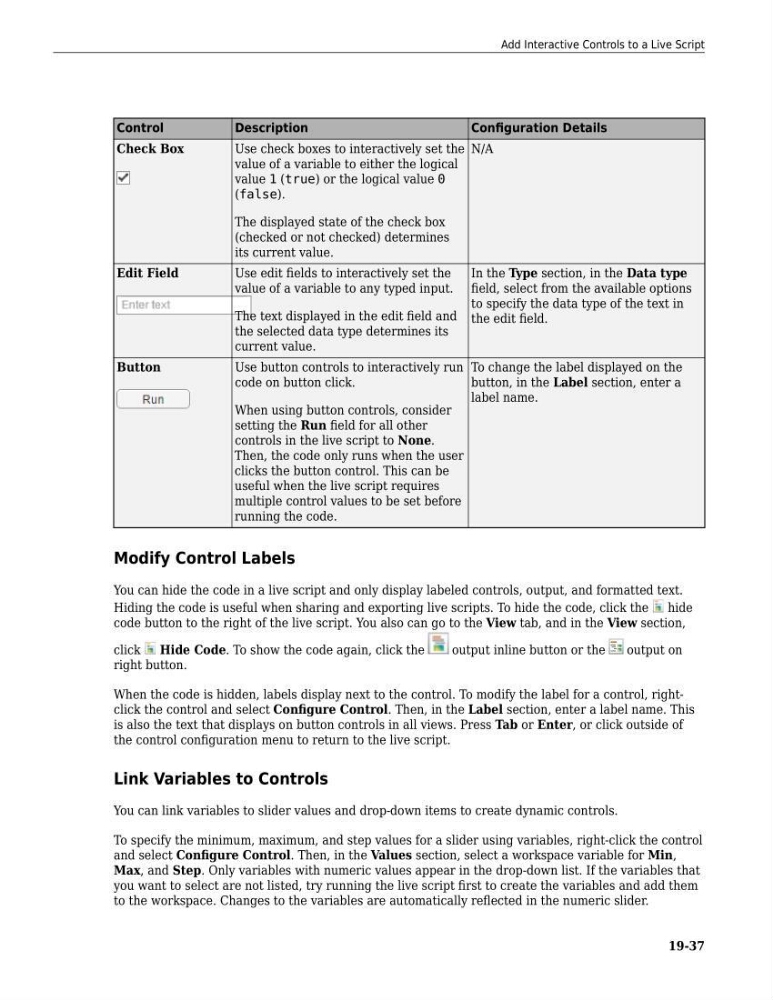
Control
Description
Configuration Details
Check Box
Use check boxes to interactively set the
value of a variable to either the logical
value 1 (true) or the logical value 0
(false).
The displayed state of the check box
(checked or not checked) determines
its current value.
N/A
Edit Field
Use edit fields to interactively set the
value of a variable to any typed input.
The text displayed in the edit field and
the selected data type determines its
current value.
In the Type section, in the Data type
field, select from the available options
to specify the data type of the text in
the edit field.
Button
Use button controls to interactively run
code on button click.
When using button controls, consider
setting the Run field for all other
controls in the live script to None.
Then, the code only runs when the user
clicks the button control. This can be
useful when the live script requires
multiple control values to be set before
running the code.
To change the label displayed on the
button, in the Label section, enter a
label name.
Modify Control Labels
You can hide the code in a live script and only display labeled controls, output, and formatted text.
Hiding the code is useful when sharing and exporting live scripts. To hide the code, click the
hide
code button to the right of the live script. You also can go to the View tab, and in the View section,
click
Hide Code. To show the code again, click the
output inline button or the
output on
right button.
When the code is hidden, labels display next to the control. To modify the label for a control, rightclick the control and select Configure Control. Then, in the Label section, enter a label name. This
is also the text that displays on button controls in all views. Press Tab or Enter, or click outside of
the control configuration menu to return to the live script.
Link Variables to Controls
You can link variables to slider values and drop-down items to create dynamic controls.
To specify the minimum, maximum, and step values for a slider using variables, right-click the control
and select Configure Control. Then, in the Values section, select a workspace variable for Min,
Max, and Step. Only variables with numeric values appear in the drop-down list. If the variables that
you want to select are not listed, try running the live script first to create the variables and add them
to the workspace. Changes to the variables are automatically reflected in the numeric slider.
Add Interactive Controls to a Live Script
19-37
Description
Configuration Details
Check Box
Use check boxes to interactively set the
value of a variable to either the logical
value 1 (true) or the logical value 0
(false).
The displayed state of the check box
(checked or not checked) determines
its current value.
N/A
Edit Field
Use edit fields to interactively set the
value of a variable to any typed input.
The text displayed in the edit field and
the selected data type determines its
current value.
In the Type section, in the Data type
field, select from the available options
to specify the data type of the text in
the edit field.
Button
Use button controls to interactively run
code on button click.
When using button controls, consider
setting the Run field for all other
controls in the live script to None.
Then, the code only runs when the user
clicks the button control. This can be
useful when the live script requires
multiple control values to be set before
running the code.
To change the label displayed on the
button, in the Label section, enter a
label name.
Modify Control Labels
You can hide the code in a live script and only display labeled controls, output, and formatted text.
Hiding the code is useful when sharing and exporting live scripts. To hide the code, click the
hide
code button to the right of the live script. You also can go to the View tab, and in the View section,
click
Hide Code. To show the code again, click the
output inline button or the
output on
right button.
When the code is hidden, labels display next to the control. To modify the label for a control, rightclick the control and select Configure Control. Then, in the Label section, enter a label name. This
is also the text that displays on button controls in all views. Press Tab or Enter, or click outside of
the control configuration menu to return to the live script.
Link Variables to Controls
You can link variables to slider values and drop-down items to create dynamic controls.
To specify the minimum, maximum, and step values for a slider using variables, right-click the control
and select Configure Control. Then, in the Values section, select a workspace variable for Min,
Max, and Step. Only variables with numeric values appear in the drop-down list. If the variables that
you want to select are not listed, try running the live script first to create the variables and add them
to the workspace. Changes to the variables are automatically reflected in the numeric slider.
Add Interactive Controls to a Live Script
19-37