

Add Interactive Controls to a Live Script
You can add sliders, drop-downs, check boxes, edit fields, and buttons to your live scripts to control
variable values interactively. Adding interactive controls to a script is useful when you want to share
the script with others. Use interactive controls to set and change the values of variables in your live
script using familiar user interface components.
Insert Controls
To insert a control into a live script, go to the Live Editor tab, and in the Code section, click
Control. Then, select from the available options. To replace an existing value with a control, select
the value and then insert the control. The Control menu only shows options available for the selected
value.
The table below shows the list of available controls:
Control
Description
Configuration Details
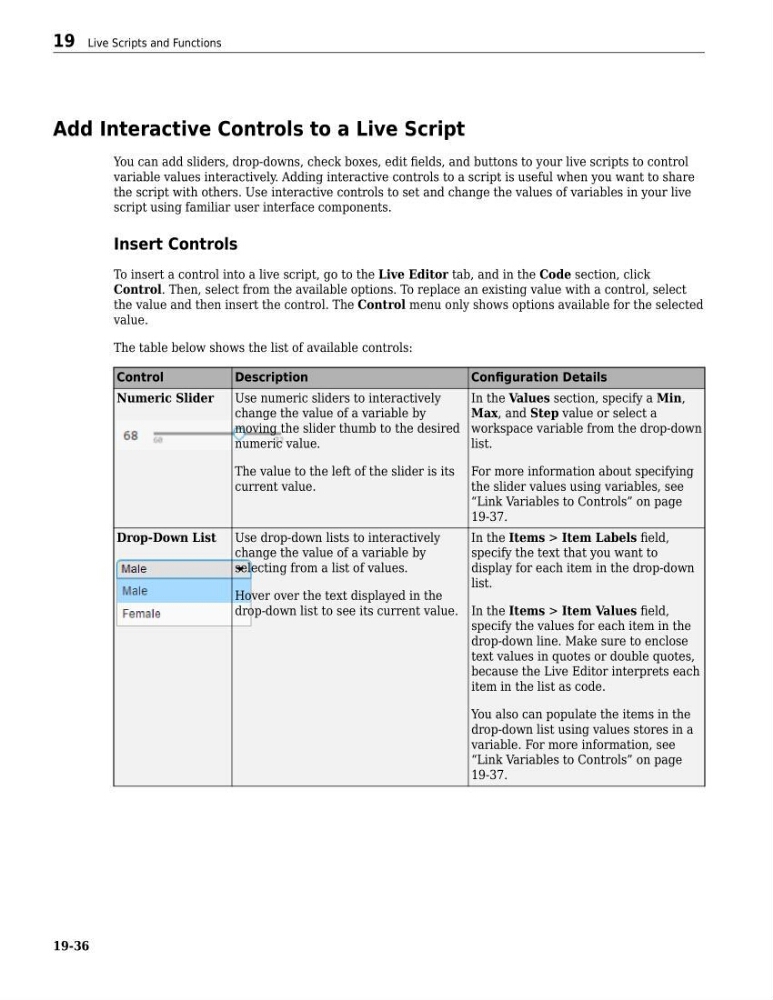
Numeric Slider
Use numeric sliders to interactively
change the value of a variable by
moving the slider thumb to the desired
numeric value.
The value to the left of the slider is its
current value.
In the Values section, specify a Min,
Max, and Step value or select a
workspace variable from the drop-down
list.
For more information about specifying
the slider values using variables, see
“Link Variables to Controls” on page
19-37.
Drop-Down List Use drop-down lists to interactively
change the value of a variable by
selecting from a list of values.
Hover over the text displayed in the
drop-down list to see its current value.
In the Items > Item Labels field,
specify the text that you want to
display for each item in the drop-down
list.
In the Items > Item Values field,
specify the values for each item in the
drop-down line. Make sure to enclose
text values in quotes or double quotes,
because the Live Editor interprets each
item in the list as code.
You also can populate the items in the
drop-down list using values stores in a
variable. For more information, see
“Link Variables to Controls” on page
19-37.
19 Live Scripts and Functions
19-36
You can add sliders, drop-downs, check boxes, edit fields, and buttons to your live scripts to control
variable values interactively. Adding interactive controls to a script is useful when you want to share
the script with others. Use interactive controls to set and change the values of variables in your live
script using familiar user interface components.
Insert Controls
To insert a control into a live script, go to the Live Editor tab, and in the Code section, click
Control. Then, select from the available options. To replace an existing value with a control, select
the value and then insert the control. The Control menu only shows options available for the selected
value.
The table below shows the list of available controls:
Control
Description
Configuration Details
Numeric Slider
Use numeric sliders to interactively
change the value of a variable by
moving the slider thumb to the desired
numeric value.
The value to the left of the slider is its
current value.
In the Values section, specify a Min,
Max, and Step value or select a
workspace variable from the drop-down
list.
For more information about specifying
the slider values using variables, see
“Link Variables to Controls” on page
19-37.
Drop-Down List Use drop-down lists to interactively
change the value of a variable by
selecting from a list of values.
Hover over the text displayed in the
drop-down list to see its current value.
In the Items > Item Labels field,
specify the text that you want to
display for each item in the drop-down
list.
In the Items > Item Values field,
specify the values for each item in the
drop-down line. Make sure to enclose
text values in quotes or double quotes,
because the Live Editor interprets each
item in the list as code.
You also can populate the items in the
drop-down list using values stores in a
variable. For more information, see
“Link Variables to Controls” on page
19-37.
19 Live Scripts and Functions
19-36