

3
Format your equation using the options available in the Text section. Formatting is only available
for text within the equation. Numbers and symbols cannot be formatted. The formatting option is
disabled unless the cursor is placed within text that can be formatted.
Keyboard Shortcuts for Equation Editing
The equation editor provides a few shortcuts for adding elements to your equation:
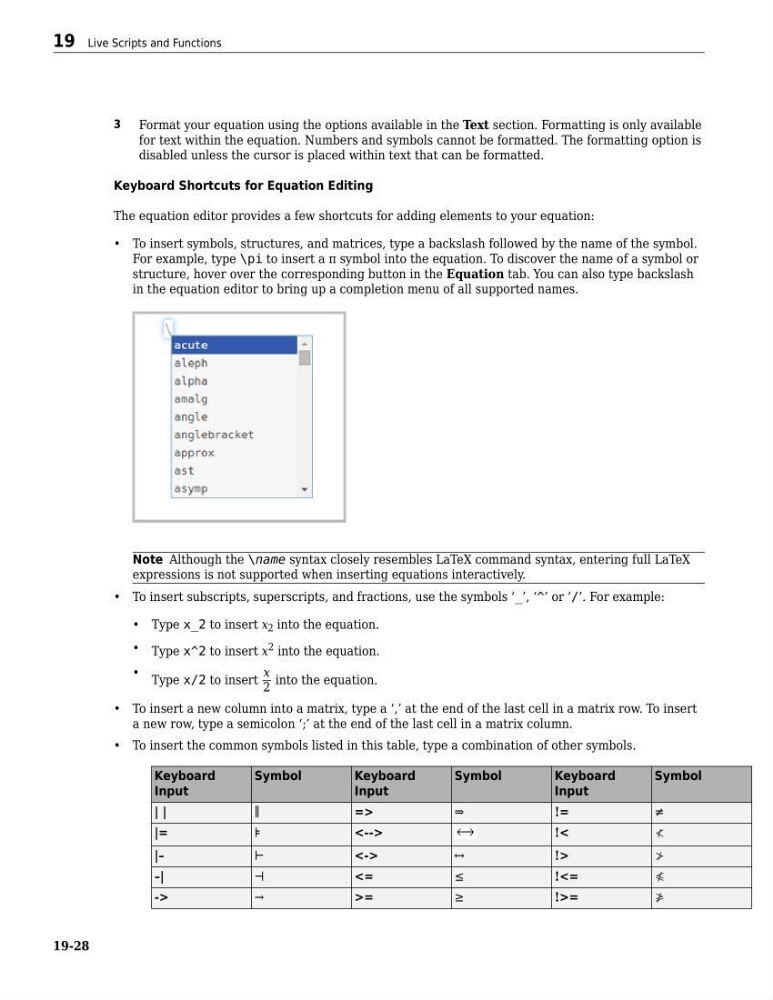
• To insert symbols, structures, and matrices, type a backslash followed by the name of the symbol.
For example, type \pi to insert a π symbol into the equation. To discover the name of a symbol or
structure, hover over the corresponding button in the Equation tab. You can also type backslash
in the equation editor to bring up a completion menu of all supported names.
Note Although the \name syntax closely resembles LaTeX command syntax, entering full LaTeX
expressions is not supported when inserting equations interactively.
• To insert subscripts, superscripts, and fractions, use the symbols ‘_’, ‘^’ or ‘/’. For example:
• Type x_2 to insert x 2 into the equation.
• Type x^2 to insert x 2 into the equation.
• Type x/2 to insert
x
2
into the equation.
• To insert a new column into a matrix, type a ‘,’ at the end of the last cell in a matrix row. To insert
a new row, type a semicolon ‘;’ at the end of the last cell in a matrix column.
• To insert the common symbols listed in this table, type a combination of other symbols.
Keyboard
Input
Symbol
Keyboard
Input
Symbol
Keyboard
Input
Symbol
| |
∥
=>
⇒
!=
≠
|=
⊧
<-->
!<
≮
|–
⊢
<->
!>
≯
–|
⊣
<=
≤
!<=
≰
->
→
>=
≥
!>=
≱
19 Live Scripts and Functions
19-28
Format your equation using the options available in the Text section. Formatting is only available
for text within the equation. Numbers and symbols cannot be formatted. The formatting option is
disabled unless the cursor is placed within text that can be formatted.
Keyboard Shortcuts for Equation Editing
The equation editor provides a few shortcuts for adding elements to your equation:
• To insert symbols, structures, and matrices, type a backslash followed by the name of the symbol.
For example, type \pi to insert a π symbol into the equation. To discover the name of a symbol or
structure, hover over the corresponding button in the Equation tab. You can also type backslash
in the equation editor to bring up a completion menu of all supported names.
Note Although the \name syntax closely resembles LaTeX command syntax, entering full LaTeX
expressions is not supported when inserting equations interactively.
• To insert subscripts, superscripts, and fractions, use the symbols ‘_’, ‘^’ or ‘/’. For example:
• Type x_2 to insert x 2 into the equation.
• Type x^2 to insert x 2 into the equation.
• Type x/2 to insert
x
2
into the equation.
• To insert a new column into a matrix, type a ‘,’ at the end of the last cell in a matrix row. To insert
a new row, type a semicolon ‘;’ at the end of the last cell in a matrix column.
• To insert the common symbols listed in this table, type a combination of other symbols.
Keyboard
Input
Symbol
Keyboard
Input
Symbol
Keyboard
Input
Symbol
| |
∥
=>
⇒
!=
≠
|=
⊧
<-->
!<
≮
|–
⊢
<->
!>
≯
–|
⊣
<=
≤
!<=
≰
->
→
>=
≥
!>=
≱
19 Live Scripts and Functions
19-28