

Insert Equations into the Live Editor
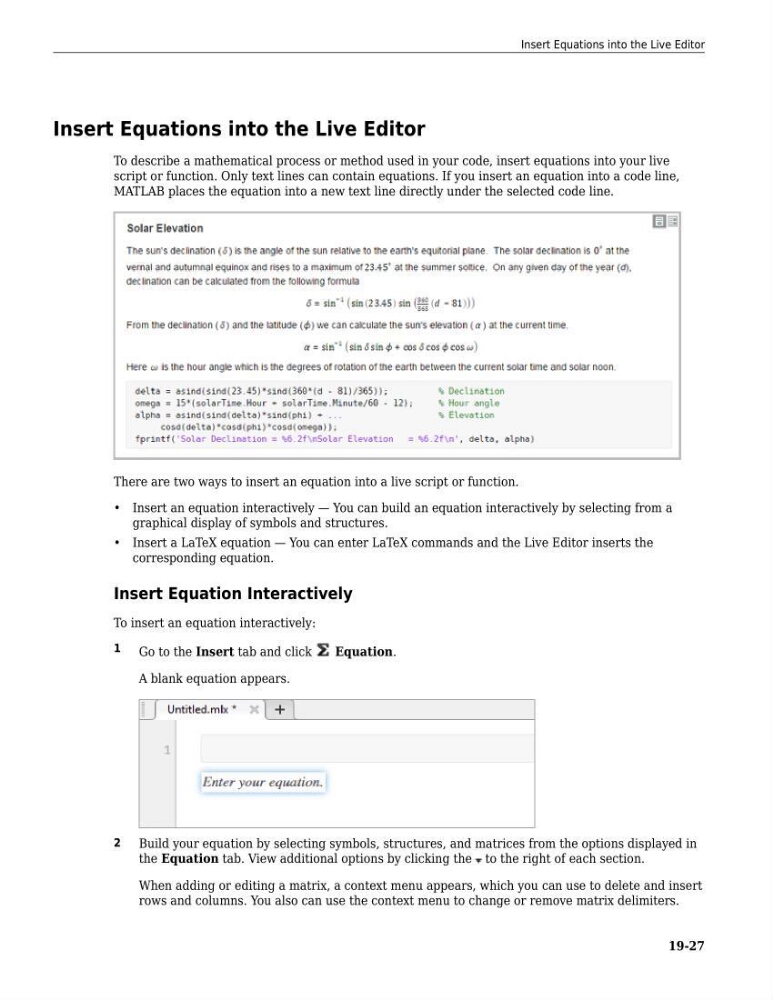
To describe a mathematical process or method used in your code, insert equations into your live
script or function. Only text lines can contain equations. If you insert an equation into a code line,
MATLAB places the equation into a new text line directly under the selected code line.
There are two ways to insert an equation into a live script or function.
• Insert an equation interactively — You can build an equation interactively by selecting from a
graphical display of symbols and structures.
• Insert a LaTeX equation — You can enter LaTeX commands and the Live Editor inserts the
corresponding equation.
Insert Equation Interactively
To insert an equation interactively:
1
Go to the Insert tab and click
Equation.
A blank equation appears.
2
Build your equation by selecting symbols, structures, and matrices from the options displayed in
the Equation tab. View additional options by clicking the to the right of each section.
When adding or editing a matrix, a context menu appears, which you can use to delete and insert
rows and columns. You also can use the context menu to change or remove matrix delimiters.
Insert Equations into the Live Editor
19-27
To describe a mathematical process or method used in your code, insert equations into your live
script or function. Only text lines can contain equations. If you insert an equation into a code line,
MATLAB places the equation into a new text line directly under the selected code line.
There are two ways to insert an equation into a live script or function.
• Insert an equation interactively — You can build an equation interactively by selecting from a
graphical display of symbols and structures.
• Insert a LaTeX equation — You can enter LaTeX commands and the Live Editor inserts the
corresponding equation.
Insert Equation Interactively
To insert an equation interactively:
1
Go to the Insert tab and click
Equation.
A blank equation appears.
2
Build your equation by selecting symbols, structures, and matrices from the options displayed in
the Equation tab. View additional options by clicking the to the right of each section.
When adding or editing a matrix, a context menu appears, which you can use to delete and insert
rows and columns. You also can use the context menu to change or remove matrix delimiters.
Insert Equations into the Live Editor
19-27