

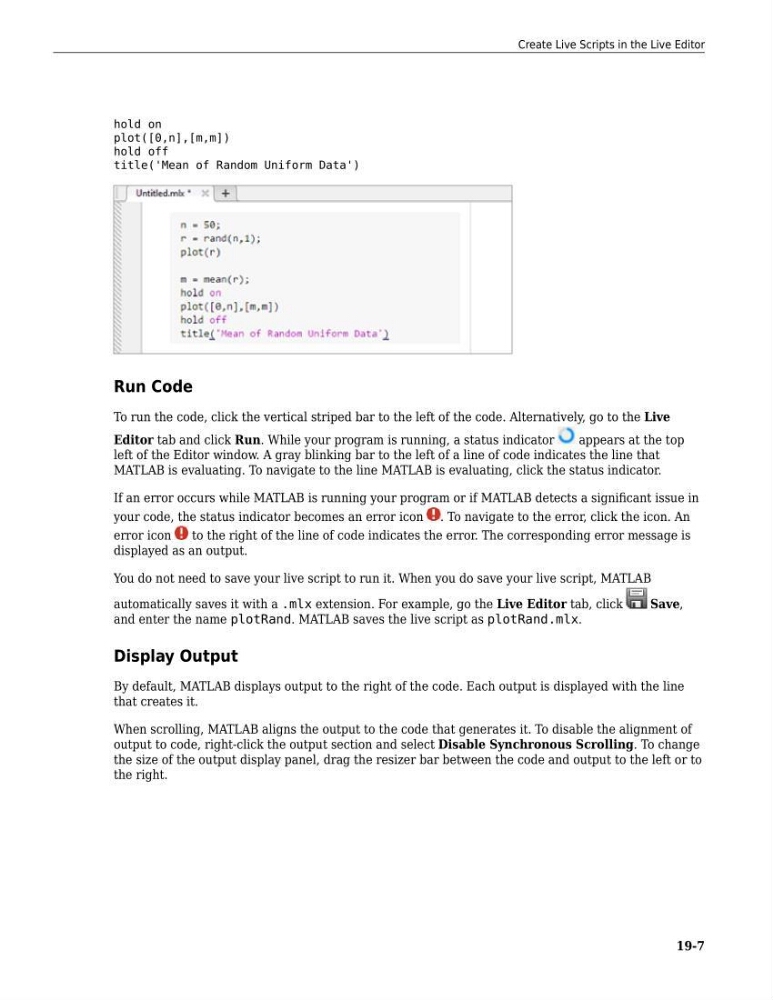
hold on
plot([0,n],[m,m])
hold off
title('Mean of Random Uniform Data')
Run Code
To run the code, click the vertical striped bar to the left of the code. Alternatively, go to the Live
Editor tab and click Run. While your program is running, a status indicator
appears at the top
left of the Editor window. A gray blinking bar to the left of a line of code indicates the line that
MATLAB is evaluating. To navigate to the line MATLAB is evaluating, click the status indicator.
If an error occurs while MATLAB is running your program or if MATLAB detects a significant issue in
your code, the status indicator becomes an error icon . To navigate to the error, click the icon. An
error icon
to the right of the line of code indicates the error. The corresponding error message is
displayed as an output.
You do not need to save your live script to run it. When you do save your live script, MATLAB
automatically saves it with a .mlx extension. For example, go the Live Editor tab, click
Save,
and enter the name plotRand. MATLAB saves the live script as plotRand.mlx.
Display Output
By default, MATLAB displays output to the right of the code. Each output is displayed with the line
that creates it.
When scrolling, MATLAB aligns the output to the code that generates it. To disable the alignment of
output to code, right-click the output section and select Disable Synchronous Scrolling. To change
the size of the output display panel, drag the resizer bar between the code and output to the left or to
the right.
Create Live Scripts in the Live Editor
19-7
plot([0,n],[m,m])
hold off
title('Mean of Random Uniform Data')
Run Code
To run the code, click the vertical striped bar to the left of the code. Alternatively, go to the Live
Editor tab and click Run. While your program is running, a status indicator
appears at the top
left of the Editor window. A gray blinking bar to the left of a line of code indicates the line that
MATLAB is evaluating. To navigate to the line MATLAB is evaluating, click the status indicator.
If an error occurs while MATLAB is running your program or if MATLAB detects a significant issue in
your code, the status indicator becomes an error icon . To navigate to the error, click the icon. An
error icon
to the right of the line of code indicates the error. The corresponding error message is
displayed as an output.
You do not need to save your live script to run it. When you do save your live script, MATLAB
automatically saves it with a .mlx extension. For example, go the Live Editor tab, click
Save,
and enter the name plotRand. MATLAB saves the live script as plotRand.mlx.
Display Output
By default, MATLAB displays output to the right of the code. Each output is displayed with the line
that creates it.
When scrolling, MATLAB aligns the output to the code that generates it. To disable the alignment of
output to code, right-click the output section and select Disable Synchronous Scrolling. To change
the size of the output display panel, drag the resizer bar between the code and output to the left or to
the right.
Create Live Scripts in the Live Editor
19-7