

Create Live Scripts in the Live Editor
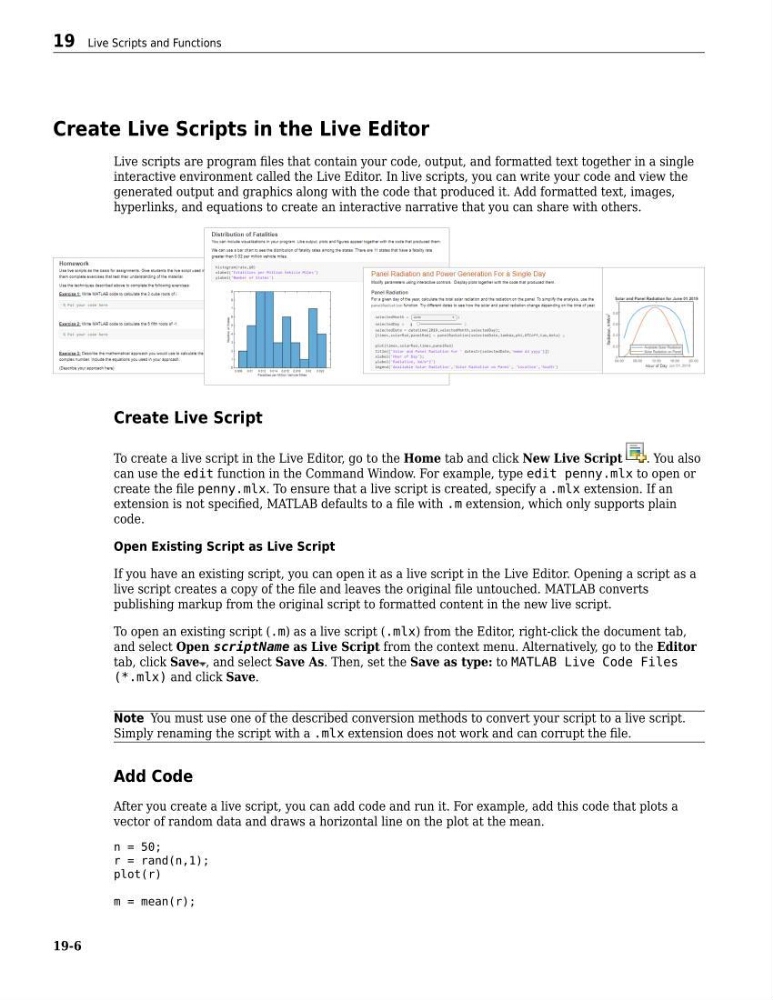
Live scripts are program files that contain your code, output, and formatted text together in a single
interactive environment called the Live Editor. In live scripts, you can write your code and view the
generated output and graphics along with the code that produced it. Add formatted text, images,
hyperlinks, and equations to create an interactive narrative that you can share with others.
Create Live Script
To create a live script in the Live Editor, go to the Home tab and click New Live Script
. You also
can use the edit function in the Command Window. For example, type edit penny.mlx to open or
create the file penny.mlx. To ensure that a live script is created, specify a .mlx extension. If an
extension is not specified, MATLAB defaults to a file with .m extension, which only supports plain
code.
Open Existing Script as Live Script
If you have an existing script, you can open it as a live script in the Live Editor. Opening a script as a
live script creates a copy of the file and leaves the original file untouched. MATLAB converts
publishing markup from the original script to formatted content in the new live script.
To open an existing script (.m) as a live script (.mlx) from the Editor, right-click the document tab,
and select Open scriptName as Live Script from the context menu. Alternatively, go to the Editor
tab, click Save , and select Save As. Then, set the Save as type: to MATLAB Live Code Files
(*.mlx) and click Save.
Note You must use one of the described conversion methods to convert your script to a live script.
Simply renaming the script with a .mlx extension does not work and can corrupt the file.
Add Code
After you create a live script, you can add code and run it. For example, add this code that plots a
vector of random data and draws a horizontal line on the plot at the mean.
n = 50;
r = rand(n,1);
plot(r)
m = mean(r);
19 Live Scripts and Functions
19-6
Live scripts are program files that contain your code, output, and formatted text together in a single
interactive environment called the Live Editor. In live scripts, you can write your code and view the
generated output and graphics along with the code that produced it. Add formatted text, images,
hyperlinks, and equations to create an interactive narrative that you can share with others.
Create Live Script
To create a live script in the Live Editor, go to the Home tab and click New Live Script
. You also
can use the edit function in the Command Window. For example, type edit penny.mlx to open or
create the file penny.mlx. To ensure that a live script is created, specify a .mlx extension. If an
extension is not specified, MATLAB defaults to a file with .m extension, which only supports plain
code.
Open Existing Script as Live Script
If you have an existing script, you can open it as a live script in the Live Editor. Opening a script as a
live script creates a copy of the file and leaves the original file untouched. MATLAB converts
publishing markup from the original script to formatted content in the new live script.
To open an existing script (.m) as a live script (.mlx) from the Editor, right-click the document tab,
and select Open scriptName as Live Script from the context menu. Alternatively, go to the Editor
tab, click Save , and select Save As. Then, set the Save as type: to MATLAB Live Code Files
(*.mlx) and click Save.
Note You must use one of the described conversion methods to convert your script to a live script.
Simply renaming the script with a .mlx extension does not work and can corrupt the file.
Add Code
After you create a live script, you can add code and run it. For example, add this code that plots a
vector of random data and draws a horizontal line on the plot at the mean.
n = 50;
r = rand(n,1);
plot(r)
m = mean(r);
19 Live Scripts and Functions
19-6