

Create and Run Sections in Code
Since R2021b. Replaces Code Sections (R2021a) and Run Sections in Live Scripts (R2021a).
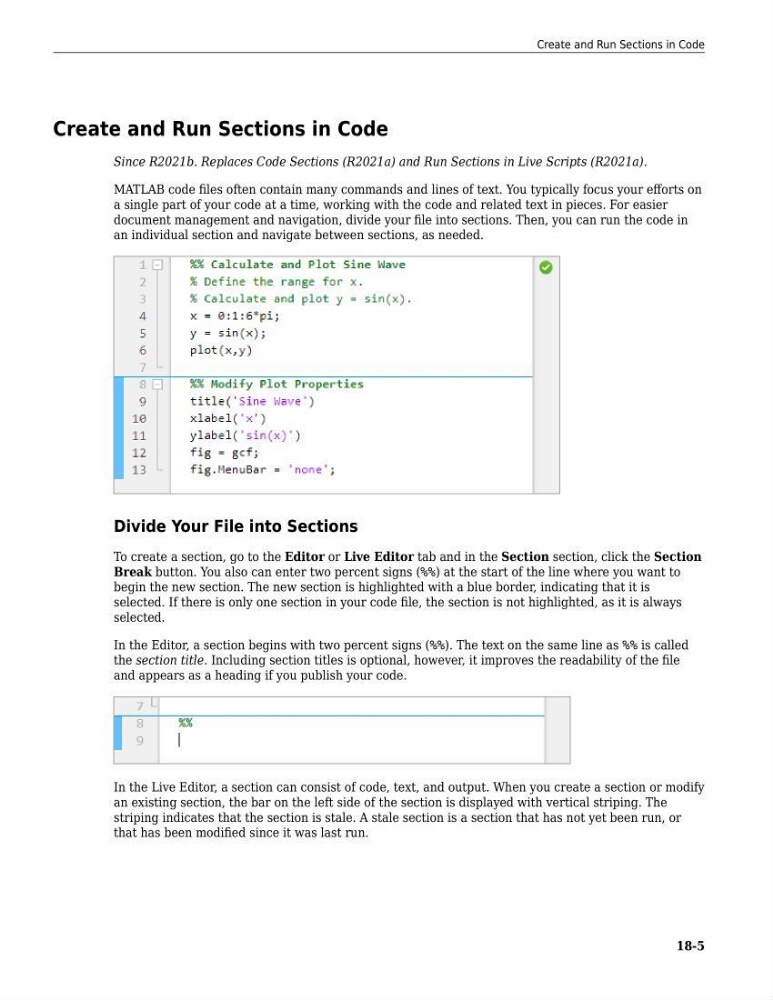
MATLAB code files often contain many commands and lines of text. You typically focus your efforts on
a single part of your code at a time, working with the code and related text in pieces. For easier
document management and navigation, divide your file into sections. Then, you can run the code in
an individual section and navigate between sections, as needed.
Divide Your File into Sections
To create a section, go to the Editor or Live Editor tab and in the Section section, click the Section
Break button. You also can enter two percent signs (%%) at the start of the line where you want to
begin the new section. The new section is highlighted with a blue border, indicating that it is
selected. If there is only one section in your code file, the section is not highlighted, as it is always
selected.
In the Editor, a section begins with two percent signs (%%). The text on the same line as %% is called
the section title. Including section titles is optional, however, it improves the readability of the file
and appears as a heading if you publish your code.
In the Live Editor, a section can consist of code, text, and output. When you create a section or modify
an existing section, the bar on the left side of the section is displayed with vertical striping. The
striping indicates that the section is stale. A stale section is a section that has not yet been run, or
that has been modified since it was last run.
Create and Run Sections in Code
18-5
Since R2021b. Replaces Code Sections (R2021a) and Run Sections in Live Scripts (R2021a).
MATLAB code files often contain many commands and lines of text. You typically focus your efforts on
a single part of your code at a time, working with the code and related text in pieces. For easier
document management and navigation, divide your file into sections. Then, you can run the code in
an individual section and navigate between sections, as needed.
Divide Your File into Sections
To create a section, go to the Editor or Live Editor tab and in the Section section, click the Section
Break button. You also can enter two percent signs (%%) at the start of the line where you want to
begin the new section. The new section is highlighted with a blue border, indicating that it is
selected. If there is only one section in your code file, the section is not highlighted, as it is always
selected.
In the Editor, a section begins with two percent signs (%%). The text on the same line as %% is called
the section title. Including section titles is optional, however, it improves the readability of the file
and appears as a heading if you publish your code.
In the Live Editor, a section can consist of code, text, and output. When you create a section or modify
an existing section, the bar on the left side of the section is displayed with vertical striping. The
striping indicates that the section is stale. A stale section is a section that has not yet been run, or
that has been modified since it was last run.
Create and Run Sections in Code
18-5