

The Editor and Live Editor include tools and context menu items to help you add, remove, or change
the format of comments for MATLAB, Java, and C/C++ code. For example, suppose that you have this
lengthy text into a commented line.
% This is a code file that has a comment that is a little more than 75 columns wide.
disp('Hello, world')
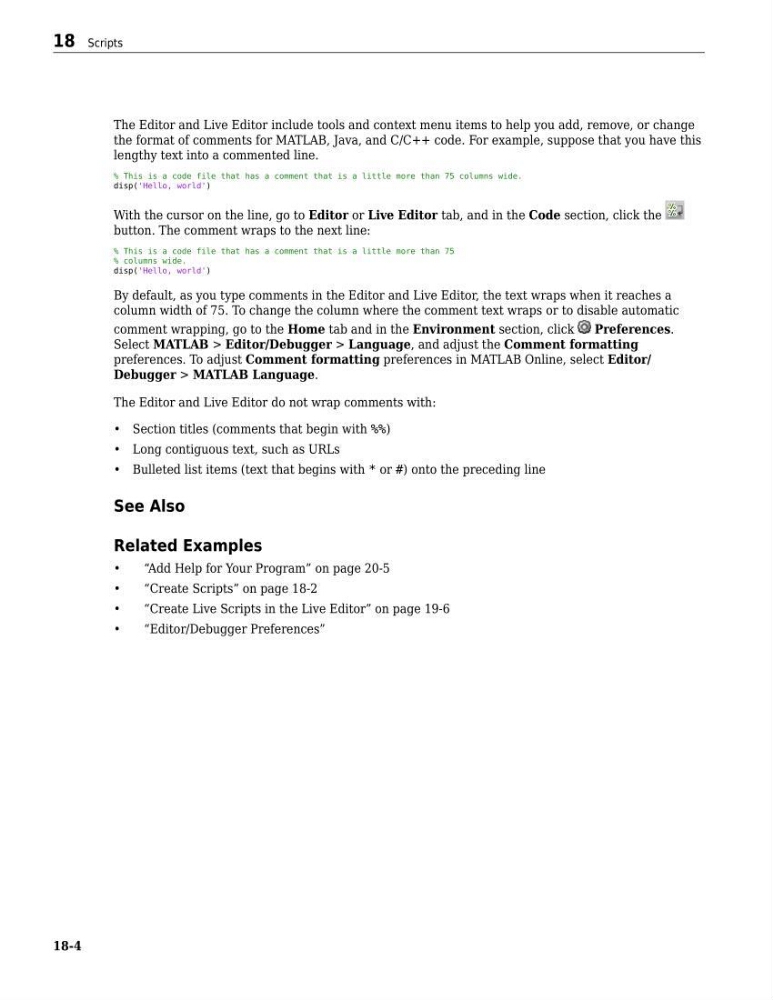
With the cursor on the line, go to Editor or Live Editor tab, and in the Code section, click the
button. The comment wraps to the next line:
% This is a code file that has a comment that is a little more than 75
% columns wide.
disp('Hello, world')
By default, as you type comments in the Editor and Live Editor, the text wraps when it reaches a
column width of 75. To change the column where the comment text wraps or to disable automatic
comment wrapping, go to the Home tab and in the Environment section, click
Preferences.
Select MATLAB > Editor/Debugger > Language, and adjust the Comment formatting
preferences. To adjust Comment formatting preferences in MATLAB Online, select Editor/
Debugger > MATLAB Language.
The Editor and Live Editor do not wrap comments with:
• Section titles (comments that begin with %%)
• Long contiguous text, such as URLs
• Bulleted list items (text that begins with * or #) onto the preceding line
See Also
Related Examples
•
“Add Help for Your Program” on page 20-5
•
“Create Scripts” on page 18-2
•
“Create Live Scripts in the Live Editor” on page 19-6
•
“Editor/Debugger Preferences”
18 Scripts
18-4
the format of comments for MATLAB, Java, and C/C++ code. For example, suppose that you have this
lengthy text into a commented line.
% This is a code file that has a comment that is a little more than 75 columns wide.
disp('Hello, world')
With the cursor on the line, go to Editor or Live Editor tab, and in the Code section, click the
button. The comment wraps to the next line:
% This is a code file that has a comment that is a little more than 75
% columns wide.
disp('Hello, world')
By default, as you type comments in the Editor and Live Editor, the text wraps when it reaches a
column width of 75. To change the column where the comment text wraps or to disable automatic
comment wrapping, go to the Home tab and in the Environment section, click
Preferences.
Select MATLAB > Editor/Debugger > Language, and adjust the Comment formatting
preferences. To adjust Comment formatting preferences in MATLAB Online, select Editor/
Debugger > MATLAB Language.
The Editor and Live Editor do not wrap comments with:
• Section titles (comments that begin with %%)
• Long contiguous text, such as URLs
• Bulleted list items (text that begins with * or #) onto the preceding line
See Also
Related Examples
•
“Add Help for Your Program” on page 20-5
•
“Create Scripts” on page 18-2
•
“Create Live Scripts in the Live Editor” on page 19-6
•
“Editor/Debugger Preferences”
18 Scripts
18-4