

Add Variables Using Dot Syntax
An alternative way to add new table variables is to use dot syntax. When you use dot syntax, you
always add the new variable as the last table variable. You can add a variable that has any data type,
as long as it has the same number of rows as the table.
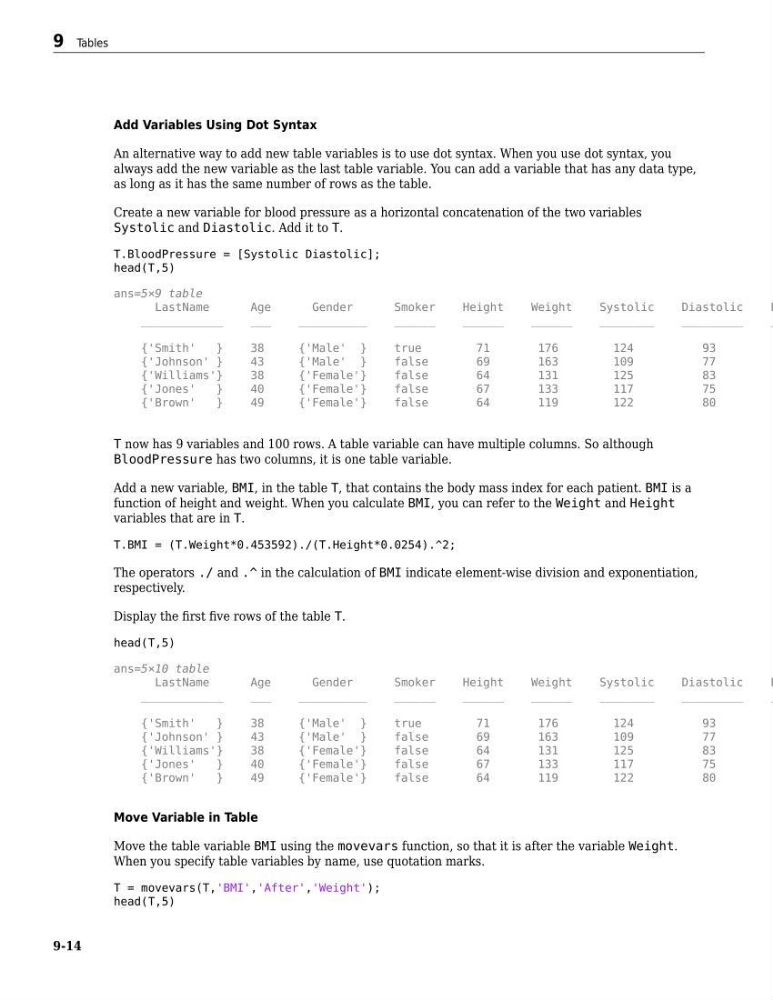
Create a new variable for blood pressure as a horizontal concatenation of the two variables
Systolic and Diastolic. Add it to T.
T.BloodPressure = [Systolic Diastolic];
head(T,5)
ans=5×9 table
LastName
Age
Gender
Smoker
Height
Weight
Systolic
Diastolic
B
____________
___
__________
______
______
______
________
_________
_
{'Smith'
}
38
{'Male' }
true
71
176
124
93
{'Johnson' }
43
{'Male' }
false
69
163
109
77
{'Williams'}
38
{'Female'}
false
64
131
125
83
{'Jones'
}
40
{'Female'}
false
67
133
117
75
{'Brown'
}
49
{'Female'}
false
64
119
122
80
T now has 9 variables and 100 rows. A table variable can have multiple columns. So although
BloodPressure has two columns, it is one table variable.
Add a new variable, BMI, in the table T, that contains the body mass index for each patient. BMI is a
function of height and weight. When you calculate BMI, you can refer to the Weight and Height
variables that are in T.
T.BMI = (T.Weight*0.453592)./(T.Height*0.0254).^2;
The operators ./ and .^ in the calculation of BMI indicate element-wise division and exponentiation,
respectively.
Display the first five rows of the table T.
head(T,5)
ans=5×10 table
LastName
Age
Gender
Smoker
Height
Weight
Systolic
Diastolic
B
____________
___
__________
______
______
______
________
_________
_
{'Smith'
}
38
{'Male' }
true
71
176
124
93
{'Johnson' }
43
{'Male' }
false
69
163
109
77
{'Williams'}
38
{'Female'}
false
64
131
125
83
{'Jones'
}
40
{'Female'}
false
67
133
117
75
{'Brown'
}
49
{'Female'}
false
64
119
122
80
Move Variable in Table
Move the table variable BMI using the movevars function, so that it is after the variable Weight.
When you specify table variables by name, use quotation marks.
T = movevars(T,'BMI','After','Weight');
head(T,5)
9 Tables
9-14
An alternative way to add new table variables is to use dot syntax. When you use dot syntax, you
always add the new variable as the last table variable. You can add a variable that has any data type,
as long as it has the same number of rows as the table.
Create a new variable for blood pressure as a horizontal concatenation of the two variables
Systolic and Diastolic. Add it to T.
T.BloodPressure = [Systolic Diastolic];
head(T,5)
ans=5×9 table
LastName
Age
Gender
Smoker
Height
Weight
Systolic
Diastolic
B
____________
___
__________
______
______
______
________
_________
_
{'Smith'
}
38
{'Male' }
true
71
176
124
93
{'Johnson' }
43
{'Male' }
false
69
163
109
77
{'Williams'}
38
{'Female'}
false
64
131
125
83
{'Jones'
}
40
{'Female'}
false
67
133
117
75
{'Brown'
}
49
{'Female'}
false
64
119
122
80
T now has 9 variables and 100 rows. A table variable can have multiple columns. So although
BloodPressure has two columns, it is one table variable.
Add a new variable, BMI, in the table T, that contains the body mass index for each patient. BMI is a
function of height and weight. When you calculate BMI, you can refer to the Weight and Height
variables that are in T.
T.BMI = (T.Weight*0.453592)./(T.Height*0.0254).^2;
The operators ./ and .^ in the calculation of BMI indicate element-wise division and exponentiation,
respectively.
Display the first five rows of the table T.
head(T,5)
ans=5×10 table
LastName
Age
Gender
Smoker
Height
Weight
Systolic
Diastolic
B
____________
___
__________
______
______
______
________
_________
_
{'Smith'
}
38
{'Male' }
true
71
176
124
93
{'Johnson' }
43
{'Male' }
false
69
163
109
77
{'Williams'}
38
{'Female'}
false
64
131
125
83
{'Jones'
}
40
{'Female'}
false
67
133
117
75
{'Brown'
}
49
{'Female'}
false
64
119
122
80
Move Variable in Table
Move the table variable BMI using the movevars function, so that it is after the variable Weight.
When you specify table variables by name, use quotation marks.
T = movevars(T,'BMI','After','Weight');
head(T,5)
9 Tables
9-14