

91
10.2 Use Existing Slide Elements as Action Buttons
Slide presentation software provides built-in action buttons (Sect. 10.1). However,
if you show an action button which you end up not using, the frustrated audience
will wonder what that button was.
Instead, consider using graphics or text already included in your presentation as
action buttons. Such existing elements do not look like action buttons and as such,
they will not attract the attention from the audience. If you do not use them, no one
will notice.
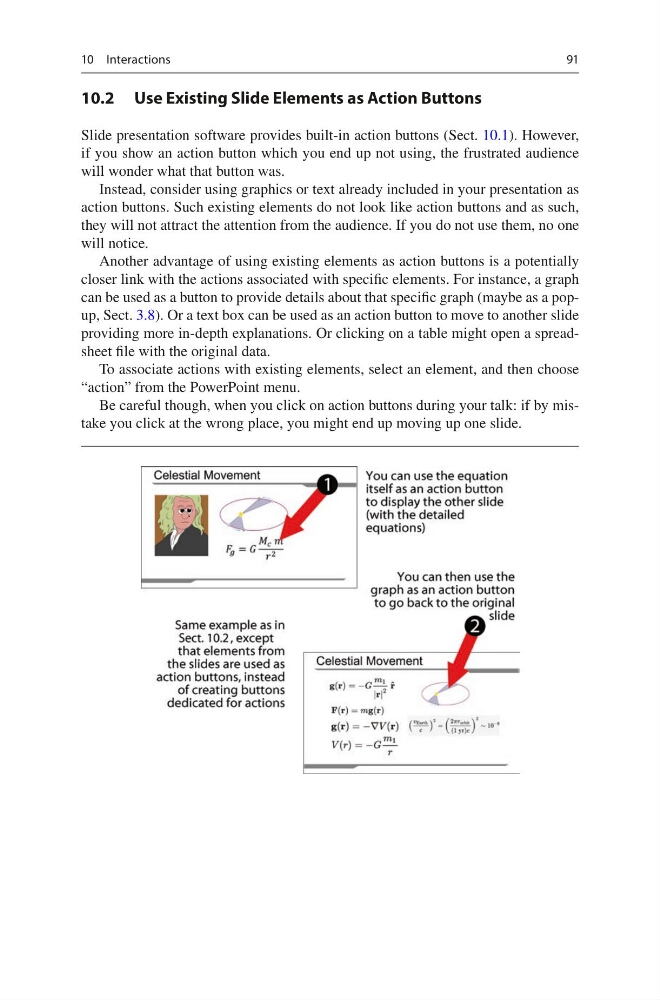
Another advantage of using existing elements as action buttons is a potentially
closer link with the actions associated with specific elements. For instance, a graph
can be used as a button to provide details about that specific graph (maybe as a popup, Sect. 3.8). Or a text box can be used as an action button to move to another slide
providing more in-depth explanations. Or clicking on a table might open a spreadsheet file with the original data.
To associate actions with existing elements, select an element, and then choose
“action” from the PowerPoint menu.
Be careful though, when you click on action buttons during your talk: if by mistake you click at the wrong place, you might end up moving up one slide.
10 Interactions
10.2 Use Existing Slide Elements as Action Buttons
Slide presentation software provides built-in action buttons (Sect. 10.1). However,
if you show an action button which you end up not using, the frustrated audience
will wonder what that button was.
Instead, consider using graphics or text already included in your presentation as
action buttons. Such existing elements do not look like action buttons and as such,
they will not attract the attention from the audience. If you do not use them, no one
will notice.
Another advantage of using existing elements as action buttons is a potentially
closer link with the actions associated with specific elements. For instance, a graph
can be used as a button to provide details about that specific graph (maybe as a popup, Sect. 3.8). Or a text box can be used as an action button to move to another slide
providing more in-depth explanations. Or clicking on a table might open a spreadsheet file with the original data.
To associate actions with existing elements, select an element, and then choose
“action” from the PowerPoint menu.
Be careful though, when you click on action buttons during your talk: if by mistake you click at the wrong place, you might end up moving up one slide.
10 Interactions