

90
10.1 Get Interactive! Use Action Buttons
In most presentations, speakers only perform one of two “actions”: moving up or
down a slide (or animation) using the keyboard (arrows, space bar), or through a
remote tool.
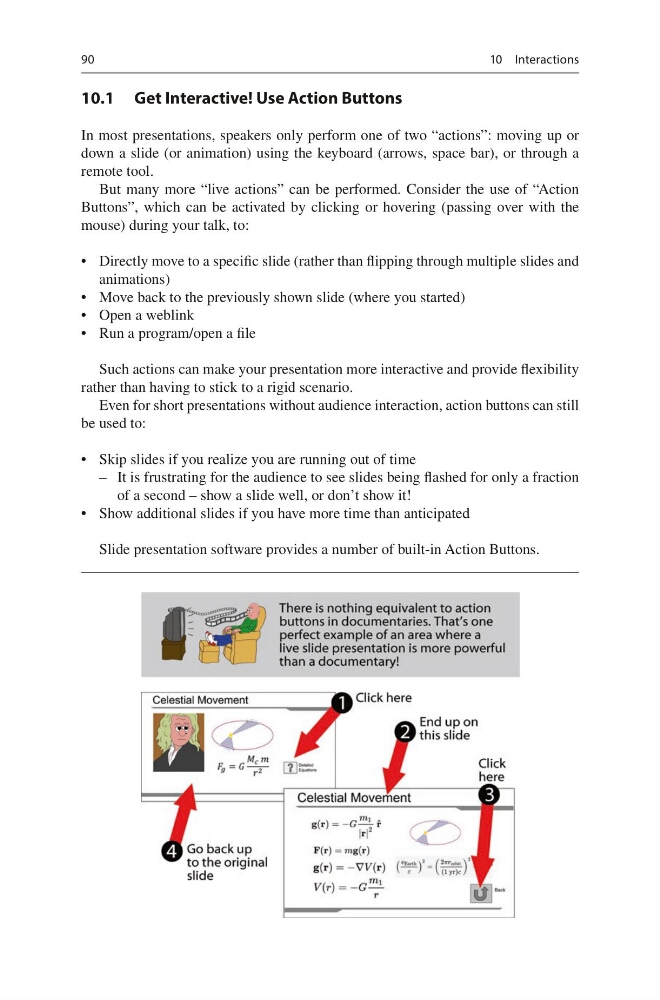
But many more “live actions” can be performed. Consider the use of “Action
Buttons”, which can be activated by clicking or hovering (passing over with the
mouse) during your talk, to:
• Directly move to a specific slide (rather than flipping through multiple slides and
animations)
• Move back to the previously shown slide (where you started)
• Open a weblink
• Run a program/open a file
Such actions can make your presentation more interactive and provide flexibility
rather than having to stick to a rigid scenario.
Even for short presentations without audience interaction, action buttons can still
be used to:
• Skip slides if you realize you are running out of time
– It is frustrating for the audience to see slides being flashed for only a fraction
of a second – show a slide well, or don’t show it!
• Show additional slides if you have more time than anticipated
Slide presentation software provides a number of built-in Action Buttons.
10 Interactions
10.1 Get Interactive! Use Action Buttons
In most presentations, speakers only perform one of two “actions”: moving up or
down a slide (or animation) using the keyboard (arrows, space bar), or through a
remote tool.
But many more “live actions” can be performed. Consider the use of “Action
Buttons”, which can be activated by clicking or hovering (passing over with the
mouse) during your talk, to:
• Directly move to a specific slide (rather than flipping through multiple slides and
animations)
• Move back to the previously shown slide (where you started)
• Open a weblink
• Run a program/open a file
Such actions can make your presentation more interactive and provide flexibility
rather than having to stick to a rigid scenario.
Even for short presentations without audience interaction, action buttons can still
be used to:
• Skip slides if you realize you are running out of time
– It is frustrating for the audience to see slides being flashed for only a fraction
of a second – show a slide well, or don’t show it!
• Show additional slides if you have more time than anticipated
Slide presentation software provides a number of built-in Action Buttons.
10 Interactions