

332
V. N. Lukin and L. N. Chernyshov
The described technology has the advantage that the programs attached to tables
are available to the teacher, which can them modify if necessary. With the knowledge
of the programming language of JavaScript, which the teacher leading IT discipline,
it is easy to handle the programs. Similar tables can be used for other activities.
22.3.3 Monitoring Activities
When conducting an exam or a test in writing, tickets (conditions of tasks) are
traditionally used. Instead of paper tickets/tasks, it is convenient to use electronic
documents that are distributed to accessible folders in students’ computers or, as
in this case, in folders on a Google disk. Random distribution, of course, can be
done automatically. To do this, a special table is organized, which is generated when
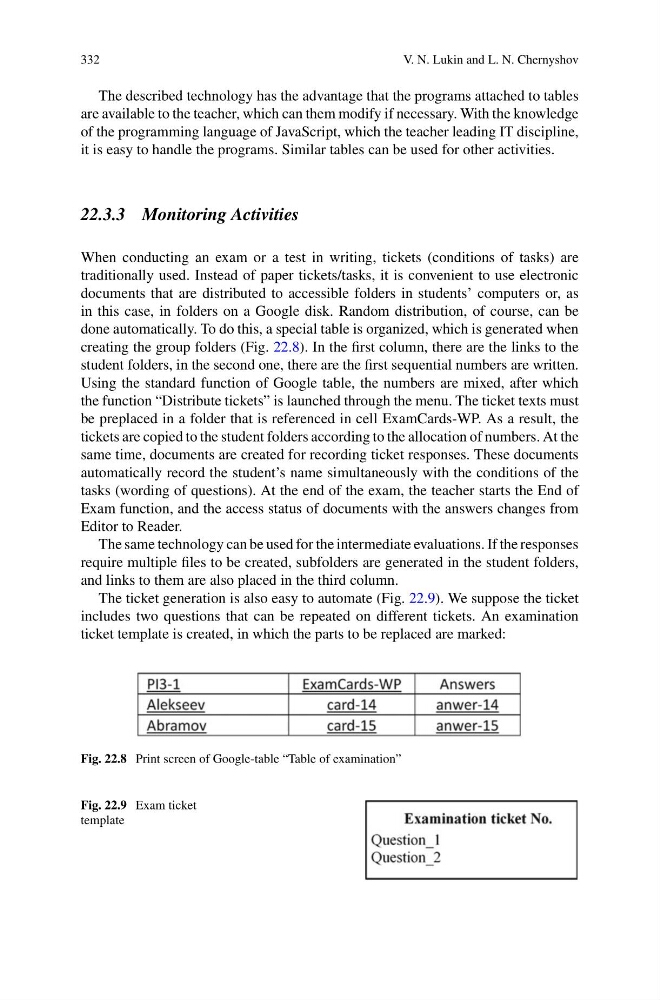
creating the group folders (Fig. 22.8). In the first column, there are the links to the
student folders, in the second one, there are the first sequential numbers are written.
Using the standard function of Google table, the numbers are mixed, after which
the function “Distribute tickets” is launched through the menu. The ticket texts must
be preplaced in a folder that is referenced in cell ExamCards-WP. As a result, the
tickets are copied to the student folders according to the allocation of numbers. At the
same time, documents are created for recording ticket responses. These documents
automatically record the student’s name simultaneously with the conditions of the
tasks (wording of questions). At the end of the exam, the teacher starts the End of
Exam function, and the access status of documents with the answers changes from
Editor to Reader.
The same technology can be used for the intermediate evaluations. If the responses
require multiple files to be created, subfolders are generated in the student folders,
and links to them are also placed in the third column.
The ticket generation is also easy to automate (Fig. 22.9). We suppose the ticket
includes two questions that can be repeated on different tickets. An examination
ticket template is created, in which the parts to be replaced are marked:
Fig. 22.8 Print screen of Google-table “Table of examination”
Fig. 22.9 Exam ticket
template
V. N. Lukin and L. N. Chernyshov
The described technology has the advantage that the programs attached to tables
are available to the teacher, which can them modify if necessary. With the knowledge
of the programming language of JavaScript, which the teacher leading IT discipline,
it is easy to handle the programs. Similar tables can be used for other activities.
22.3.3 Monitoring Activities
When conducting an exam or a test in writing, tickets (conditions of tasks) are
traditionally used. Instead of paper tickets/tasks, it is convenient to use electronic
documents that are distributed to accessible folders in students’ computers or, as
in this case, in folders on a Google disk. Random distribution, of course, can be
done automatically. To do this, a special table is organized, which is generated when
creating the group folders (Fig. 22.8). In the first column, there are the links to the
student folders, in the second one, there are the first sequential numbers are written.
Using the standard function of Google table, the numbers are mixed, after which
the function “Distribute tickets” is launched through the menu. The ticket texts must
be preplaced in a folder that is referenced in cell ExamCards-WP. As a result, the
tickets are copied to the student folders according to the allocation of numbers. At the
same time, documents are created for recording ticket responses. These documents
automatically record the student’s name simultaneously with the conditions of the
tasks (wording of questions). At the end of the exam, the teacher starts the End of
Exam function, and the access status of documents with the answers changes from
Editor to Reader.
The same technology can be used for the intermediate evaluations. If the responses
require multiple files to be created, subfolders are generated in the student folders,
and links to them are also placed in the third column.
The ticket generation is also easy to automate (Fig. 22.9). We suppose the ticket
includes two questions that can be repeated on different tickets. An examination
ticket template is created, in which the parts to be replaced are marked:
Fig. 22.8 Print screen of Google-table “Table of examination”
Fig. 22.9 Exam ticket
template