

436
Chapter 14 See the World in 3D
2. Using the techniques described in this lab, you can create
representations of these other features using a mixture of extruding
items (like drawing a polygon on the roof and extruding it) or textures
(drawing in the blocks for the front windows above the entrance and
filling them in).
3. When you have the model completed how you want it, there is only one
more step to do.
14.13 Placing the Model into Google Earth
1. The final step is to place the finished product into GE as a 3D model. To do
this, select the Preview Model in Google Earth icon from the toolbar:
2. GSU will export the model to a “*.kmz” file and place it into its proper
location in GE. If GE is not already open, this option will automatically
start it, then zoom to its proper spot.
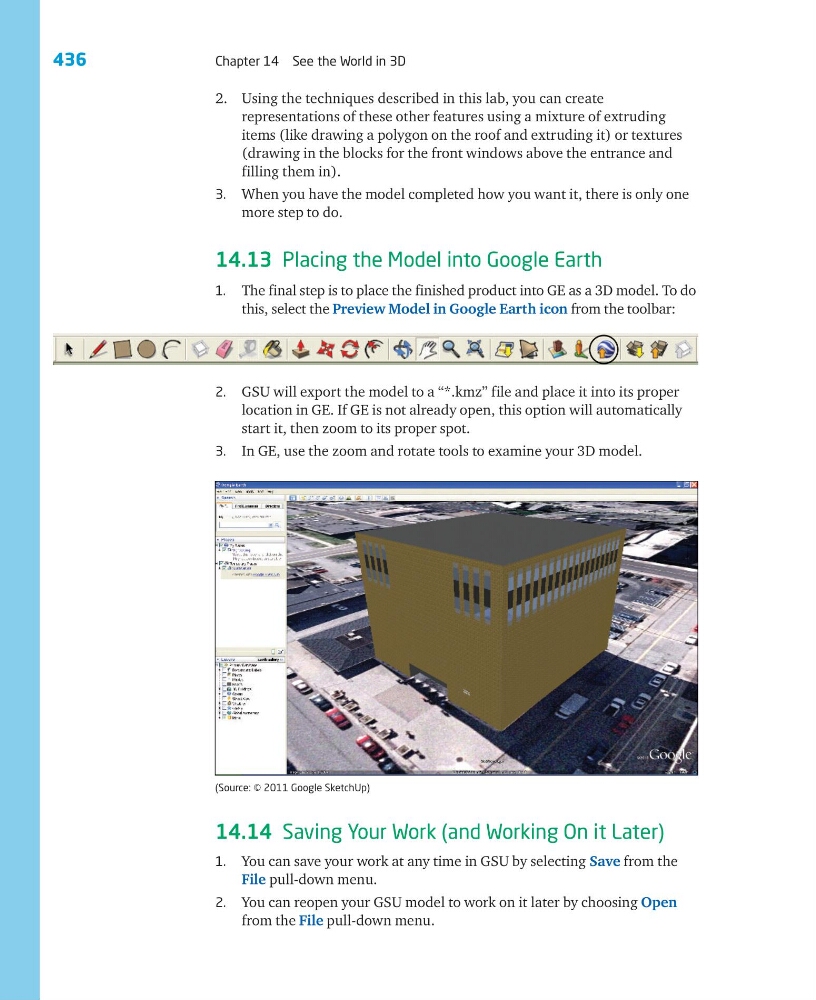
3. In GE, use the zoom and rotate tools to examine your 3D model.
14.14 Saving Your Work (and Working On it Later)
1. You can save your work at any time in GSU by selecting Save from the
File pull-down menu.
2. You can reopen your GSU model to work on it later by choosing Open
from the File pull-down menu.
(Source: © 2011 Google SketchUp)
Chapter 14 See the World in 3D
2. Using the techniques described in this lab, you can create
representations of these other features using a mixture of extruding
items (like drawing a polygon on the roof and extruding it) or textures
(drawing in the blocks for the front windows above the entrance and
filling them in).
3. When you have the model completed how you want it, there is only one
more step to do.
14.13 Placing the Model into Google Earth
1. The final step is to place the finished product into GE as a 3D model. To do
this, select the Preview Model in Google Earth icon from the toolbar:
2. GSU will export the model to a “*.kmz” file and place it into its proper
location in GE. If GE is not already open, this option will automatically
start it, then zoom to its proper spot.
3. In GE, use the zoom and rotate tools to examine your 3D model.
14.14 Saving Your Work (and Working On it Later)
1. You can save your work at any time in GSU by selecting Save from the
File pull-down menu.
2. You can reopen your GSU model to work on it later by choosing Open
from the File pull-down menu.
(Source: © 2011 Google SketchUp)