

427
3D Modeling and Visualization
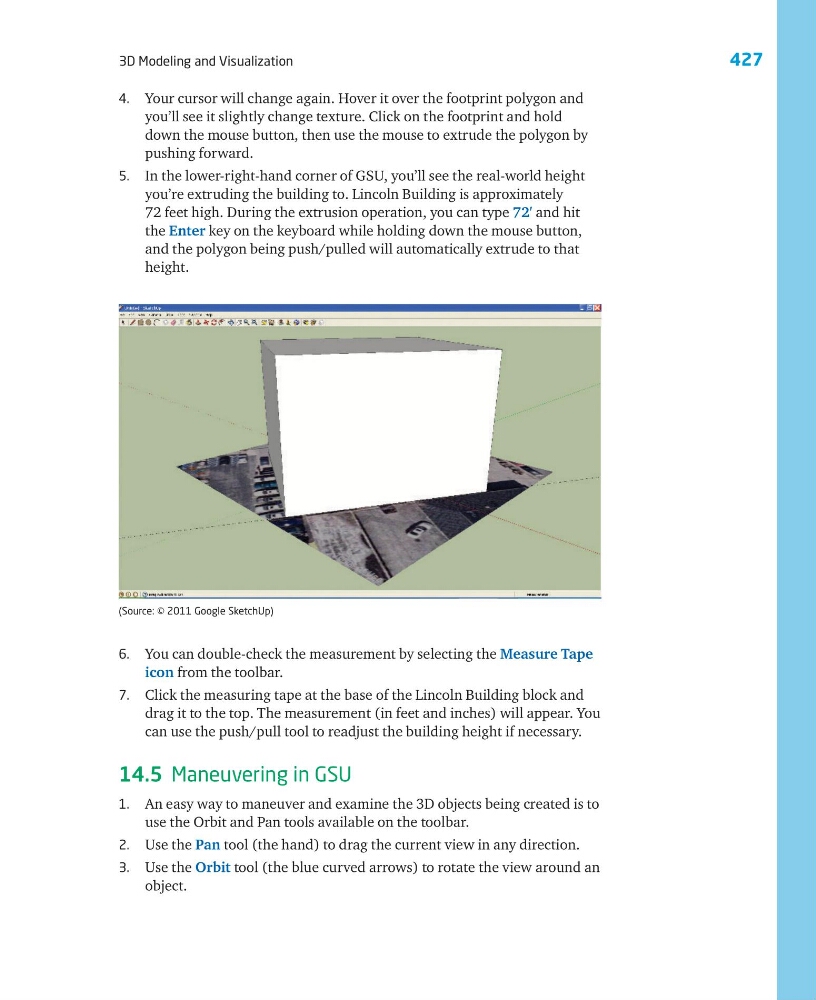
4. Your cursor will change again. Hover it over the footprint polygon and
you’ll see it slightly change texture. Click on the footprint and hold
down the mouse button, then use the mouse to extrude the polygon by
pushing forward.
5. In the lower-right-hand corner of GSU, you’ll see the real-world height
you’re extruding the building to. Lincoln Building is approximately
72 feet high. During the extrusion operation, you can type 72′ and hit
the Enter key on the keyboard while holding down the mouse button,
and the polygon being push/pulled will automatically extrude to that
height.
6. You can double-check the measurement by selecting the Measure Tape
icon from the toolbar.
7. Click the measuring tape at the base of the Lincoln Building block and
drag it to the top. The measurement (in feet and inches) will appear. You
can use the push/pull tool to readjust the building height if necessary.
14.5 Maneuvering in GSU
1. An easy way to maneuver and examine the 3D objects being created is to
use the Orbit and Pan tools available on the toolbar.
2. Use the Pan tool (the hand) to drag the current view in any direction.
3. Use the Orbit tool (the blue curved arrows) to rotate the view around an
object.
(Source: © 2011 Google SketchUp)
3D Modeling and Visualization
4. Your cursor will change again. Hover it over the footprint polygon and
you’ll see it slightly change texture. Click on the footprint and hold
down the mouse button, then use the mouse to extrude the polygon by
pushing forward.
5. In the lower-right-hand corner of GSU, you’ll see the real-world height
you’re extruding the building to. Lincoln Building is approximately
72 feet high. During the extrusion operation, you can type 72′ and hit
the Enter key on the keyboard while holding down the mouse button,
and the polygon being push/pulled will automatically extrude to that
height.
6. You can double-check the measurement by selecting the Measure Tape
icon from the toolbar.
7. Click the measuring tape at the base of the Lincoln Building block and
drag it to the top. The measurement (in feet and inches) will appear. You
can use the push/pull tool to readjust the building height if necessary.
14.5 Maneuvering in GSU
1. An easy way to maneuver and examine the 3D objects being created is to
use the Orbit and Pan tools available on the toolbar.
2. Use the Pan tool (the hand) to drag the current view in any direction.
3. Use the Orbit tool (the blue curved arrows) to rotate the view around an
object.
(Source: © 2011 Google SketchUp)