

220
Chapter 7 Using GIS to Make a Map
7.10 Adding Text and a Title to
the Layout
1. To add text to the map (such as your name,
the date, or any other text you may want to
add), select Text from the Insert pull-down
menu.
2. Note that when text is added, a small box
called “Text” is placed near the center of the
map. You’ll have to move each text box to
somewhere else in the layout.
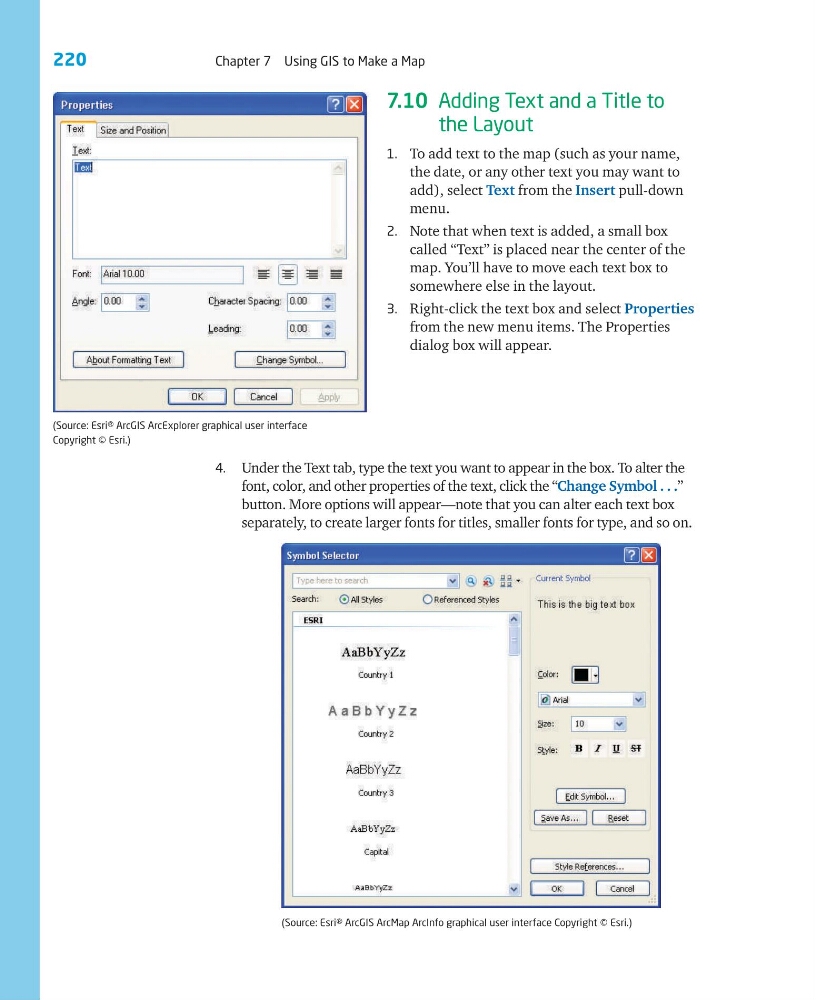
3. Right-click the text box and select Properties
from the new menu items. The Properties
dialog box will appear.
(Source: Esri® ArcGIS ArcExplorer graphical user interface
Copyright © Esri.)
(Source: Esri® ArcGIS ArcMap ArcInfo graphical user interface Copyright © Esri.)
4. Under the Text tab, type the text you want to appear in the box. To alter the
font, color, and other properties of the text, click the “Change Symbol . . .”
button. More options will appear—note that you can alter each text box
separately, to create larger fonts for titles, smaller fonts for type, and so on.
Chapter 7 Using GIS to Make a Map
7.10 Adding Text and a Title to
the Layout
1. To add text to the map (such as your name,
the date, or any other text you may want to
add), select Text from the Insert pull-down
menu.
2. Note that when text is added, a small box
called “Text” is placed near the center of the
map. You’ll have to move each text box to
somewhere else in the layout.
3. Right-click the text box and select Properties
from the new menu items. The Properties
dialog box will appear.
(Source: Esri® ArcGIS ArcExplorer graphical user interface
Copyright © Esri.)
(Source: Esri® ArcGIS ArcMap ArcInfo graphical user interface Copyright © Esri.)
4. Under the Text tab, type the text you want to appear in the box. To alter the
font, color, and other properties of the text, click the “Change Symbol . . .”
button. More options will appear—note that you can alter each text box
separately, to create larger fonts for titles, smaller fonts for type, and so on.