

214
Chapter 7 Using GIS to Make a Map
7.3 Page Setup and Layouts
1. Before starting the layout process, first set up the properties of the map
page, as they’ll fit with the printer you’ll be using to print the map (to
avoid any scaling or printing problems at the end).
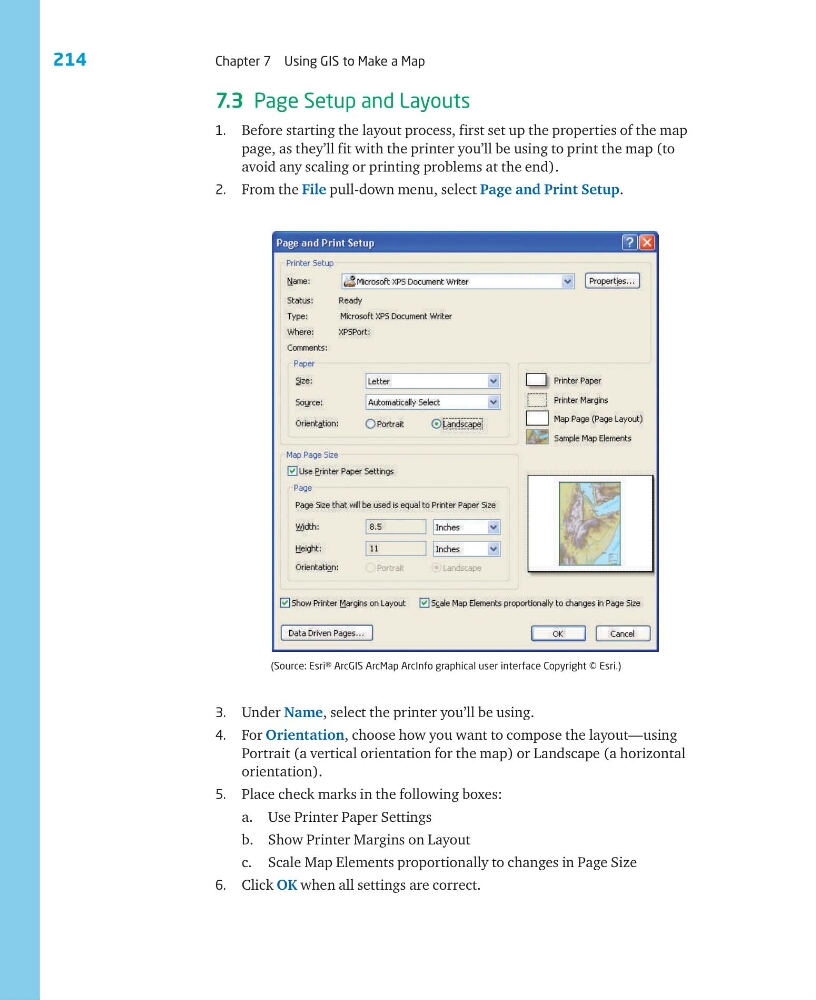
2. From the File pull-down menu, select Page and Print Setup.
(Source: Esri® ArcGIS ArcMap ArcInfo graphical user interface Copyright © Esri.)
3. Under Name, select the printer you’ll be using.
4. For Orientation, choose how you want to compose the layout—using
Portrait (a vertical orientation for the map) or Landscape (a horizontal
orientation).
5. Place check marks in the following boxes:
a. Use Printer Paper Settings
b. Show Printer Margins on Layout
c. Scale Map Elements proportionally to changes in Page Size
6. Click OK when all settings are correct.
Chapter 7 Using GIS to Make a Map
7.3 Page Setup and Layouts
1. Before starting the layout process, first set up the properties of the map
page, as they’ll fit with the printer you’ll be using to print the map (to
avoid any scaling or printing problems at the end).
2. From the File pull-down menu, select Page and Print Setup.
(Source: Esri® ArcGIS ArcMap ArcInfo graphical user interface Copyright © Esri.)
3. Under Name, select the printer you’ll be using.
4. For Orientation, choose how you want to compose the layout—using
Portrait (a vertical orientation for the map) or Landscape (a horizontal
orientation).
5. Place check marks in the following boxes:
a. Use Printer Paper Settings
b. Show Printer Margins on Layout
c. Scale Map Elements proportionally to changes in Page Size
6. Click OK when all settings are correct.