

207
GIS Layouts: AEJEE Version
7. Under the Size and Position tab, you can manually change the size and
position of the legend inside the layout.
8. Click Apply to have your legend changes take effect and OK to close the
dialog box.
7.9 Adding Text to the Layout
1. To add text to the map (such as a title or any other text you may want to
add), select the Add Text icon from the toolbar:
2. Note that when text is added, a small box called “right click this text” is
placed near the center of the map.
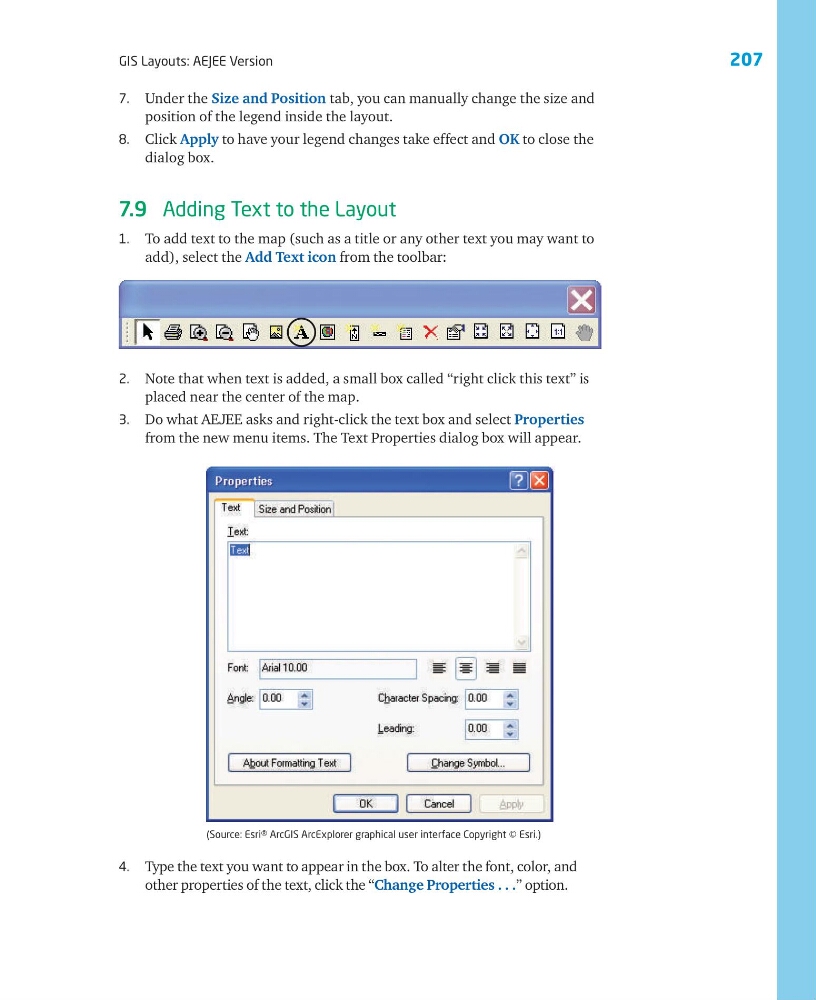
3. Do what AEJEE asks and right-click the text box and select Properties
from the new menu items. The Text Properties dialog box will appear.
(Source: Esri® ArcGIS ArcExplorer graphical user interface Copyright © Esri.)
4. Type the text you want to appear in the box. To alter the font, color, and
other properties of the text, click the “Change Properties . . .” option.
GIS Layouts: AEJEE Version
7. Under the Size and Position tab, you can manually change the size and
position of the legend inside the layout.
8. Click Apply to have your legend changes take effect and OK to close the
dialog box.
7.9 Adding Text to the Layout
1. To add text to the map (such as a title or any other text you may want to
add), select the Add Text icon from the toolbar:
2. Note that when text is added, a small box called “right click this text” is
placed near the center of the map.
3. Do what AEJEE asks and right-click the text box and select Properties
from the new menu items. The Text Properties dialog box will appear.
(Source: Esri® ArcGIS ArcExplorer graphical user interface Copyright © Esri.)
4. Type the text you want to appear in the box. To alter the font, color, and
other properties of the text, click the “Change Properties . . .” option.