

calculation. Once imported into HyperChem 9, these results can be published just as
if they we computed by HyperChem.
While parsing output files is certainly possible, Chemical Semantics, Inc.
expects to work with developers of these computational chemistry packages to help
them install their own “Publish Button”. The Publish Button in HyperChem is
shown in Fig. 1.
In addition to the title of the publication, the authors, their organizations and
e-mail, and the publication abstract, pushing the publication button (which initially
creates a CSX file) adds a number of other things to the publication. The Login
Data… Button allows entering data so that the Publisher Package can use a login ID
and password to directly publish results. The Content Button allows choices to be
made of what is published among the available results as shown in Fig. 10. The
Flags button allows the author to choose to define the current state of the publication as shown in Fig. 11 or the Visibility (Private, Protected, and Public).
A private publication can be seen only by the authors, a protected publication can
be show to anyone that the authors send a URI to with a key, and a public
publication can be seen by anyone logged into the portal.
It is also possible to add tags (essentially keywords) to any publication as shown
in Fig. 12. These may help in searching. A common set of tags is available as well
as custom tags set by the authors.
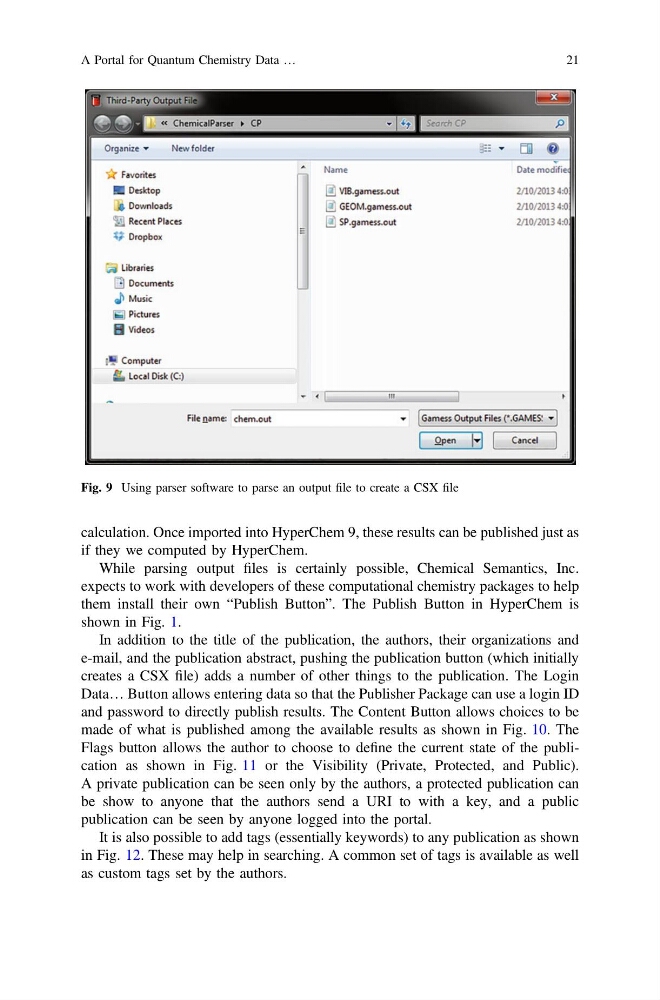
Fig. 9 Using parser software to parse an output file to create a CSX file
A Portal for Quantum Chemistry Data …
21
if they we computed by HyperChem.
While parsing output files is certainly possible, Chemical Semantics, Inc.
expects to work with developers of these computational chemistry packages to help
them install their own “Publish Button”. The Publish Button in HyperChem is
shown in Fig. 1.
In addition to the title of the publication, the authors, their organizations and
e-mail, and the publication abstract, pushing the publication button (which initially
creates a CSX file) adds a number of other things to the publication. The Login
Data… Button allows entering data so that the Publisher Package can use a login ID
and password to directly publish results. The Content Button allows choices to be
made of what is published among the available results as shown in Fig. 10. The
Flags button allows the author to choose to define the current state of the publication as shown in Fig. 11 or the Visibility (Private, Protected, and Public).
A private publication can be seen only by the authors, a protected publication can
be show to anyone that the authors send a URI to with a key, and a public
publication can be seen by anyone logged into the portal.
It is also possible to add tags (essentially keywords) to any publication as shown
in Fig. 12. These may help in searching. A common set of tags is available as well
as custom tags set by the authors.
Fig. 9 Using parser software to parse an output file to create a CSX file
A Portal for Quantum Chemistry Data …
21