

3.4 Electronic Devices for Wireless Data Interception
257
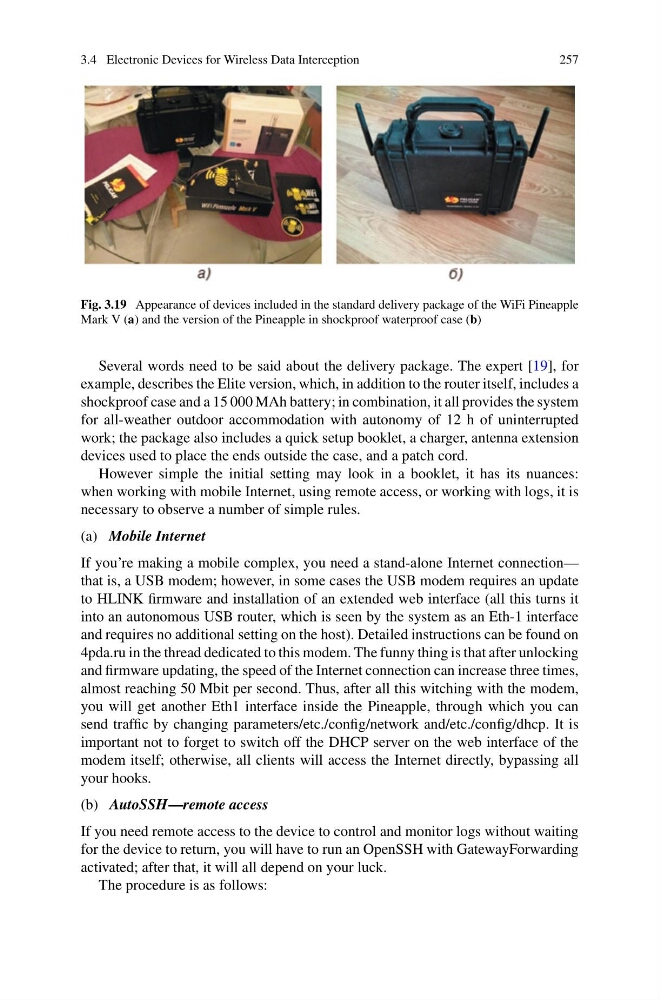
Fig. 3.19 Appearance of devices included in the standard delivery package of the WiFi Pineapple
Mark V (a) and the version of the Pineapple in shockproof waterproof case (b)
Several words need to be said about the delivery package. The expert [19], for
example, describes the Elite version, which, in addition to the router itself, includes a
shockproof case and a 15 000 MAh battery; in combination, it all provides the system
for all-weather outdoor accommodation with autonomy of 12 h of uninterrupted
work; the package also includes a quick setup booklet, a charger, antenna extension
devices used to place the ends outside the case, and a patch cord.
However simple the initial setting may look in a booklet, it has its nuances:
when working with mobile Internet, using remote access, or working with logs, it is
necessary to observe a number of simple rules.
(a) Mobile Internet
If you’re making a mobile complex, you need a stand-alone Internet connection—
that is, a USB modem; however, in some cases the USB modem requires an update
to HLINK firmware and installation of an extended web interface (all this turns it
into an autonomous USB router, which is seen by the system as an Eth-1 interface
and requires no additional setting on the host). Detailed instructions can be found on
4pda.ru in the thread dedicated to this modem. The funny thing is that after unlocking
and firmware updating, the speed of the Internet connection can increase three times,
almost reaching 50 Mbit per second. Thus, after all this witching with the modem,
you will get another Eth1 interface inside the Pineapple, through which you can
send traffic by changing parameters/etc./config/network and/etc./config/dhcp. It is
important not to forget to switch off the DHCP server on the web interface of the
modem itself; otherwise, all clients will access the Internet directly, bypassing all
your hooks.
(b) AutoSSH—remote access
If you need remote access to the device to control and monitor logs without waiting
for the device to return, you will have to run an OpenSSH with GatewayForwarding
activated; after that, it will all depend on your luck.
The procedure is as follows:
257
Fig. 3.19 Appearance of devices included in the standard delivery package of the WiFi Pineapple
Mark V (a) and the version of the Pineapple in shockproof waterproof case (b)
Several words need to be said about the delivery package. The expert [19], for
example, describes the Elite version, which, in addition to the router itself, includes a
shockproof case and a 15 000 MAh battery; in combination, it all provides the system
for all-weather outdoor accommodation with autonomy of 12 h of uninterrupted
work; the package also includes a quick setup booklet, a charger, antenna extension
devices used to place the ends outside the case, and a patch cord.
However simple the initial setting may look in a booklet, it has its nuances:
when working with mobile Internet, using remote access, or working with logs, it is
necessary to observe a number of simple rules.
(a) Mobile Internet
If you’re making a mobile complex, you need a stand-alone Internet connection—
that is, a USB modem; however, in some cases the USB modem requires an update
to HLINK firmware and installation of an extended web interface (all this turns it
into an autonomous USB router, which is seen by the system as an Eth-1 interface
and requires no additional setting on the host). Detailed instructions can be found on
4pda.ru in the thread dedicated to this modem. The funny thing is that after unlocking
and firmware updating, the speed of the Internet connection can increase three times,
almost reaching 50 Mbit per second. Thus, after all this witching with the modem,
you will get another Eth1 interface inside the Pineapple, through which you can
send traffic by changing parameters/etc./config/network and/etc./config/dhcp. It is
important not to forget to switch off the DHCP server on the web interface of the
modem itself; otherwise, all clients will access the Internet directly, bypassing all
your hooks.
(b) AutoSSH—remote access
If you need remote access to the device to control and monitor logs without waiting
for the device to return, you will have to run an OpenSSH with GatewayForwarding
activated; after that, it will all depend on your luck.
The procedure is as follows: