

182
2 Computer Viruses, Malicious Logic, and Spyware
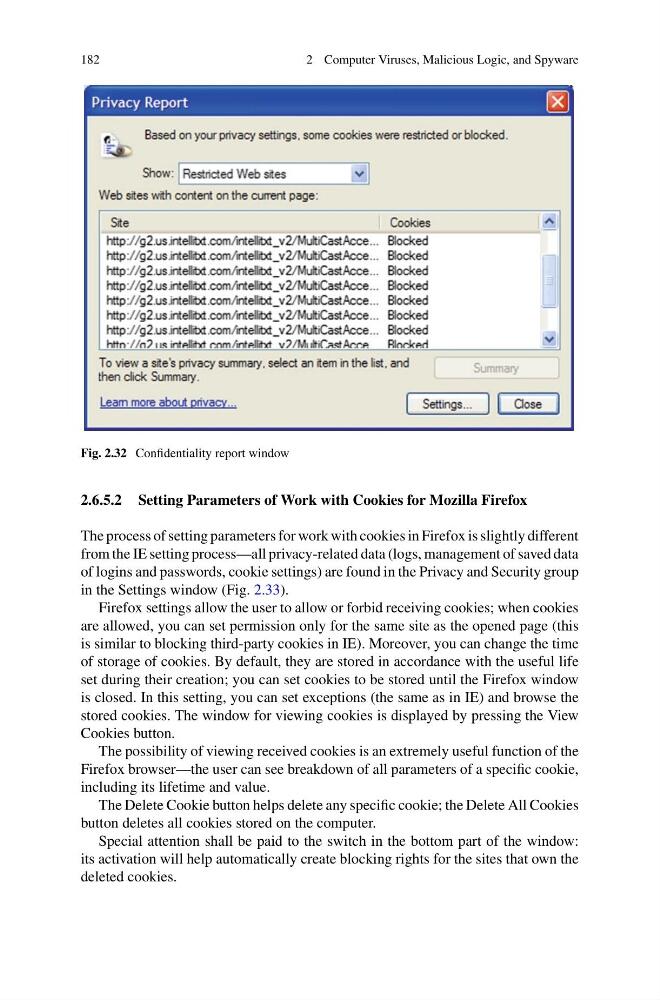
Fig. 2.32 Confidentiality report window
2.6.5.2 Setting Parameters of Work with Cookies for Mozilla Firefox
The process of setting parameters for work with cookies in Firefox is slightly different
from the IE setting process—all privacy-related data (logs, management of saved data
of logins and passwords, cookie settings) are found in the Privacy and Security group
in the Settings window (Fig. 2.33).
Firefox settings allow the user to allow or forbid receiving cookies; when cookies
are allowed, you can set permission only for the same site as the opened page (this
is similar to blocking third-party cookies in IE). Moreover, you can change the time
of storage of cookies. By default, they are stored in accordance with the useful life
set during their creation; you can set cookies to be stored until the Firefox window
is closed. In this setting, you can set exceptions (the same as in IE) and browse the
stored cookies. The window for viewing cookies is displayed by pressing the View
Cookies button.
The possibility of viewing received cookies is an extremely useful function of the
Firefox browser—the user can see breakdown of all parameters of a specific cookie,
including its lifetime and value.
The Delete Cookie button helps delete any specific cookie; the Delete All Cookies
button deletes all cookies stored on the computer.
Special attention shall be paid to the switch in the bottom part of the window:
its activation will help automatically create blocking rights for the sites that own the
deleted cookies.
2 Computer Viruses, Malicious Logic, and Spyware
Fig. 2.32 Confidentiality report window
2.6.5.2 Setting Parameters of Work with Cookies for Mozilla Firefox
The process of setting parameters for work with cookies in Firefox is slightly different
from the IE setting process—all privacy-related data (logs, management of saved data
of logins and passwords, cookie settings) are found in the Privacy and Security group
in the Settings window (Fig. 2.33).
Firefox settings allow the user to allow or forbid receiving cookies; when cookies
are allowed, you can set permission only for the same site as the opened page (this
is similar to blocking third-party cookies in IE). Moreover, you can change the time
of storage of cookies. By default, they are stored in accordance with the useful life
set during their creation; you can set cookies to be stored until the Firefox window
is closed. In this setting, you can set exceptions (the same as in IE) and browse the
stored cookies. The window for viewing cookies is displayed by pressing the View
Cookies button.
The possibility of viewing received cookies is an extremely useful function of the
Firefox browser—the user can see breakdown of all parameters of a specific cookie,
including its lifetime and value.
The Delete Cookie button helps delete any specific cookie; the Delete All Cookies
button deletes all cookies stored on the computer.
Special attention shall be paid to the switch in the bottom part of the window:
its activation will help automatically create blocking rights for the sites that own the
deleted cookies.