

ylabel({'y-axis'})
% Create title
title({'Title'});
% Enable printed output to match colors on screen
set(figure1,'InvertHardcopy','off')
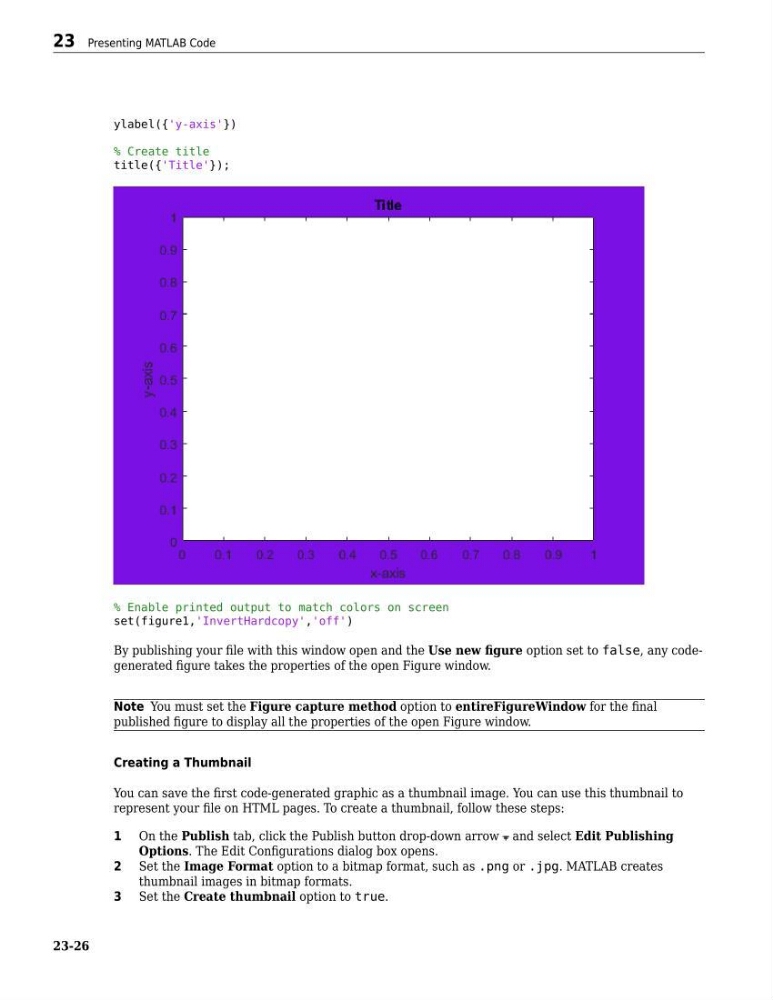
By publishing your file with this window open and the Use new figure option set to false, any codegenerated figure takes the properties of the open Figure window.
Note You must set the Figure capture method option to entireFigureWindow for the final
published figure to display all the properties of the open Figure window.
Creating a Thumbnail
You can save the first code-generated graphic as a thumbnail image. You can use this thumbnail to
represent your file on HTML pages. To create a thumbnail, follow these steps:
1 On the Publish tab, click the Publish button drop-down arrow and select Edit Publishing
Options. The Edit Configurations dialog box opens.
2 Set the Image Format option to a bitmap format, such as .png or .jpg. MATLAB creates
thumbnail images in bitmap formats.
3 Set the Create thumbnail option to true.
23 Presenting MATLAB Code
23-26
% Create title
title({'Title'});
% Enable printed output to match colors on screen
set(figure1,'InvertHardcopy','off')
By publishing your file with this window open and the Use new figure option set to false, any codegenerated figure takes the properties of the open Figure window.
Note You must set the Figure capture method option to entireFigureWindow for the final
published figure to display all the properties of the open Figure window.
Creating a Thumbnail
You can save the first code-generated graphic as a thumbnail image. You can use this thumbnail to
represent your file on HTML pages. To create a thumbnail, follow these steps:
1 On the Publish tab, click the Publish button drop-down arrow and select Edit Publishing
Options. The Edit Configurations dialog box opens.
2 Set the Image Format option to a bitmap format, such as .png or .jpg. MATLAB creates
thumbnail images in bitmap formats.
3 Set the Create thumbnail option to true.
23 Presenting MATLAB Code
23-26