

Examine Values While Debugging
Since R2021b. Replaces Examine Value While Debugging (R2021a).
When debugging a code file, you can view the value of any variable currently in the workspace while
MATLAB is paused. If you want to determine whether a line of code produces the expected result or
not, examining values is useful. If the result is as expected, you can continue running the code or step
to the next line. If the result is not as you expect, then that line, or a previous line, might contain an
error.
View Variable Value
There are several ways to view the value of a variable while debugging:
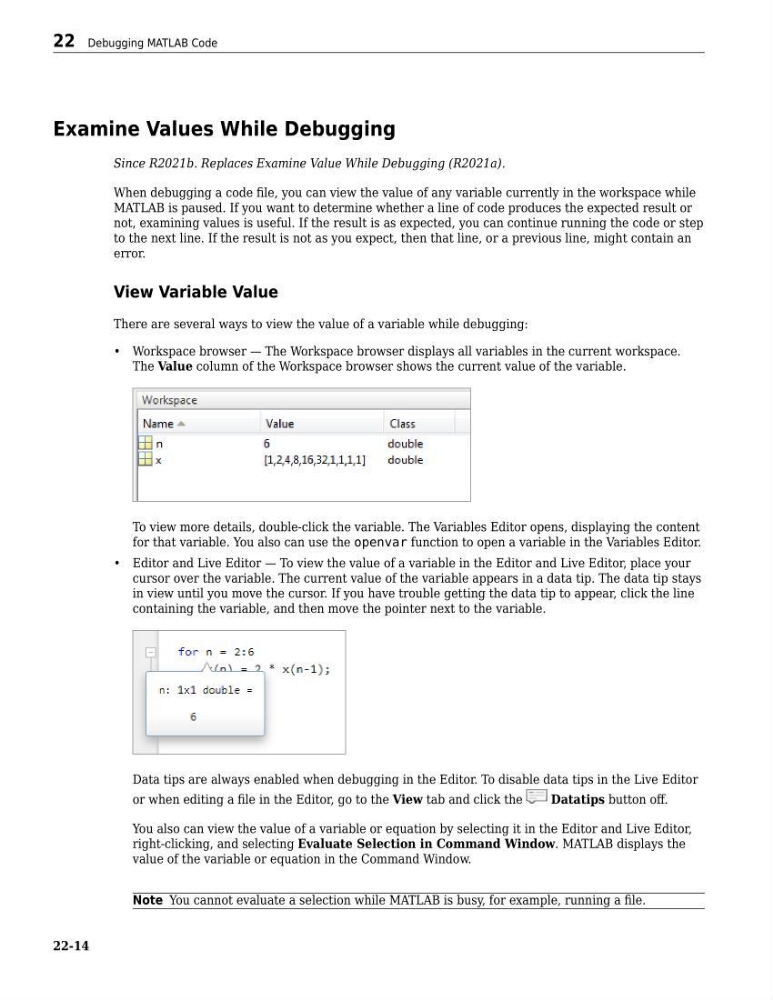
• Workspace browser — The Workspace browser displays all variables in the current workspace.
The Value column of the Workspace browser shows the current value of the variable.
To view more details, double-click the variable. The Variables Editor opens, displaying the content
for that variable. You also can use the openvar function to open a variable in the Variables Editor.
• Editor and Live Editor — To view the value of a variable in the Editor and Live Editor, place your
cursor over the variable. The current value of the variable appears in a data tip. The data tip stays
in view until you move the cursor. If you have trouble getting the data tip to appear, click the line
containing the variable, and then move the pointer next to the variable.
Data tips are always enabled when debugging in the Editor. To disable data tips in the Live Editor
or when editing a file in the Editor, go to the View tab and click the
Datatips button off.
You also can view the value of a variable or equation by selecting it in the Editor and Live Editor,
right-clicking, and selecting Evaluate Selection in Command Window. MATLAB displays the
value of the variable or equation in the Command Window.
Note You cannot evaluate a selection while MATLAB is busy, for example, running a file.
22 Debugging MATLAB Code
22-14
Since R2021b. Replaces Examine Value While Debugging (R2021a).
When debugging a code file, you can view the value of any variable currently in the workspace while
MATLAB is paused. If you want to determine whether a line of code produces the expected result or
not, examining values is useful. If the result is as expected, you can continue running the code or step
to the next line. If the result is not as you expect, then that line, or a previous line, might contain an
error.
View Variable Value
There are several ways to view the value of a variable while debugging:
• Workspace browser — The Workspace browser displays all variables in the current workspace.
The Value column of the Workspace browser shows the current value of the variable.
To view more details, double-click the variable. The Variables Editor opens, displaying the content
for that variable. You also can use the openvar function to open a variable in the Variables Editor.
• Editor and Live Editor — To view the value of a variable in the Editor and Live Editor, place your
cursor over the variable. The current value of the variable appears in a data tip. The data tip stays
in view until you move the cursor. If you have trouble getting the data tip to appear, click the line
containing the variable, and then move the pointer next to the variable.
Data tips are always enabled when debugging in the Editor. To disable data tips in the Live Editor
or when editing a file in the Editor, go to the View tab and click the
Datatips button off.
You also can view the value of a variable or equation by selecting it in the Editor and Live Editor,
right-clicking, and selecting Evaluate Selection in Command Window. MATLAB displays the
value of the variable or equation in the Command Window.
Note You cannot evaluate a selection while MATLAB is busy, for example, running a file.
22 Debugging MATLAB Code
22-14