

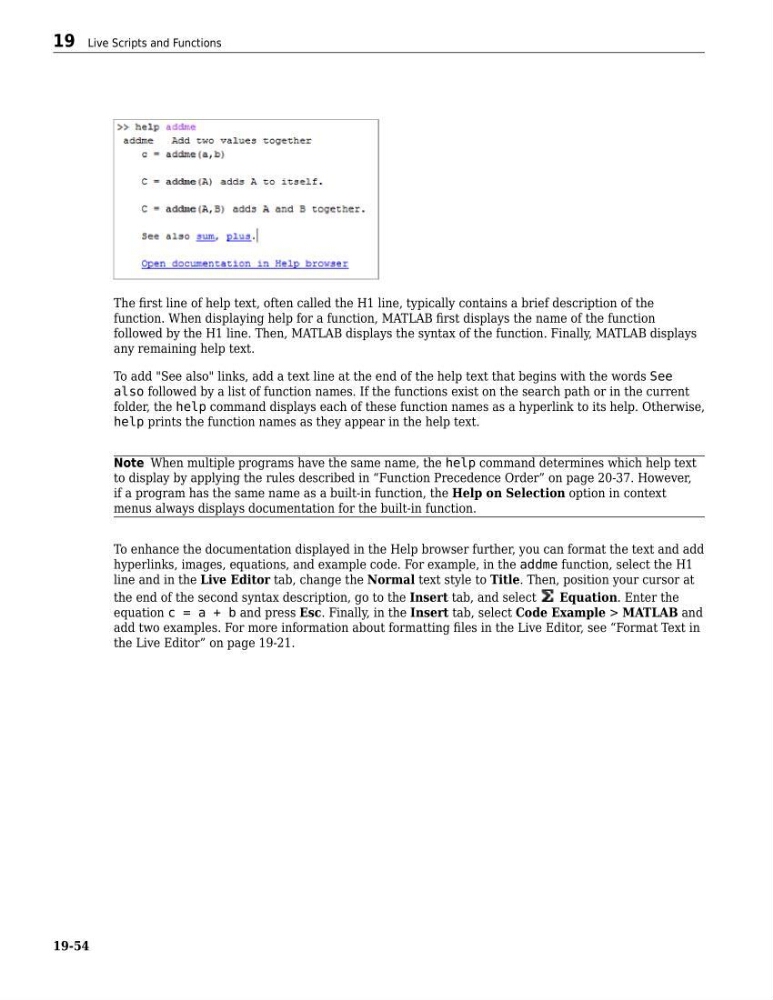
The first line of help text, often called the H1 line, typically contains a brief description of the
function. When displaying help for a function, MATLAB first displays the name of the function
followed by the H1 line. Then, MATLAB displays the syntax of the function. Finally, MATLAB displays
any remaining help text.
To add "See also" links, add a text line at the end of the help text that begins with the words See
also followed by a list of function names. If the functions exist on the search path or in the current
folder, the help command displays each of these function names as a hyperlink to its help. Otherwise,
help prints the function names as they appear in the help text.
Note When multiple programs have the same name, the help command determines which help text
to display by applying the rules described in “Function Precedence Order” on page 20-37. However,
if a program has the same name as a built-in function, the Help on Selection option in context
menus always displays documentation for the built-in function.
To enhance the documentation displayed in the Help browser further, you can format the text and add
hyperlinks, images, equations, and example code. For example, in the addme function, select the H1
line and in the Live Editor tab, change the Normal text style to Title. Then, position your cursor at
the end of the second syntax description, go to the Insert tab, and select
Equation. Enter the
equation c = a + b and press Esc. Finally, in the Insert tab, select Code Example > MATLAB and
add two examples. For more information about formatting files in the Live Editor, see “Format Text in
the Live Editor” on page 19-21.
19 Live Scripts and Functions
19-54
function. When displaying help for a function, MATLAB first displays the name of the function
followed by the H1 line. Then, MATLAB displays the syntax of the function. Finally, MATLAB displays
any remaining help text.
To add "See also" links, add a text line at the end of the help text that begins with the words See
also followed by a list of function names. If the functions exist on the search path or in the current
folder, the help command displays each of these function names as a hyperlink to its help. Otherwise,
help prints the function names as they appear in the help text.
Note When multiple programs have the same name, the help command determines which help text
to display by applying the rules described in “Function Precedence Order” on page 20-37. However,
if a program has the same name as a built-in function, the Help on Selection option in context
menus always displays documentation for the built-in function.
To enhance the documentation displayed in the Help browser further, you can format the text and add
hyperlinks, images, equations, and example code. For example, in the addme function, select the H1
line and in the Live Editor tab, change the Normal text style to Title. Then, position your cursor at
the end of the second syntax description, go to the Insert tab, and select
Equation. Enter the
equation c = a + b and press Esc. Finally, in the Insert tab, select Code Example > MATLAB and
add two examples. For more information about formatting files in the Live Editor, see “Format Text in
the Live Editor” on page 19-21.
19 Live Scripts and Functions
19-54