

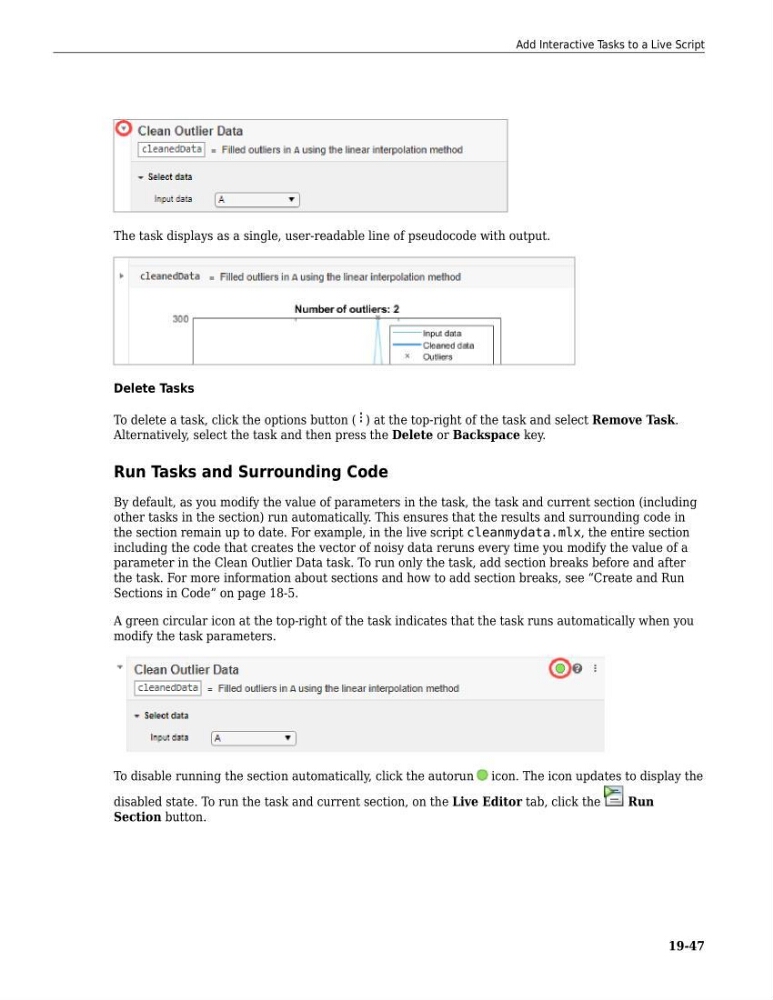
The task displays as a single, user-readable line of pseudocode with output.
Delete Tasks
To delete a task, click the options button ( ) at the top-right of the task and select Remove Task.
Alternatively, select the task and then press the Delete or Backspace key.
Run Tasks and Surrounding Code
By default, as you modify the value of parameters in the task, the task and current section (including
other tasks in the section) run automatically. This ensures that the results and surrounding code in
the section remain up to date. For example, in the live script cleanmydata.mlx, the entire section
including the code that creates the vector of noisy data reruns every time you modify the value of a
parameter in the Clean Outlier Data task. To run only the task, add section breaks before and after
the task. For more information about sections and how to add section breaks, see “Create and Run
Sections in Code” on page 18-5.
A green circular icon at the top-right of the task indicates that the task runs automatically when you
modify the task parameters.
To disable running the section automatically, click the autorun icon. The icon updates to display the
disabled state. To run the task and current section, on the Live Editor tab, click the
Run
Section button.
Add Interactive Tasks to a Live Script
19-47
Delete Tasks
To delete a task, click the options button ( ) at the top-right of the task and select Remove Task.
Alternatively, select the task and then press the Delete or Backspace key.
Run Tasks and Surrounding Code
By default, as you modify the value of parameters in the task, the task and current section (including
other tasks in the section) run automatically. This ensures that the results and surrounding code in
the section remain up to date. For example, in the live script cleanmydata.mlx, the entire section
including the code that creates the vector of noisy data reruns every time you modify the value of a
parameter in the Clean Outlier Data task. To run only the task, add section breaks before and after
the task. For more information about sections and how to add section breaks, see “Create and Run
Sections in Code” on page 18-5.
A green circular icon at the top-right of the task indicates that the task runs automatically when you
modify the task parameters.
To disable running the section automatically, click the autorun icon. The icon updates to display the
disabled state. To run the task and current section, on the Live Editor tab, click the
Run
Section button.
Add Interactive Tasks to a Live Script
19-47