

Format Text in the Live Editor
You can add formatted text, hyperlinks, images, and equations to your live scripts and functions to
create a presentable document to share with others.
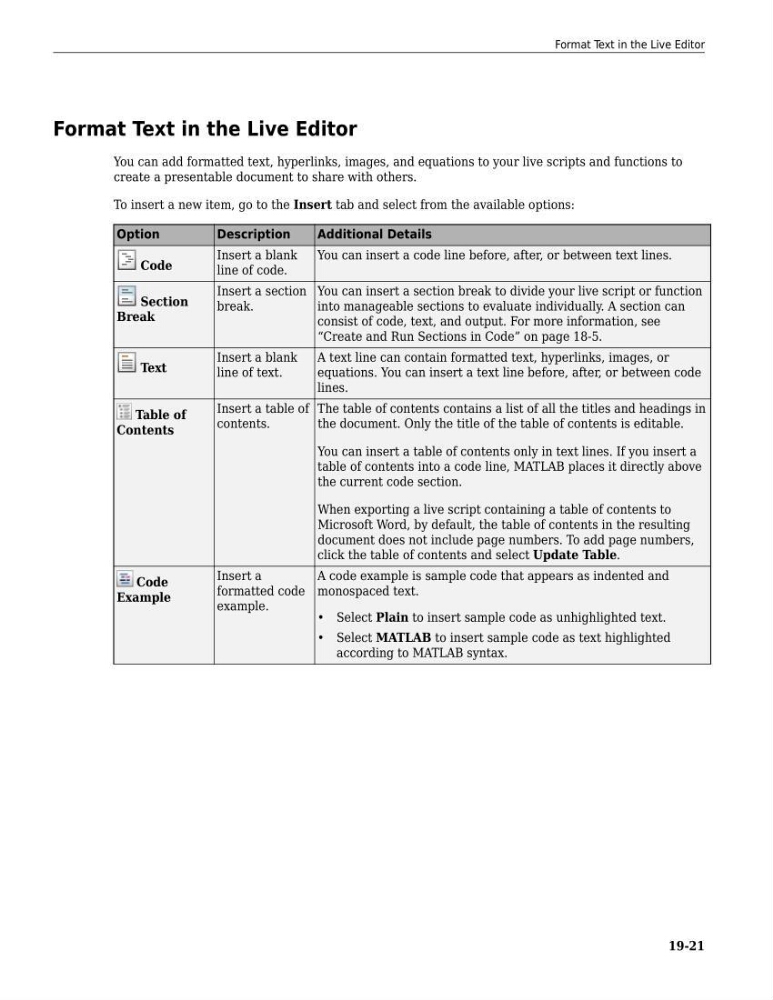
To insert a new item, go to the Insert tab and select from the available options:
Option
Description
Additional Details
Code
Insert a blank
line of code.
You can insert a code line before, after, or between text lines.
Section
Break
Insert a section
break.
You can insert a section break to divide your live script or function
into manageable sections to evaluate individually. A section can
consist of code, text, and output. For more information, see
“Create and Run Sections in Code” on page 18-5.
Text
Insert a blank
line of text.
A text line can contain formatted text, hyperlinks, images, or
equations. You can insert a text line before, after, or between code
lines.
Table of
Contents
Insert a table of
contents.
The table of contents contains a list of all the titles and headings in
the document. Only the title of the table of contents is editable.
You can insert a table of contents only in text lines. If you insert a
table of contents into a code line, MATLAB places it directly above
the current code section.
When exporting a live script containing a table of contents to
Microsoft Word, by default, the table of contents in the resulting
document does not include page numbers. To add page numbers,
click the table of contents and select Update Table.
Code
Example
Insert a
formatted code
example.
A code example is sample code that appears as indented and
monospaced text.
• Select Plain to insert sample code as unhighlighted text.
• Select MATLAB to insert sample code as text highlighted
according to MATLAB syntax.
Format Text in the Live Editor
19-21
You can add formatted text, hyperlinks, images, and equations to your live scripts and functions to
create a presentable document to share with others.
To insert a new item, go to the Insert tab and select from the available options:
Option
Description
Additional Details
Code
Insert a blank
line of code.
You can insert a code line before, after, or between text lines.
Section
Break
Insert a section
break.
You can insert a section break to divide your live script or function
into manageable sections to evaluate individually. A section can
consist of code, text, and output. For more information, see
“Create and Run Sections in Code” on page 18-5.
Text
Insert a blank
line of text.
A text line can contain formatted text, hyperlinks, images, or
equations. You can insert a text line before, after, or between code
lines.
Table of
Contents
Insert a table of
contents.
The table of contents contains a list of all the titles and headings in
the document. Only the title of the table of contents is editable.
You can insert a table of contents only in text lines. If you insert a
table of contents into a code line, MATLAB places it directly above
the current code section.
When exporting a live script containing a table of contents to
Microsoft Word, by default, the table of contents in the resulting
document does not include page numbers. To add page numbers,
click the table of contents and select Update Table.
Code
Example
Insert a
formatted code
example.
A code example is sample code that appears as indented and
monospaced text.
• Select Plain to insert sample code as unhighlighted text.
• Select MATLAB to insert sample code as text highlighted
according to MATLAB syntax.
Format Text in the Live Editor
19-21