

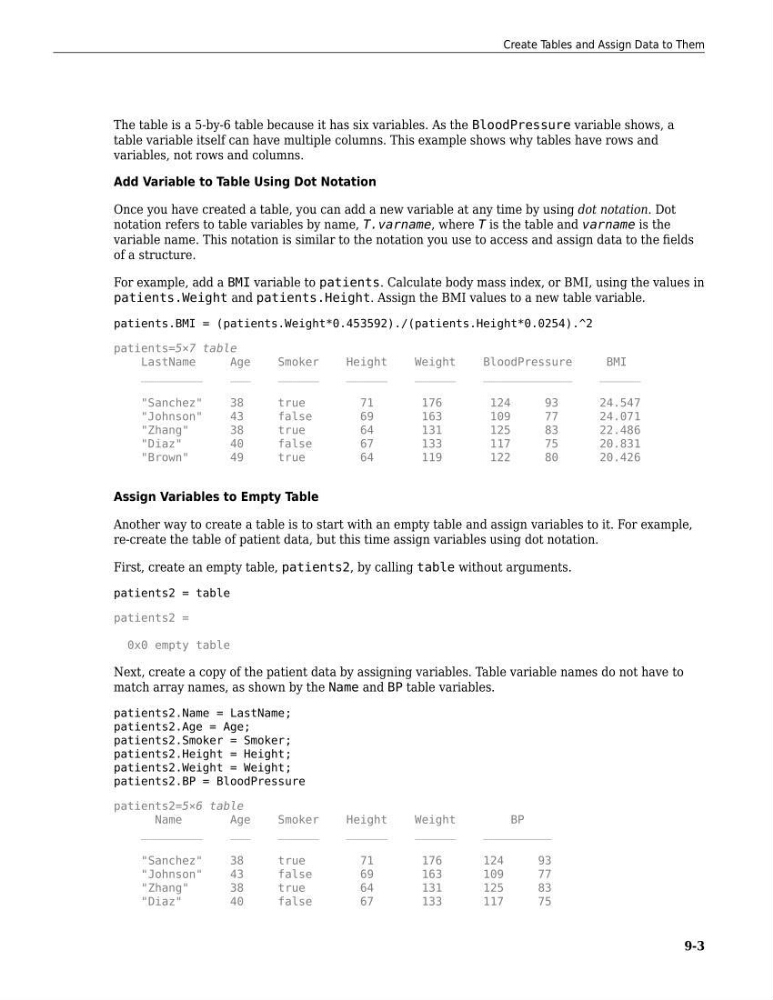
The table is a 5-by-6 table because it has six variables. As the BloodPressure variable shows, a
table variable itself can have multiple columns. This example shows why tables have rows and
variables, not rows and columns.
Add Variable to Table Using Dot Notation
Once you have created a table, you can add a new variable at any time by using dot notation. Dot
notation refers to table variables by name, T.varname, where T is the table and varname is the
variable name. This notation is similar to the notation you use to access and assign data to the fields
of a structure.
For example, add a BMI variable to patients. Calculate body mass index, or BMI, using the values in
patients.Weight and patients.Height. Assign the BMI values to a new table variable.
patients.BMI = (patients.Weight*0.453592)./(patients.Height*0.0254).^2
patients=5×7 table
LastName
Age
Smoker
Height
Weight
BloodPressure
BMI
_________
___
______
______
______
_____________
______
"Sanchez"
38
true
71
176
124
93
24.547
"Johnson"
43
false
69
163
109
77
24.071
"Zhang"
38
true
64
131
125
83
22.486
"Diaz"
40
false
67
133
117
75
20.831
"Brown"
49
true
64
119
122
80
20.426
Assign Variables to Empty Table
Another way to create a table is to start with an empty table and assign variables to it. For example,
re-create the table of patient data, but this time assign variables using dot notation.
First, create an empty table, patients2, by calling table without arguments.
patients2 = table
patients2 =
0x0 empty table
Next, create a copy of the patient data by assigning variables. Table variable names do not have to
match array names, as shown by the Name and BP table variables.
patients2.Name = LastName;
patients2.Age = Age;
patients2.Smoker = Smoker;
patients2.Height = Height;
patients2.Weight = Weight;
patients2.BP = BloodPressure
patients2=5×6 table
Name
Age
Smoker
Height
Weight
BP
_________
___
______
______
______
__________
"Sanchez"
38
true
71
176
124
93
"Johnson"
43
false
69
163
109
77
"Zhang"
38
true
64
131
125
83
"Diaz"
40
false
67
133
117
75
Create Tables and Assign Data to Them
9-3
table variable itself can have multiple columns. This example shows why tables have rows and
variables, not rows and columns.
Add Variable to Table Using Dot Notation
Once you have created a table, you can add a new variable at any time by using dot notation. Dot
notation refers to table variables by name, T.varname, where T is the table and varname is the
variable name. This notation is similar to the notation you use to access and assign data to the fields
of a structure.
For example, add a BMI variable to patients. Calculate body mass index, or BMI, using the values in
patients.Weight and patients.Height. Assign the BMI values to a new table variable.
patients.BMI = (patients.Weight*0.453592)./(patients.Height*0.0254).^2
patients=5×7 table
LastName
Age
Smoker
Height
Weight
BloodPressure
BMI
_________
___
______
______
______
_____________
______
"Sanchez"
38
true
71
176
124
93
24.547
"Johnson"
43
false
69
163
109
77
24.071
"Zhang"
38
true
64
131
125
83
22.486
"Diaz"
40
false
67
133
117
75
20.831
"Brown"
49
true
64
119
122
80
20.426
Assign Variables to Empty Table
Another way to create a table is to start with an empty table and assign variables to it. For example,
re-create the table of patient data, but this time assign variables using dot notation.
First, create an empty table, patients2, by calling table without arguments.
patients2 = table
patients2 =
0x0 empty table
Next, create a copy of the patient data by assigning variables. Table variable names do not have to
match array names, as shown by the Name and BP table variables.
patients2.Name = LastName;
patients2.Age = Age;
patients2.Smoker = Smoker;
patients2.Height = Height;
patients2.Weight = Weight;
patients2.BP = BloodPressure
patients2=5×6 table
Name
Age
Smoker
Height
Weight
BP
_________
___
______
______
______
__________
"Sanchez"
38
true
71
176
124
93
"Johnson"
43
false
69
163
109
77
"Zhang"
38
true
64
131
125
83
"Diaz"
40
false
67
133
117
75
Create Tables and Assign Data to Them
9-3