

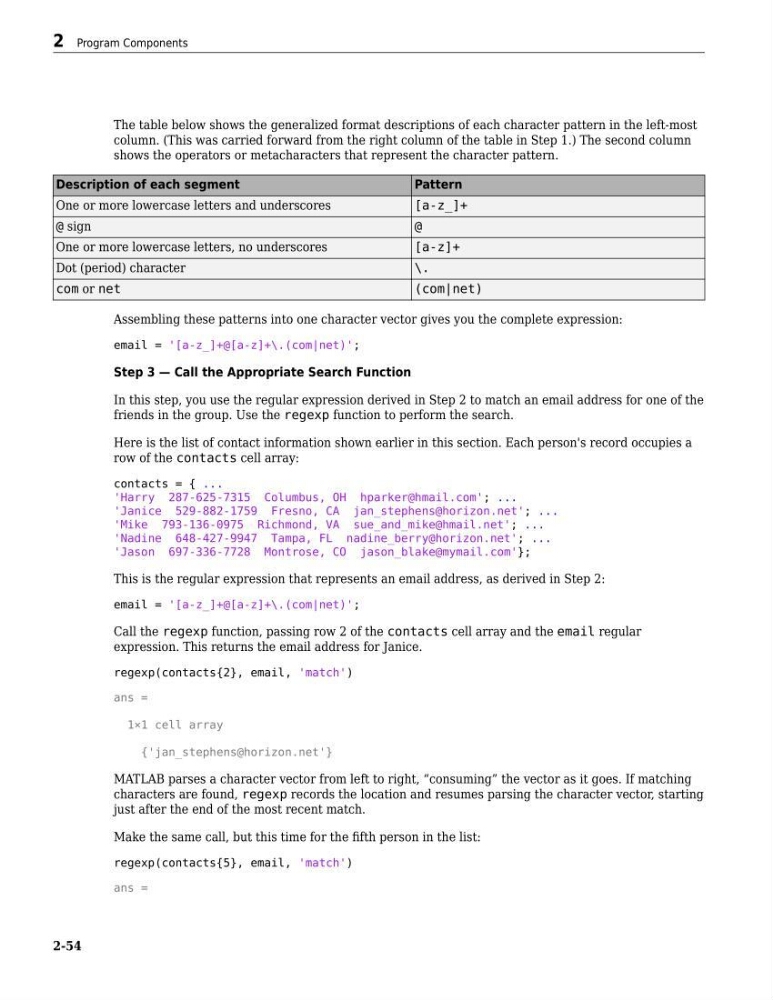
The table below shows the generalized format descriptions of each character pattern in the left-most
column. (This was carried forward from the right column of the table in Step 1.) The second column
shows the operators or metacharacters that represent the character pattern.
Description of each segment
Pattern
One or more lowercase letters and underscores
[a-z_]+
@ sign
@
One or more lowercase letters, no underscores
[a-z]+
Dot (period) character
\.
com or net
(com|net)
Assembling these patterns into one character vector gives you the complete expression:
email = '[a-z_]+@[a-z]+\.(com|net)';
Step 3 — Call the Appropriate Search Function
In this step, you use the regular expression derived in Step 2 to match an email address for one of the
friends in the group. Use the regexp function to perform the search.
Here is the list of contact information shown earlier in this section. Each person's record occupies a
row of the contacts cell array:
contacts = { ...
'Harry 287-625-7315 Columbus, OH hparker@hmail.com'; ...
'Janice 529-882-1759 Fresno, CA jan_stephens@horizon.net'; ...
'Mike 793-136-0975 Richmond, VA sue_and_mike@hmail.net'; ...
'Nadine 648-427-9947 Tampa, FL nadine_berry@horizon.net'; ...
'Jason 697-336-7728 Montrose, CO jason_blake@mymail.com'};
This is the regular expression that represents an email address, as derived in Step 2:
email = '[a-z_]+@[a-z]+\.(com|net)';
Call the regexp function, passing row 2 of the contacts cell array and the email regular
expression. This returns the email address for Janice.
regexp(contacts{2}, email, 'match')
ans =
1×1 cell array
{'jan_stephens@horizon.net'}
MATLAB parses a character vector from left to right, “consuming” the vector as it goes. If matching
characters are found, regexp records the location and resumes parsing the character vector, starting
just after the end of the most recent match.
Make the same call, but this time for the fifth person in the list:
regexp(contacts{5}, email, 'match')
ans =
2 Program Components
2-54
column. (This was carried forward from the right column of the table in Step 1.) The second column
shows the operators or metacharacters that represent the character pattern.
Description of each segment
Pattern
One or more lowercase letters and underscores
[a-z_]+
@ sign
@
One or more lowercase letters, no underscores
[a-z]+
Dot (period) character
\.
com or net
(com|net)
Assembling these patterns into one character vector gives you the complete expression:
email = '[a-z_]+@[a-z]+\.(com|net)';
Step 3 — Call the Appropriate Search Function
In this step, you use the regular expression derived in Step 2 to match an email address for one of the
friends in the group. Use the regexp function to perform the search.
Here is the list of contact information shown earlier in this section. Each person's record occupies a
row of the contacts cell array:
contacts = { ...
'Harry 287-625-7315 Columbus, OH hparker@hmail.com'; ...
'Janice 529-882-1759 Fresno, CA jan_stephens@horizon.net'; ...
'Mike 793-136-0975 Richmond, VA sue_and_mike@hmail.net'; ...
'Nadine 648-427-9947 Tampa, FL nadine_berry@horizon.net'; ...
'Jason 697-336-7728 Montrose, CO jason_blake@mymail.com'};
This is the regular expression that represents an email address, as derived in Step 2:
email = '[a-z_]+@[a-z]+\.(com|net)';
Call the regexp function, passing row 2 of the contacts cell array and the email regular
expression. This returns the email address for Janice.
regexp(contacts{2}, email, 'match')
ans =
1×1 cell array
{'jan_stephens@horizon.net'}
MATLAB parses a character vector from left to right, “consuming” the vector as it goes. If matching
characters are found, regexp records the location and resumes parsing the character vector, starting
just after the end of the most recent match.
Make the same call, but this time for the fifth person in the list:
regexp(contacts{5}, email, 'match')
ans =
2 Program Components
2-54