

145
exported from different BIM and CAD programs. In the case of an excel file, after
it is brought in, Athena looks for four basic parameters in the data: what material it
is, what assembly group it belongs to, what quantity of material there is, and what
unit this quantity is in. All of this information is then mapped to existing parameters
in Athena and then added to the corresponding assembly group as additional materials, or just generically to the project. This can be a time-saving method to use Athena
in tandem with Revit or other BIM software.
Athena provides users with the option to quickly reference the impacts of different assemblies in the project tree. The user can display the impacts of different
assemblies as either a percentage or value right in the project tree for the selected
environmental impact category. This useful feature allows a designer to quickly see
the most impactful elements of their design, in one impact category, as they add
information about their project.
8.4.2.4 View Results
While displaying the impacts in one category in the project tree is a quick way to
identify and test targeted results of the study, the full results of the study can be
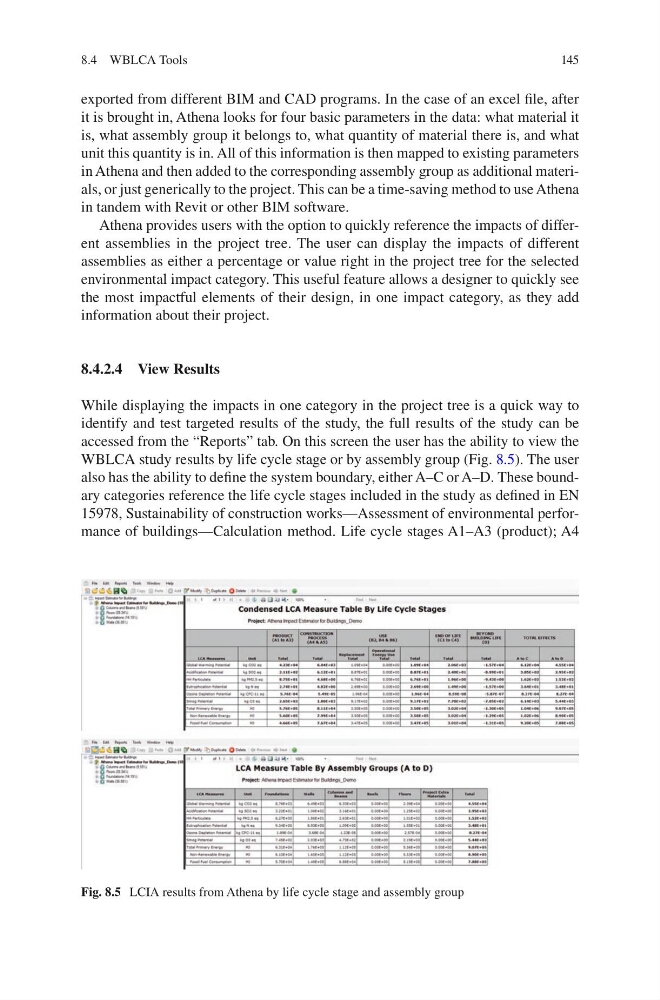
accessed from the “Reports” tab. On this screen the user has the ability to view the
WBLCA study results by life cycle stage or by assembly group (Fig. 8.5). The user
also has the ability to define the system boundary, either A–C or A–D. These boundary categories reference the life cycle stages included in the study as defined in EN
15978, Sustainability of construction works—Assessment of environmental performance of buildings—Calculation method. Life cycle stages A1–A3 (product); A4
Fig. 8.5 LCIA results from Athena by life cycle stage and assembly group
8.4 WBLCA Tools
exported from different BIM and CAD programs. In the case of an excel file, after
it is brought in, Athena looks for four basic parameters in the data: what material it
is, what assembly group it belongs to, what quantity of material there is, and what
unit this quantity is in. All of this information is then mapped to existing parameters
in Athena and then added to the corresponding assembly group as additional materials, or just generically to the project. This can be a time-saving method to use Athena
in tandem with Revit or other BIM software.
Athena provides users with the option to quickly reference the impacts of different assemblies in the project tree. The user can display the impacts of different
assemblies as either a percentage or value right in the project tree for the selected
environmental impact category. This useful feature allows a designer to quickly see
the most impactful elements of their design, in one impact category, as they add
information about their project.
8.4.2.4 View Results
While displaying the impacts in one category in the project tree is a quick way to
identify and test targeted results of the study, the full results of the study can be
accessed from the “Reports” tab. On this screen the user has the ability to view the
WBLCA study results by life cycle stage or by assembly group (Fig. 8.5). The user
also has the ability to define the system boundary, either A–C or A–D. These boundary categories reference the life cycle stages included in the study as defined in EN
15978, Sustainability of construction works—Assessment of environmental performance of buildings—Calculation method. Life cycle stages A1–A3 (product); A4
Fig. 8.5 LCIA results from Athena by life cycle stage and assembly group
8.4 WBLCA Tools