

30
4.5
Use the Screen Capture Button
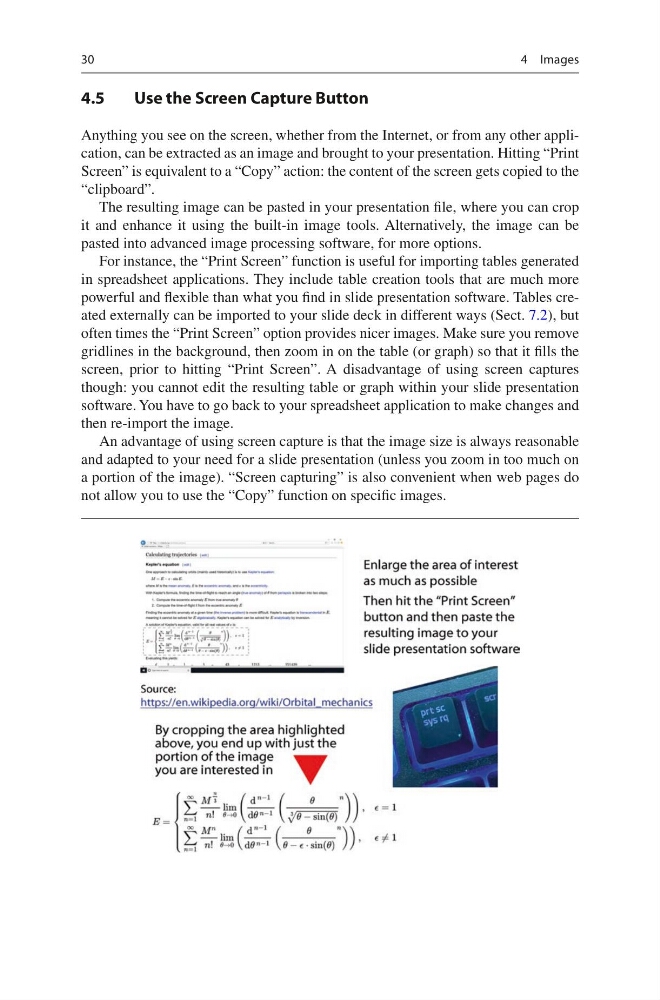
Anything you see on the screen, whether from the Internet, or from any other application, can be extracted as an image and brought to your presentation. Hitting “Print
Screen” is equivalent to a “Copy” action: the content of the screen gets copied to the
“clipboard”.
The resulting image can be pasted in your presentation file, where you can crop
it and enhance it using the built-in image tools. Alternatively, the image can be
pasted into advanced image processing software, for more options.
For instance, the “Print Screen” function is useful for importing tables generated
in spreadsheet applications. They include table creation tools that are much more
powerful and flexible than what you find in slide presentation software. Tables created externally can be imported to your slide deck in different ways (Sect. 7.2), but
often times the “Print Screen” option provides nicer images. Make sure you remove
gridlines in the background, then zoom in on the table (or graph) so that it fills the
screen, prior to hitting “Print Screen”. A disadvantage of using screen captures
though: you cannot edit the resulting table or graph within your slide presentation
software. You have to go back to your spreadsheet application to make changes and
then re-import the image.
An advantage of using screen capture is that the image size is always reasonable
and adapted to your need for a slide presentation (unless you zoom in too much on
a portion of the image). “Screen capturing” is also convenient when web pages do
not allow you to use the “Copy” function on specific images.
4 Images
4.5
Use the Screen Capture Button
Anything you see on the screen, whether from the Internet, or from any other application, can be extracted as an image and brought to your presentation. Hitting “Print
Screen” is equivalent to a “Copy” action: the content of the screen gets copied to the
“clipboard”.
The resulting image can be pasted in your presentation file, where you can crop
it and enhance it using the built-in image tools. Alternatively, the image can be
pasted into advanced image processing software, for more options.
For instance, the “Print Screen” function is useful for importing tables generated
in spreadsheet applications. They include table creation tools that are much more
powerful and flexible than what you find in slide presentation software. Tables created externally can be imported to your slide deck in different ways (Sect. 7.2), but
often times the “Print Screen” option provides nicer images. Make sure you remove
gridlines in the background, then zoom in on the table (or graph) so that it fills the
screen, prior to hitting “Print Screen”. A disadvantage of using screen captures
though: you cannot edit the resulting table or graph within your slide presentation
software. You have to go back to your spreadsheet application to make changes and
then re-import the image.
An advantage of using screen capture is that the image size is always reasonable
and adapted to your need for a slide presentation (unless you zoom in too much on
a portion of the image). “Screen capturing” is also convenient when web pages do
not allow you to use the “Copy” function on specific images.
4 Images