

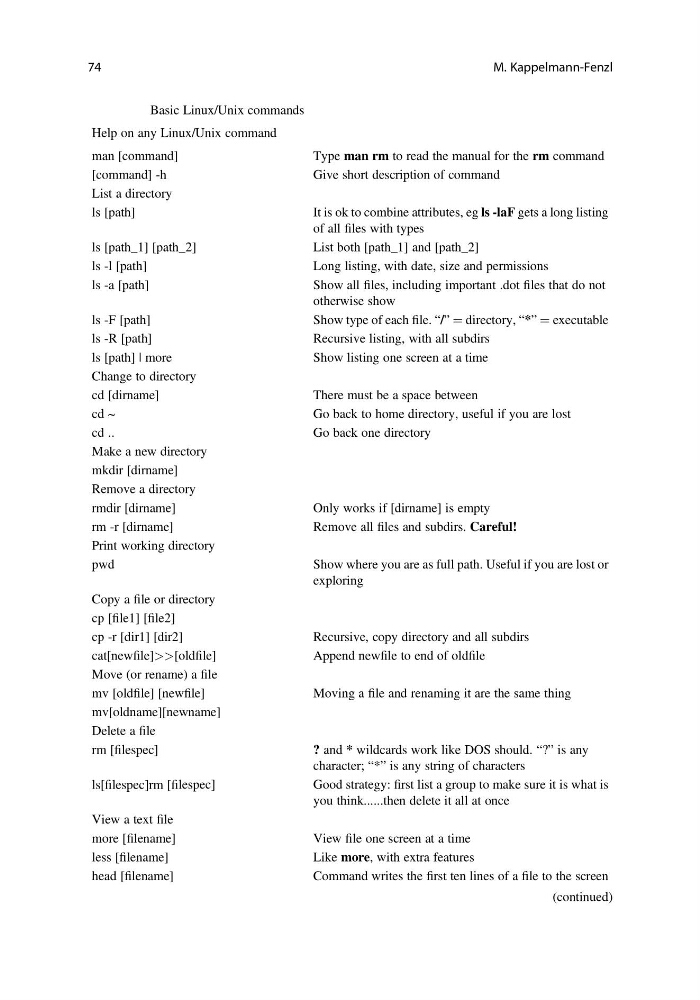
Table 6.1 Basic Linux/Unix commands
Help on any Linux/Unix command
man [command]
Type man rm to read the manual for the rm command
[command] -h
Give short description of command
List a directory
ls [path]
It is ok to combine attributes, eg ls -laF gets a long listing
of all files with types
ls [path_1] [path_2]
List both [path_1] and [path_2]
ls -l [path]
Long listing, with date, size and permissions
ls -a [path]
Show all files, including important .dot files that do not
otherwise show
ls -F [path]
Show type of each file. “/” ¼ directory, “*” ¼ executable
ls -R [path]
Recursive listing, with all subdirs
ls [path] | more
Show listing one screen at a time
Change to directory
cd [dirname]
There must be a space between
cd ~
Go back to home directory, useful if you are lost
cd ..
Go back one directory
Make a new directory
mkdir [dirname]
Remove a directory
rmdir [dirname]
Only works if [dirname] is empty
rm -r [dirname]
Remove all files and subdirs. Careful!
Print working directory
pwd
Show where you are as full path. Useful if you are lost or
exploring
Copy a file or directory
cp [file1] [file2]
cp -r [dir1] [dir2]
Recursive, copy directory and all subdirs
cat[newfile]>>[oldfile]
Append newfile to end of oldfile
Move (or rename) a file
mv [oldfile] [newfile]
Moving a file and renaming it are the same thing
mv[oldname][newname]
Delete a file
rm [filespec]
? and * wildcards work like DOS should. “?” is any
character; “*” is any string of characters
ls[filespec]rm [filespec]
Good strategy: first list a group to make sure it is what is
you think......then delete it all at once
View a text file
more [filename]
View file one screen at a time
less [filename]
Like more, with extra features
head [filename]
Command writes the first ten lines of a file to the screen
(continued)
74
M. Kappelmann-Fenzl
Help on any Linux/Unix command
man [command]
Type man rm to read the manual for the rm command
[command] -h
Give short description of command
List a directory
ls [path]
It is ok to combine attributes, eg ls -laF gets a long listing
of all files with types
ls [path_1] [path_2]
List both [path_1] and [path_2]
ls -l [path]
Long listing, with date, size and permissions
ls -a [path]
Show all files, including important .dot files that do not
otherwise show
ls -F [path]
Show type of each file. “/” ¼ directory, “*” ¼ executable
ls -R [path]
Recursive listing, with all subdirs
ls [path] | more
Show listing one screen at a time
Change to directory
cd [dirname]
There must be a space between
cd ~
Go back to home directory, useful if you are lost
cd ..
Go back one directory
Make a new directory
mkdir [dirname]
Remove a directory
rmdir [dirname]
Only works if [dirname] is empty
rm -r [dirname]
Remove all files and subdirs. Careful!
Print working directory
pwd
Show where you are as full path. Useful if you are lost or
exploring
Copy a file or directory
cp [file1] [file2]
cp -r [dir1] [dir2]
Recursive, copy directory and all subdirs
cat[newfile]>>[oldfile]
Append newfile to end of oldfile
Move (or rename) a file
mv [oldfile] [newfile]
Moving a file and renaming it are the same thing
mv[oldname][newname]
Delete a file
rm [filespec]
? and * wildcards work like DOS should. “?” is any
character; “*” is any string of characters
ls[filespec]rm [filespec]
Good strategy: first list a group to make sure it is what is
you think......then delete it all at once
View a text file
more [filename]
View file one screen at a time
less [filename]
Like more, with extra features
head [filename]
Command writes the first ten lines of a file to the screen
(continued)
74
M. Kappelmann-Fenzl