

23
Introduction to Geospatial Concepts and Google Earth
1. From the GE toolbar, select the Add Placemark button:
2. A yellow pushpin (labeled “Untitled Placemark”) will appear on the
screen. Using your mouse, click on the pushpin and drag it to the rear
of the amphitheater so that the pin of the placemark is where the path
meets the amphitheater.
3. In the Google Earth New Placemark dialog box, type the name “Mount
Rushmore Amphitheater.”
4. By pressing the Placemark icon button next to where you typed the
name, you can select a different icon rather than the yellow pushpin.
Choose something more distinctive.
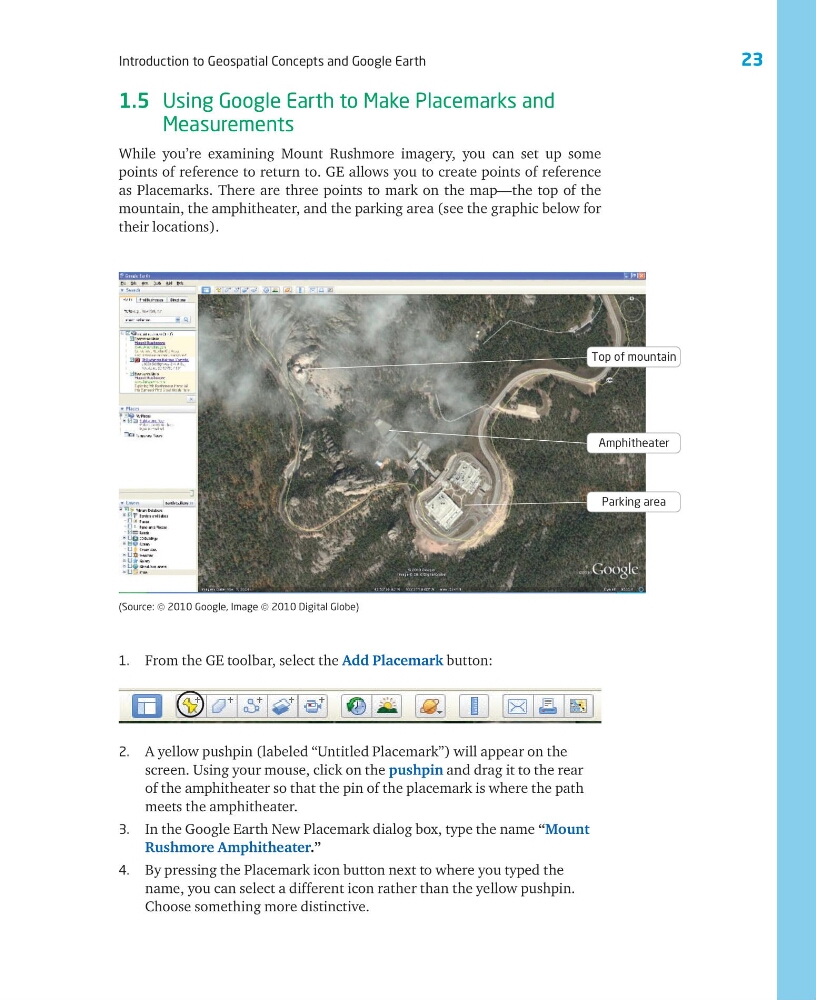
(Source: © 2010 Google, Image © 2010 Digital Globe)
Amphitheater
Parking area
Top of mountain
1.5 Using Google Earth to Make Placemarks and
Measurements
While you’re examining Mount Rushmore imagery, you can set up some
points of reference to return to. GE allows you to create points of reference
as Placemarks. There are three points to mark on the map—the top of the
mountain, the amphitheater, and the parking area (see the graphic below for
their locations).
Introduction to Geospatial Concepts and Google Earth
1. From the GE toolbar, select the Add Placemark button:
2. A yellow pushpin (labeled “Untitled Placemark”) will appear on the
screen. Using your mouse, click on the pushpin and drag it to the rear
of the amphitheater so that the pin of the placemark is where the path
meets the amphitheater.
3. In the Google Earth New Placemark dialog box, type the name “Mount
Rushmore Amphitheater.”
4. By pressing the Placemark icon button next to where you typed the
name, you can select a different icon rather than the yellow pushpin.
Choose something more distinctive.
(Source: © 2010 Google, Image © 2010 Digital Globe)
Amphitheater
Parking area
Top of mountain
1.5 Using Google Earth to Make Placemarks and
Measurements
While you’re examining Mount Rushmore imagery, you can set up some
points of reference to return to. GE allows you to create points of reference
as Placemarks. There are three points to mark on the map—the top of the
mountain, the amphitheater, and the parking area (see the graphic below for
their locations).