

246
Chapter 8 Getting There Quicker with Geospatial Technology
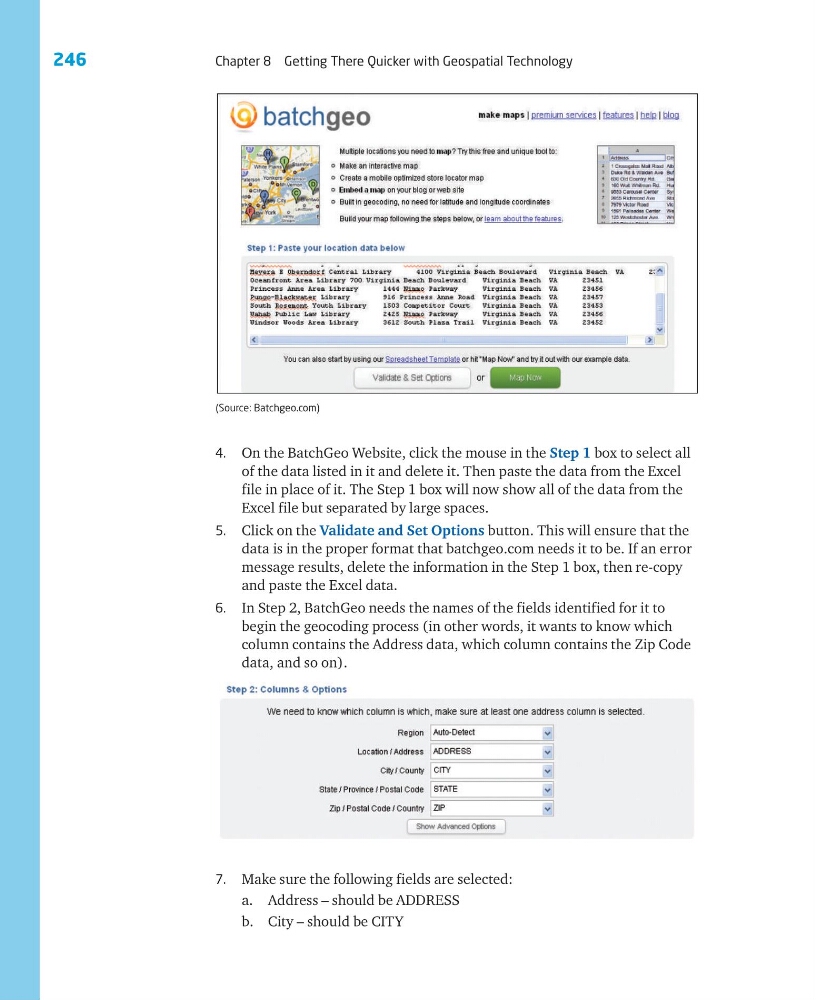
4. On the BatchGeo Website, click the mouse in the Step 1 box to select all
of the data listed in it and delete it. Then paste the data from the Excel
file in place of it. The Step 1 box will now show all of the data from the
Excel file but separated by large spaces.
5. Click on the Validate and Set Options button. This will ensure that the
data is in the proper format that batchgeo.com needs it to be. If an error
message results, delete the information in the Step 1 box, then re-copy
and paste the Excel data.
6. In Step 2, BatchGeo needs the names of the fields identified for it to
begin the geocoding process (in other words, it wants to know which
column contains the Address data, which column contains the Zip Code
data, and so on).
(Source: Batchgeo.com)
7. Make sure the following fields are selected:
a. Address – should be ADDRESS
b. City – should be CITY
Chapter 8 Getting There Quicker with Geospatial Technology
4. On the BatchGeo Website, click the mouse in the Step 1 box to select all
of the data listed in it and delete it. Then paste the data from the Excel
file in place of it. The Step 1 box will now show all of the data from the
Excel file but separated by large spaces.
5. Click on the Validate and Set Options button. This will ensure that the
data is in the proper format that batchgeo.com needs it to be. If an error
message results, delete the information in the Step 1 box, then re-copy
and paste the Excel data.
6. In Step 2, BatchGeo needs the names of the fields identified for it to
begin the geocoding process (in other words, it wants to know which
column contains the Address data, which column contains the Zip Code
data, and so on).
(Source: Batchgeo.com)
7. Make sure the following fields are selected:
a. Address – should be ADDRESS
b. City – should be CITY