

209
GIS Layouts: AEJEE Version
7.11 Printing the Layout
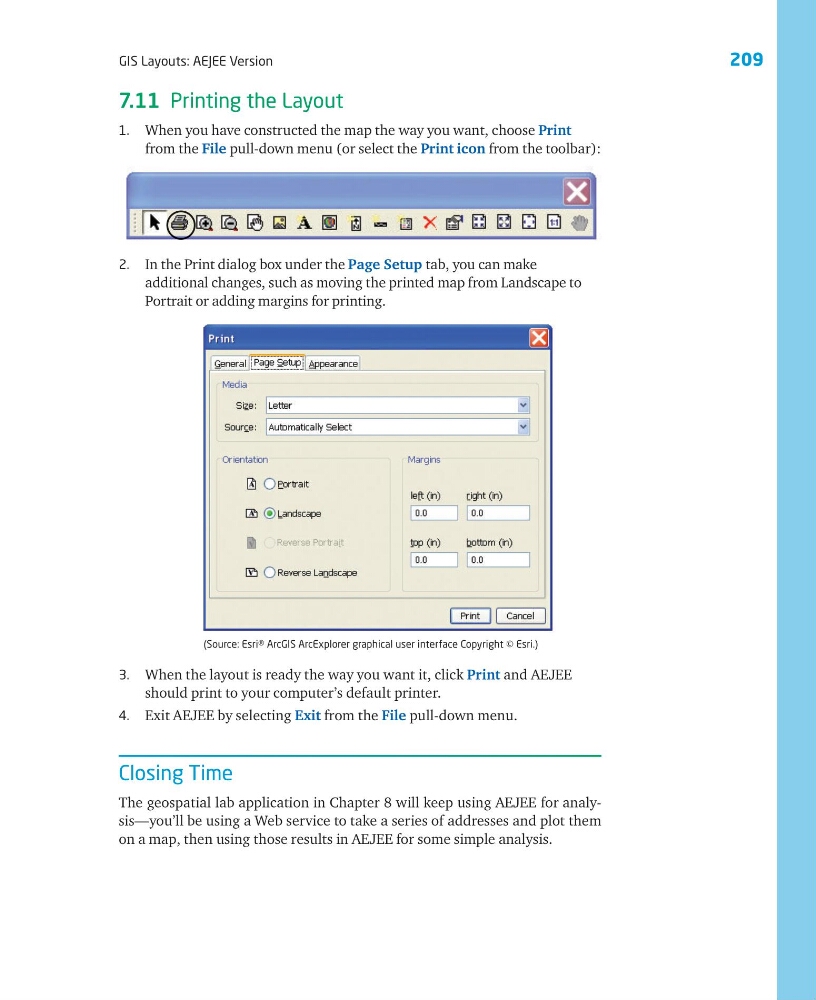
1. When you have constructed the map the way you want, choose Print
from the File pull-down menu (or select the Print icon from the toolbar):
2. In the Print dialog box under the Page Setup tab, you can make
additional changes, such as moving the printed map from Landscape to
Portrait or adding margins for printing.
3. When the layout is ready the way you want it, click Print and AEJEE
should print to your computer’s default printer.
4. Exit AEJEE by selecting Exit from the File pull-down menu.
Closing Time
The geospatial lab application in Chapter 8 will keep using AEJEE for analysis—you’ll be using a Web service to take a series of addresses and plot them
on a map, then using those results in AEJEE for some simple analysis.
(Source: Esri® ArcGIS ArcExplorer graphical user interface Copyright © Esri.)
GIS Layouts: AEJEE Version
7.11 Printing the Layout
1. When you have constructed the map the way you want, choose Print
from the File pull-down menu (or select the Print icon from the toolbar):
2. In the Print dialog box under the Page Setup tab, you can make
additional changes, such as moving the printed map from Landscape to
Portrait or adding margins for printing.
3. When the layout is ready the way you want it, click Print and AEJEE
should print to your computer’s default printer.
4. Exit AEJEE by selecting Exit from the File pull-down menu.
Closing Time
The geospatial lab application in Chapter 8 will keep using AEJEE for analysis—you’ll be using a Web service to take a series of addresses and plot them
on a map, then using those results in AEJEE for some simple analysis.
(Source: Esri® ArcGIS ArcExplorer graphical user interface Copyright © Esri.)