

270
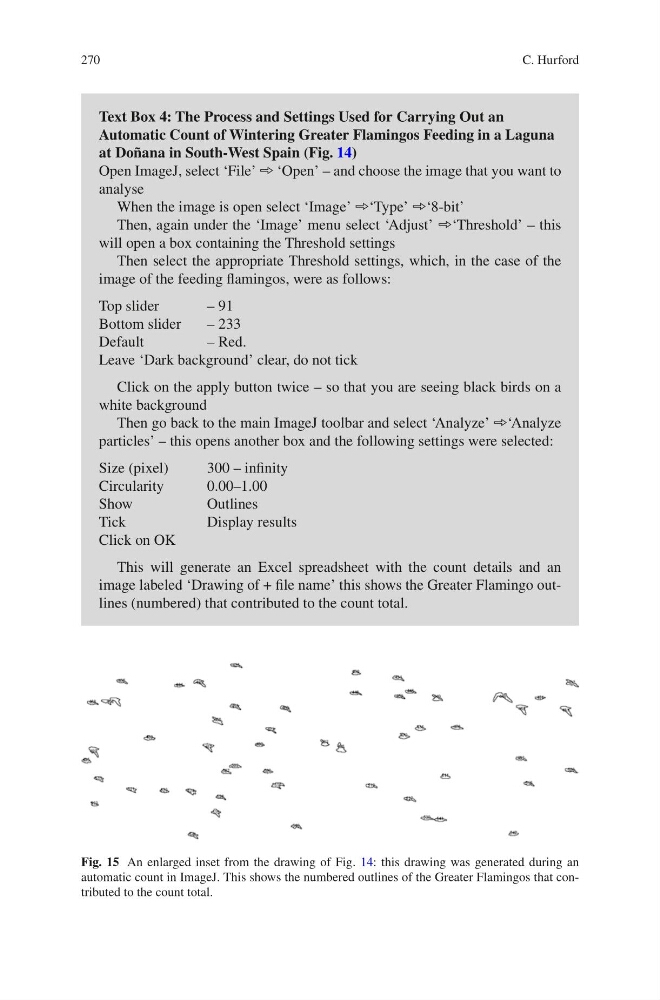
Fig. 15 An enlarged inset from the drawing of Fig. 14: this drawing was generated during an
automatic count in ImageJ. This shows the numbered outlines of the Greater Flamingos that contributed to the count total.
Text Box 4: The Process and Settings Used for Carrying Out an
Automatic Count of Wintering Greater Flamingos Feeding in a Laguna
at Doñana in South-West Spain (Fig. 14)
Open ImageJ, select ‘File’ ➾ ‘Open’ – and choose the image that you want to
analyse
When the image is open select ‘Image’ ➾‘Type’ ➾‘8-bit’
Then, again under the ‘Image’ menu select ‘Adjust’ ➾‘Threshold’ – this
will open a box containing the Threshold settings
Then select the appropriate Threshold settings, which, in the case of the
image of the feeding flamingos, were as follows:
Top slider
– 91
Bottom slider
– 233
Default
– Red.
Leave ‘Dark background’ clear, do not tick
Click on the apply button twice – so that you are seeing black birds on a
white background
Then go back to the main ImageJ toolbar and select ‘Analyze’ ➾‘Analyze
particles’ – this opens another box and the following settings were selected:
Size (pixel)
300 – infinity
Circularity
0.00–1.00
Show
Outlines
Tick
Display results
Click on OK
This will generate an Excel spreadsheet with the count details and an
image labeled ‘Drawing of + file name’ this shows the Greater Flamingo outlines (numbered) that contributed to the count total.
C. Hurford
Fig. 15 An enlarged inset from the drawing of Fig. 14: this drawing was generated during an
automatic count in ImageJ. This shows the numbered outlines of the Greater Flamingos that contributed to the count total.
Text Box 4: The Process and Settings Used for Carrying Out an
Automatic Count of Wintering Greater Flamingos Feeding in a Laguna
at Doñana in South-West Spain (Fig. 14)
Open ImageJ, select ‘File’ ➾ ‘Open’ – and choose the image that you want to
analyse
When the image is open select ‘Image’ ➾‘Type’ ➾‘8-bit’
Then, again under the ‘Image’ menu select ‘Adjust’ ➾‘Threshold’ – this
will open a box containing the Threshold settings
Then select the appropriate Threshold settings, which, in the case of the
image of the feeding flamingos, were as follows:
Top slider
– 91
Bottom slider
– 233
Default
– Red.
Leave ‘Dark background’ clear, do not tick
Click on the apply button twice – so that you are seeing black birds on a
white background
Then go back to the main ImageJ toolbar and select ‘Analyze’ ➾‘Analyze
particles’ – this opens another box and the following settings were selected:
Size (pixel)
300 – infinity
Circularity
0.00–1.00
Show
Outlines
Tick
Display results
Click on OK
This will generate an Excel spreadsheet with the count details and an
image labeled ‘Drawing of + file name’ this shows the Greater Flamingo outlines (numbered) that contributed to the count total.
C. Hurford